Platform admins
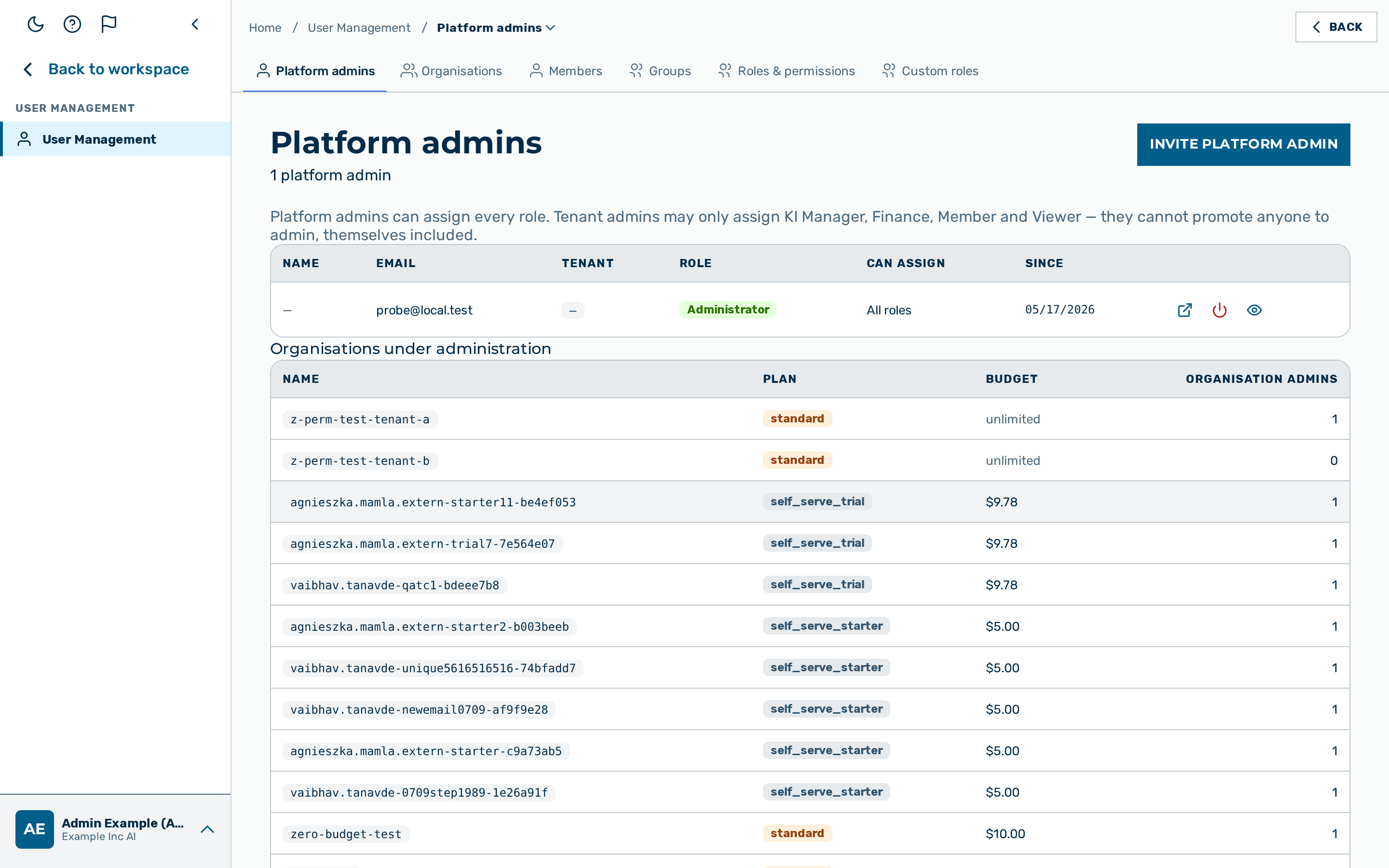 The Platform admins tab, with the platform-admin table and the organisations-under-administration list.
Description
The Platform admins view lists only your own organisation's platform administrators —
accounts holding the platform Administrator role (admin), which is a platform-wide,
tenant-less role. It is the Platform admins tab of User Management, reached from the
user-block menu at the bottom of the left sidebar → User Management → Platform admins, and
is platform admin only.
A customer's Tenant Administrator (tenant_admin) is an admin within one tenant, not a
platform admin, so tenant admins do not appear here — nor do the ki_manager, finance,
member, or viewer ranks. See Members to manage a tenant's own users. This keeps
the view an accurate answer to "how many people have platform-wide access to Myra?" for an access
review or audit (it previously listed every customer's Tenant Administrators too).
The table shows the following columns:
| Column | Description |
|---|---|
| Name | The display name of the administrator, if set |
| The email address of the administrator | |
| Tenant | The administrator's home tenant — a platform admin is tenant-less, shown as — |
| Role | admin (Administrator) — the platform-wide role |
| Can assign | The set of roles this administrator may grant to others (see Can assign) |
| Since | The account creation timestamp |
Open an administrator's detail panel via the open action icon on the row, exactly as on the
Members view (both views share the same /users/{id} detail page).
Can assign
The Can assign column shows what each row's own role tier may grant — computed server-side
from the same authority (ASSIGNABLE_ROLES) that enforces every actual role-assignment attempt,
never a client-side approximation:
- Every row here is a platform
admin, so the column shows All roles — a platform admin may assign any of the 7 system roles, includingadmin,tenant_admin, anddemouser. - (Tenant Administrators, who may grant only up to AI Manager / Finance / Member / Viewer, are managed per tenant on the Members view — they do not appear on this table.)
💡 Note: Platform admins can assign every role. Tenant admins may only assign AI Manager, Finance, Member, and Viewer — they cannot promote anyone to admin, themselves included. No role-assignment change enters an approval queue today; the Can assign ceiling above is the full enforcement (server-checked again on every actual assignment, regardless of what the UI shows).
Organisations under administration
Below the administrator table, the Organisations under administration sub-table lists every
tenant with an Organisation admins count — the number of administrators whose home tenant is
that organisation. It counts both the admin and the tenant_admin roles (the owner-role
set the backend treats as "administers this tenant"), so a tenant admin scoped to an organisation
is included. An organisation with zero administrators shows 0, not a blank cell.
This is the same organisation list the Organisations view shows; opening a row navigates to that organisation's detail page.
Inviting a platform admin
Before you begin, ensure the following conditions are met:
- ☑ You have the
adminrole.
Proceed as follows to invite a platform admin:
- Click on the Invite platform admin button at the top of the Platform admins view.
- The New User dialog opens with the Role drop-down list pre-selected to Administrator.
- Select the tenant the administrator's account belongs to from the Tenant drop-down list.
- Enter the email address of the administrator in the Email text field.
- If required, enter a display name in the Name text field.
- If required, change the Role drop-down list to Tenant Administrator instead (to invite a tenant-scoped administrator rather than a platform-wide one).
- Click on the Create User button.
-> The new administrator appears in the table and can immediately log in via the login page.
Managing an administrator
An administrator's row supports the same Restore, Enable/Disable, View as user, and delete actions as a Members row — see that page's Disabling and re-enabling a user, Deleting a user, and Restoring a deleted user sections, which apply identically here. The same last-active-administrator safeguard applies: you cannot disable the last active administrator of a tenant while other users remain.