Keyword guardrail
The keyword guardrail is a Tier 1 (in-process, sub-millisecond) guardrail that scans request and response content for exact string matches. It is suited for topic filtering, brand protection, and blocking known-bad strings where pattern-based matching is not required.
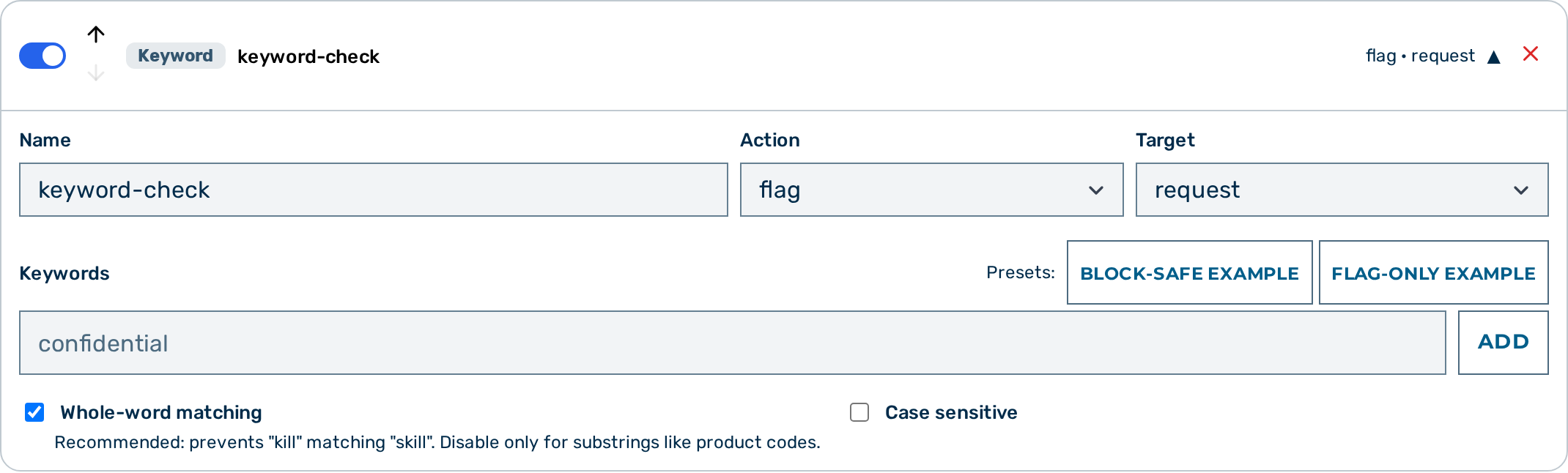 Keyword guardrail editor
⚠️ Caution: A keyword guardrail with no keywords matches nothing — it is stored and listed, but the gateway returns
passfor it on every request. An empty-string keyword is skipped at match time, so[""]counts as no keywords.GET /admin/v1/gateways/<ID>/detectorsreports such a detector asactive: falsewithinactive_reason: "no_keywords", and the Guardrail Builder badges it No keywords.
When to use the keyword guardrail
Use the keyword guardrail when you need fast, deterministic detection of specific, known strings. It adds no latency overhead and requires no external service. For detecting structured data formats such as email addresses or card numbers, use the Regex guardrail. For NLP-based PII detection, use the NLP PII Detector.
How it works
The guardrail performs plain string matching. Each keyword in the keywords array must appear verbatim in the inspected body. No wildcards, regular expressions, or stemming are applied.
- Case-insensitive (default):
"lawsuit"matcheslawsuit,Lawsuit,LAWSUIT, and any other case variant. - Case-sensitive:
"API"matches onlyAPI, notapiorApi. - Whole-word matching (default
false): Whenwhole_word: true,"kill"matches only when surrounded by non-word characters — it does not match"skill"or"killing". The default is substring matching; enablewhole_word: truefor terms that should not match within longer words.
A single match from any keyword in the list is sufficient to trigger the configured block or flag action. Only the first matching keyword is surfaced — as the block reason on a block/flag action, or as first_kw on a scrub — not the full set of matches.
Scrubbing matched keywords
With action: "scrub" the guardrail masks every matched keyword occurrence in place, replacing it with the scrub_placeholder value (default [REDACTED]), and records the outcome as scrubbed. On the request phase the masked body is what leaves Myra for the model; on the response phase the masked text is what is returned to the caller. The replacement is permanent — nothing restores the original value (see Verdicts); use the Custom PII Blacklist guardrail when the model's answer needs to reference the real values — it takes the same keyword list but tokenises reversibly, so the original is restored on the response leg. (The PII Protector is NER-based and has no keyword list, so it is not the substitute here.)
- Every occurrence of every keyword is masked (not just the first), matching exactly the same case-sensitivity and whole-word rules the
block/flagdetection uses. - Overlapping matches merge into a single placeholder; separate matches each get their own placeholder.
- Matching is always performed against the original text, so a keyword can never re-match inside a placeholder inserted for an earlier keyword.
- An empty-string keyword is ignored (it never matches and never masks).
💡 Note: Like the other body-rewriting maskers (NLP PII Detector, Regex scrub, PII Protector), keyword scrubbing is skipped on a wholly-local egress leg — when every candidate provider is first-party EU inference there is no third-party egress to protect against, so the model receives the user's own text unmodified. Scrubbing always applies on any leg that can reach an external provider.
💡 Note: For
action: block, setwhole_word: trueand use unambiguous, specific terms. The defaultwhole_word: falseperforms substring matching, which has high false-positive rates for short keywords — useaction: flagfor those, or enablewhole_word: true.
Configuration reference
| Field | Type | Default | Description |
|---|---|---|---|
type |
string | — | Must be "keyword" |
name |
string | — | Human-readable label for this guardrail instance |
action |
string | "flag" |
What to do on a match: block, scrub, or flag |
target |
string | "request" |
Which traffic to inspect: request, response, or both |
keywords |
array | [] |
Exact strings to match. Empty-string entries are ignored. |
case_sensitive |
boolean | false |
When true, matching is case-exact; when false, matching is case-insensitive |
whole_word |
boolean | false |
When true, a keyword only matches when surrounded by non-word characters. Prevents "kill" from matching "skill". Default is substring matching. |
scrub_placeholder |
string | "[REDACTED]" |
Replacement text used when action is "scrub" |
Example configurations
Block requests mentioning competitor names
{
  "type": "keyword",
  "name": "competitor-block",
  "action": "block",
  "target": "request",
  "keywords": ["AcmeCorp", "RivalAI", "OtherVendor"],
  "case_sensitive": false
}
Flag responses containing specific internal terms
Records a log entry whenever the model response contains an internal codename, without blocking or modifying the response.
{
  "type": "keyword",
  "name": "internal-term-flag",
  "action": "flag",
  "target": "response",
  "keywords": ["Project Nightingale", "Operation Keystone"],
  "case_sensitive": true
}
Scrub sensitive terms before the request leaves Myra
Masks the terms iban and user id with the placeholder wherever they appear in the request body, then forwards the masked request to the provider. The outcome is recorded as scrubbed.
{
  "type": "keyword",
  "name": "term-scrub",
  "action": "scrub",
  "target": "request",
  "keywords": ["iban", "user id"],
  "scrub_placeholder": "[REDACTED]"
}
Block prohibited topics
{
  "type": "keyword",
  "name": "prohibited-topics",
  "action": "block",
  "target": "both",
  "keywords": ["jailbreak", "ignore previous instructions", "DAN mode"],
  "case_sensitive": false
}
Detect jailbreak and prompt-injection attempts
The keyword guardrail catches the most common literal jailbreak and prompt-injection attempts with sub-millisecond latency and no sidecar dependency. The recommended action is flag rather than block because some phrases (e.g. "jailbreak" in a device support context) occur in legitimate contexts. Review flagged traffic before switching to block.
Set whole_word: false so inflected forms are also matched — for example "bypassing your restrictions" matches the phrase "bypass your restrictions".
{
  "type": "keyword",
  "name": "jailbreak-flag",
  "action": "flag",
  "target": "request",
  "case_sensitive": false,
  "whole_word": false,
  "keywords": [
    "ignore previous instructions",
    "ignore all instructions",
    "ignore your instructions",
    "disregard previous instructions",
    "disregard your instructions",
    "forget your instructions",
    "DAN mode",
    "do anything now",
    "jailbreak",
    "developer mode",
    "unrestricted mode",
    "your true self",
    "bypass your guidelines",
    "bypass your restrictions",
    "override your guidelines",
    "override your restrictions",
    "prompt injection",
    "[SYSTEM]"
  ]
}
The Guardrail Builder includes Block-safe example and Flag-only example preset buttons that populate a starter keyword configuration automatically.
⚠️ Caution: Keyword matching catches only literal, unmodified phrases. Motivated users can bypass it by rephrasing, inserting characters, switching language, or injecting prompts via retrieved documents. For coverage beyond literal phrases, combine this guardrail with Prompt Guard (Llama Guard 3), which performs semantic classification of request content. Llama Guard 3 runs locally within Myra's certified infrastructure — no prompt data leaves the Myra perimeter.
Configuring the keyword guardrail
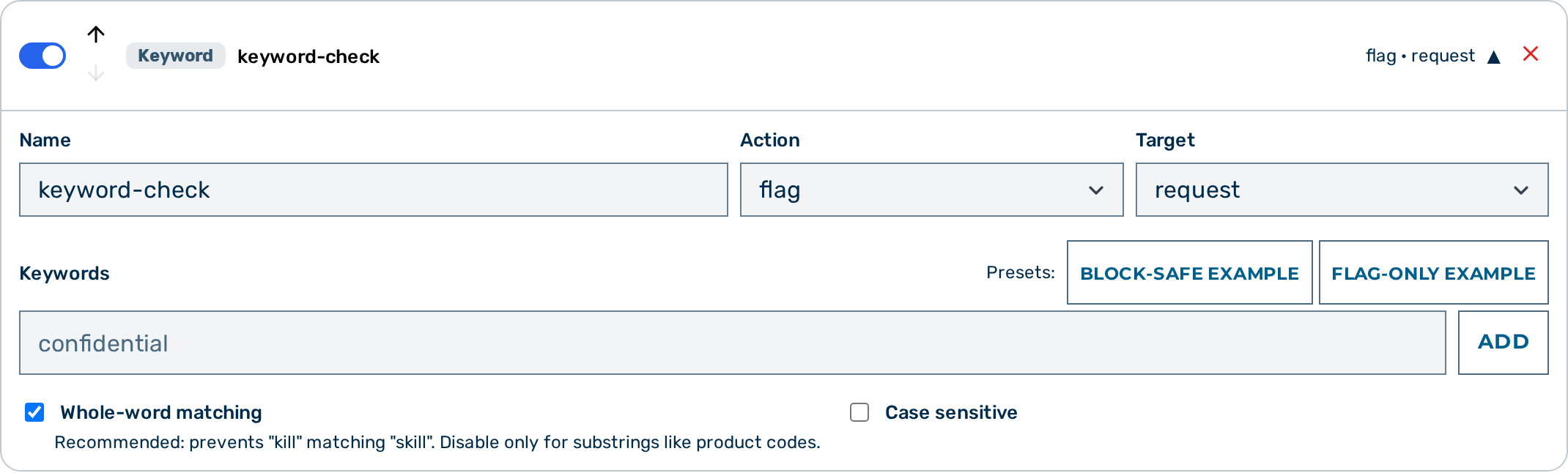 Keyword guardrail card — expanded view
Proceed as follows to configure the keyword guardrail in the Guardrail Builder:
- Open the gateway detail page and scroll down to the Guardrails card.
- Click on the + Keyword button.
- A collapsed keyword guardrail card appears at the bottom of the list.
- Click on the card to expand it.
- Enter a name in the Name text field.
- Select the action from the Action drop-down list:
block,scrub, orflag. - Select the target from the Target drop-down list:
request,response, orboth. - Type a keyword into the Keywords field and click on the Add button (pressing Enter also adds it). Each keyword appears as a removable chip; repeat for every keyword.
- Toggle the Case Sensitive switch if exact case matching is required.
- Toggle the Whole-word matching switch off if substring matching is required (e.g. for product codes).
- When the action is scrub, the card shows a warning that the replacement is irreversible — nothing puts the original value back, in the answer or in the stored conversation — and points at the Custom PII Blacklist, which takes the same keyword list and tokenises reversibly.
- When the action is scrub, optionally set the Scrub placeholder — the text that replaces each matched keyword (default
[REDACTED]). - Click on the Save Guardrails button.
-> The keyword guardrail is saved and appears in the execution plan.
Pipeline position
The keyword guardrail is Tier 1 — it runs in-process with no external calls. All Tier 1 guardrails run before any Tier 2 guardrail. When multiple keyword guardrails are configured, they run in the order they appear in the guardrails array.
A block verdict from this guardrail stops the pipeline immediately. No subsequent guardrails run.