Authentication
Myra AI Workspace authenticates inference requests using access tokens. Tokens are issued via the admin UI or the Admin API. Each token carries an expiry date, an optional rate limit, an optional spend cap, and one or more scopes. The gateway stores only a one-way hash of each token — the plaintext is returned once at creation time and cannot be recovered afterwards.
Token format
All tokens begin with the myra_ prefix followed by 64 hexadecimal characters (32 random bytes):
The prefix identifies a string as a Myra AI Workspace token, which is useful when auditing secrets managers or configuration inventories.
Token security model
- Tokens are stored as a one-way hash. The original value cannot be recovered from the database.
- The plaintext token is returned once in the creation response. Copy it immediately.
- If a token is lost, delete it and create a new one. There is no recovery path.
Header acceptance order
The gateway looks for an authentication token in the following header order. The first matching header is used:
x-aig-token: <token>Authorization: Bearer <token>x-api-key: <token>
This order lets you use the gateway as a drop-in replacement for OpenAI-compatible clients that send Authorization: Bearer or x-api-key without reconfiguration.
Role-based access control
The user_id of each token maps to a user record that has a role field:
| Role | Inference | Admin panel access |
|---|---|---|
admin |
Permitted | Full access, all tenants |
tenant_admin |
Permitted | Own tenant — users, settings, and the finance console |
ki_manager |
Permitted | Own tenant — groups and workflows only |
member |
Permitted | None beyond their own account |
finance |
Permitted | Own tenant — finance and cost console only |
viewer |
403 forbidden via a named user token |
Own tenant (read-only) |
Inference is permitted for every role except viewer (and any unknown or disabled role). A role never determines which gateway a token can reach: every token is scoped to a single gateway, so "inference permitted" means the token is accepted on its own gateway — not on all gateways in the tenant.
⚠️ Caution: The
viewerrole is intended for users who need read access to the admin UI only. Sending an inference request via a named user token whose user has the viewer role returns403 Forbidden.
Token types
Two types of token are available. They serve different purposes:
| Gateway token | User token | |
|---|---|---|
| Where | Settings → Gateways → [gateway] → Auth Tokens card | User Management → Users → [user] → + New Token |
| Fields | Expiration only | Label, gateway, expiry, budget, rate limit, scopes |
| Associated with | No user identity | A specific user record |
| Budget tracking | None | Per-user spend tracked |
| Use case | Quick service-to-service token | Named credential tied to an identity |
Use gateway tokens when you need a simple credential for a service or integration and do not need spend tracking per caller.
Use user tokens when you need to attribute usage, enforce per-user budgets, or manage access for individual people or teams.
Token fields
| Field | Type | Description |
|---|---|---|
label |
string | Human-readable name for the token (valid UTF-8, at most 255 bytes) |
user_id |
string | Associates the token with a user identity for audit logs and budget tracking (a string id of at most 36 bytes) |
scopes |
array of strings | Permissions granted by this token (e.g. ["inference"]). Each scope is 1–64 characters from A-Z a-z 0-9 . _ : / -, at most 50 of them; a non-array value is refused |
expires_at |
integer | null | Unix expiry timestamp (seconds since epoch). null = no expiry |
rate_limit |
object | null | Per-token rate limit: {"requests": N, "window_sec": S} — requests is required, window_sec defaults to 60; no other keys |
budget_usd |
number | null | Per-token spend cap in USD as a JSON number. null = no cap |
Every field is validated server-side by one shared boundary — a malformed value answers HTTP 400 naming the field and no token is created; the Users & tokens API lists the accepted and rejected shapes per field.
Token scopes
When creating a user token, select one or more scopes:
| Scope | Description |
|---|---|
inference |
Grants access to inference endpoints. Select this for any token that makes model requests. |
read |
Reserved for future use. |
admin |
Reserved for future use. |
Select inference for standard API access.
Creating a user
💡 Note: User creation is also covered in the Users section of the admin UI documentation. The steps below are provided here for convenience.
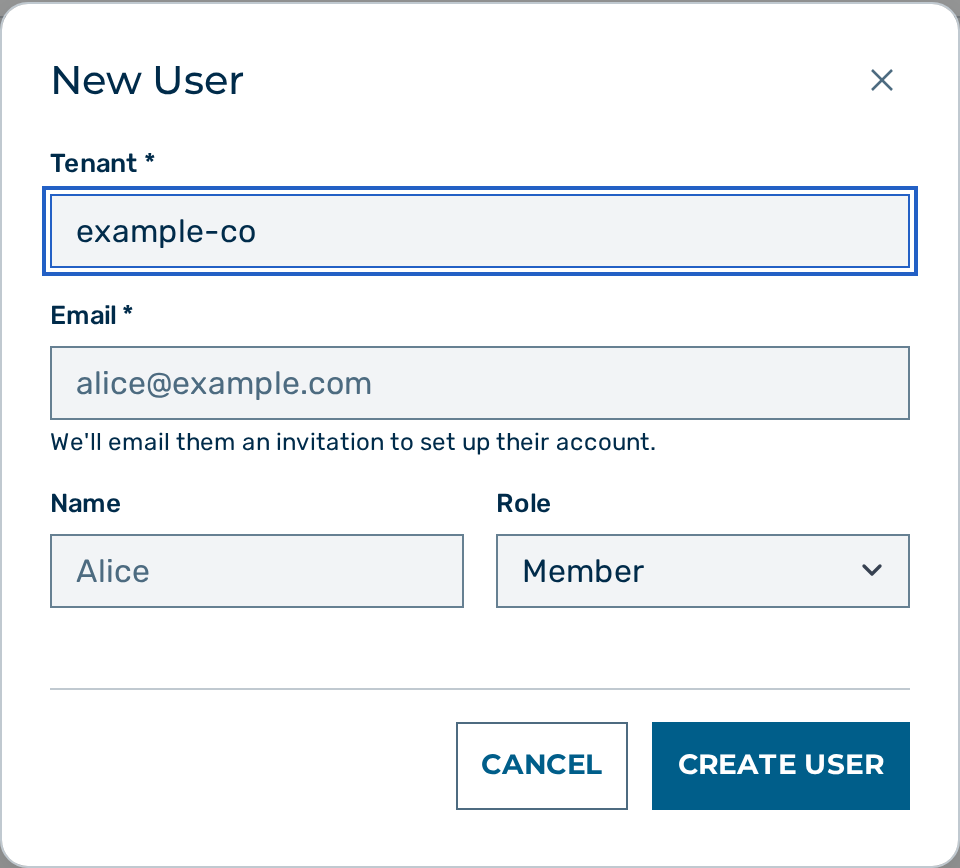 New User form
Proceed as follows to create a user:
- Open Users via the user-block menu at the bottom of the left sidebar → User Management → Users.
- The user list opens.
- Click on the New User button.
- The New User form opens.
- Select the tenant from the Tenant drop-down list.
- Enter the email address in the Email text field.
- If required, enter a display name in the Name text field.
- Select the role from the Role drop-down list:
- tenant_admin — manages users and settings within the tenant
- member — chat and inference, plus personal authentication tokens; no administration
- viewer — read-only admin UI access; cannot make inference requests
- Click on the Create User button.
-> The user record is created and appears in the user list.
💡 Note: Platform
adminusers can also create otheradminaccounts.
Creating a token
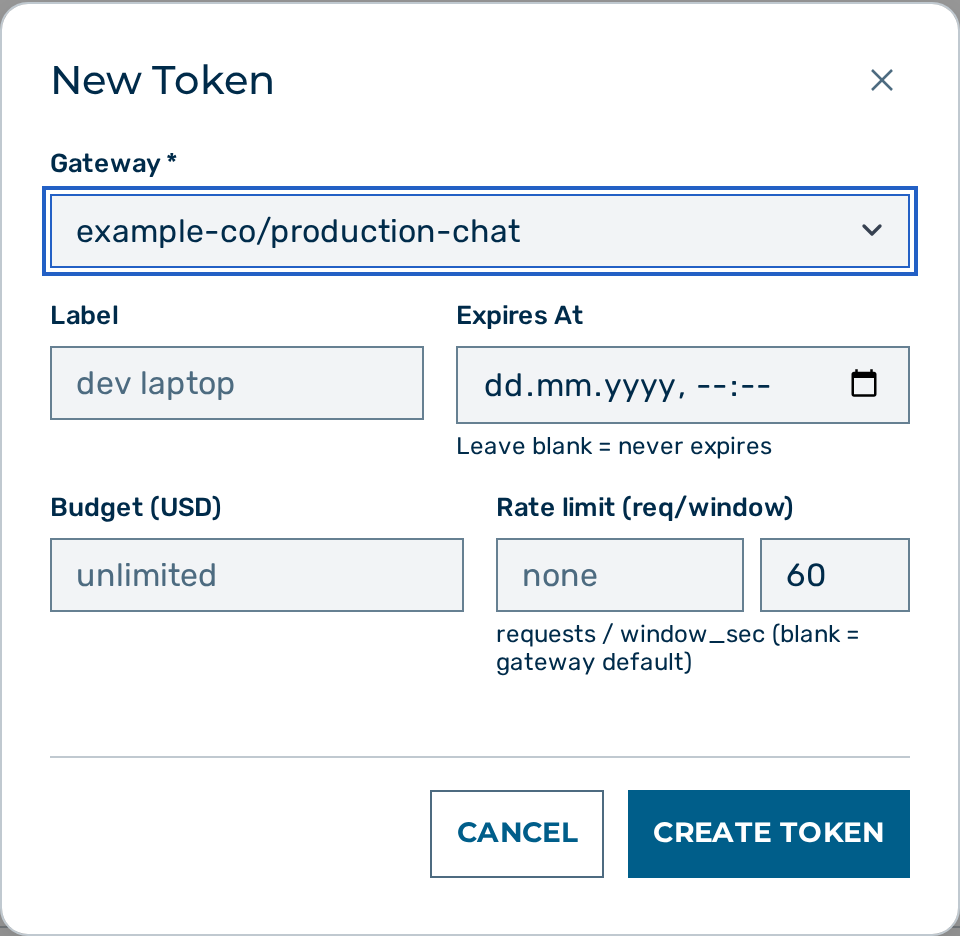 New Token form
Proceed as follows to create a token:
- Open Users via the user-block menu at the bottom of the left sidebar → User Management → Users.
- The user list opens.
- Click on the user you want to create a token for.
- The user detail page opens.
- Click on the New Token button.
- The New Token form opens.
- Select the gateway from the Gateway drop-down list.
- Enter a label in the Label text field.
- If required, enter an expiry date in the Expires At field.
- If required, enter a spend cap in the Budget (USD) field.
- If required, configure a rate limit in the Rate Limit fields.
- Select the required scopes under Scopes. Select
inferencefor standard API access. - Click on the Create Token button.
-> The token is created. The plaintext token is displayed once. Copy it now — it cannot be retrieved again.
Revoking a token
Proceed as follows to revoke a token:
- Open Users via the user-block menu at the bottom of the left sidebar → User Management → Users.
- The user list opens.
- Click on the user whose token you want to revoke.
- The user detail page opens, showing the token list.
- Click on the delete icon next to the token.
-> The token is revoked immediately. In-flight requests that have already passed the authentication phase complete normally.
Disabling authentication
⚠️ Caution: Disabling authentication removes all access control from the gateway endpoint. Any caller with network access can make inference requests and incur costs. Never disable authentication in a production environment.
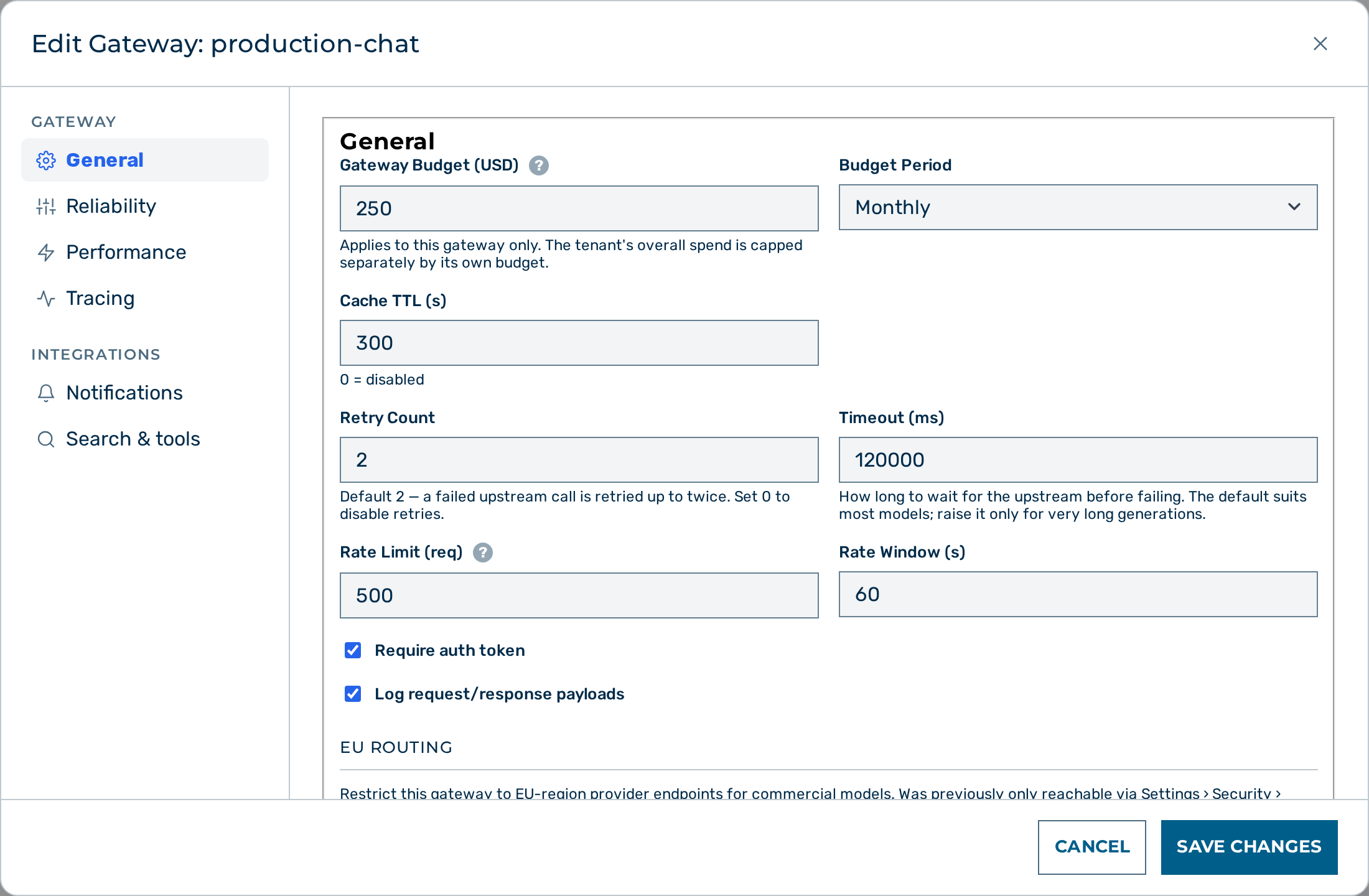 Edit Gateway modal — Require auth token check box
Proceed as follows to disable authentication on a gateway:
- Open Settings → Gateways (via the user-block menu at the bottom of the left sidebar → Settings).
- Click on the Open → button of the gateway.
- The gateway detail view opens.
- Click on the Edit button in the Gateway card header.
- The Edit Gateway:
modal opens. - Clear the Require auth token check box.
- Click on the Save Changes button at the bottom of the modal.
-> Authentication is disabled for the gateway. The gateway accepts inference requests without an authorization header.
API
Token and user management is also available via the Admin API. See Users & Tokens API for endpoint reference and request/response examples.