Shared conversations
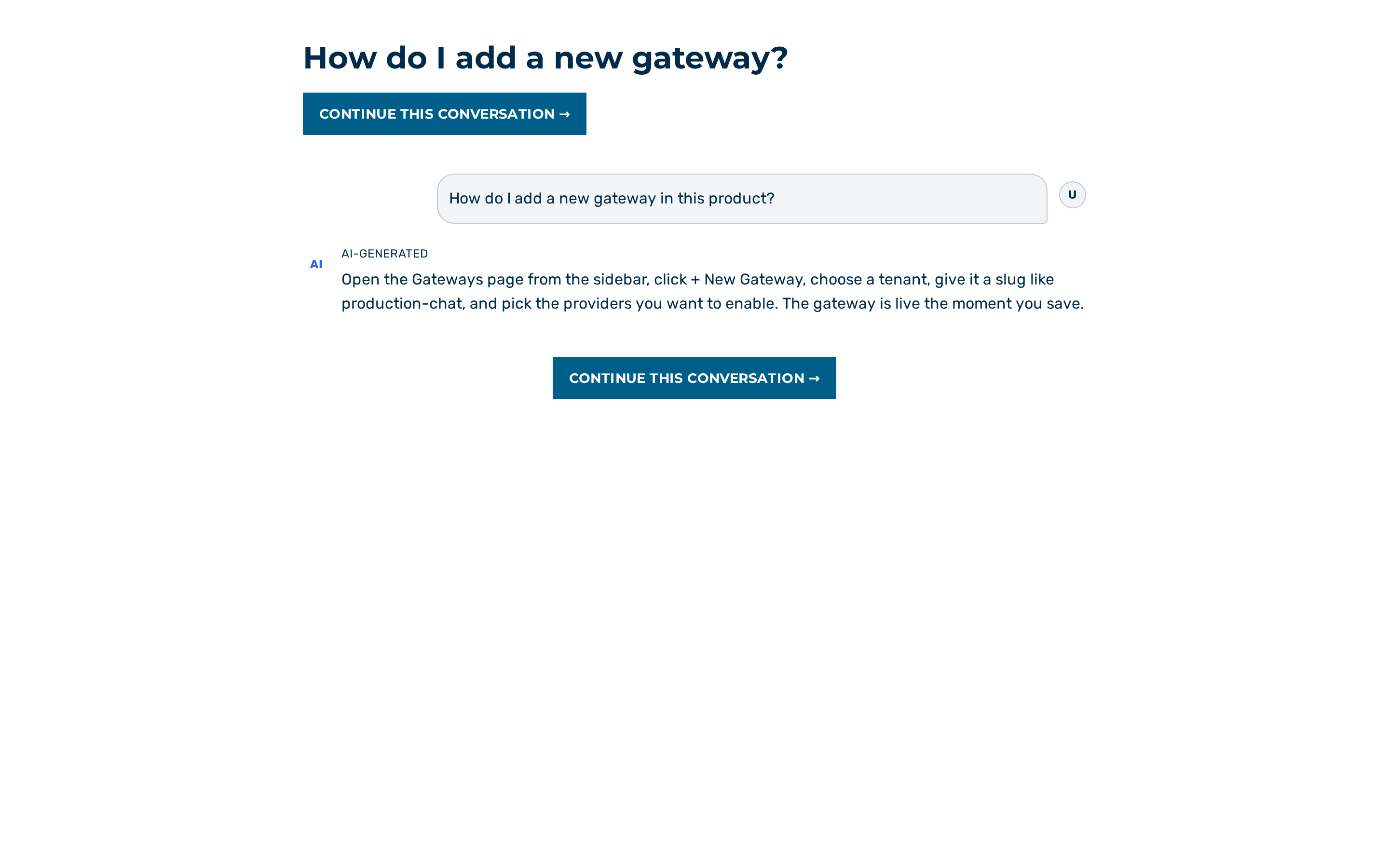 The public read-only view of a shared conversation.
Description
A shared conversation is a public read-only view of a single chat conversation. Sharing is initiated by the conversation owner from the More options menu (⋯) in the Chat view. The shared view is reachable via the URL /shared/<TOKEN>, where <TOKEN> is generated when the owner enables sharing. The shared view does not require authentication.
The shared view shows:
- The conversation title.
- The ordered list of user and assistant messages, rendered as Markdown. System messages are hidden.
- A Continue this conversation → button at the top and bottom of the view.
⚠️ Caution: A shared link grants public read access. Revoke the share when the conversation should no longer be public.
Opening a shared link
Proceed as follows to open a shared conversation:
- Open the URL in a web browser.
-> The conversation title and message history are displayed in read-only mode. Sending new messages, attaching files, and editing existing messages are not available.
If the share has been revoked, the token is invalid, or the conversation has since been deleted, the view shows Not found with the text "This conversation is no longer shared."
Share pages are never indexed by search engines: the share API answers every response — the transcript, a not-found and a not-available alike — with X-Robots-Tag: noindex, nofollow, the page itself carries <meta name="robots" content="noindex, nofollow"> while it is open, and the web server adds the same header to the /shared/… document. A link that leaks into a crawler's index stays out of search results; the unguessable token remains the only way to reach it.
If the conversation lives in a project that restricts where its data may be processed (Local only or PII mandatory) — or if the gateway cannot confirm which project it belongs to at all, because that project was deleted or belongs to another workspace — the link does not open: the view shows Not available, and the recipient is asked to have the conversation shared with them inside the workspace instead. This is checked on every open, not only when the link is created — so a link that was already sent stops working the moment its project is tightened, and a link created before this check existed stops working too. The message deliberately names no project, tier or owner: the reader of a public link is not signed in, so a more specific answer would leak facts about a workspace they have no access to.
Continuing a shared conversation
A signed-in user can fork the shared conversation into their own account using the Continue this conversation → button.
Proceed as follows to continue a shared conversation:
- Click on the Continue this conversation → button at the top or bottom of the view.
- When not signed in, the browser is redirected to the sign-in page; signing in returns to the shared view.
- When signed in, the gateway creates a copy of the conversation in the user's account, attached to the first available gateway of the user's tenant.
- Wait for the redirect to the Chat view.
-> The forked conversation opens in the Chat view. The original shared conversation is unchanged. Subsequent messages in the fork are not visible to the original owner.
💡 Note: If the signed-in user has no gateway available, the fork action shows the message "No gateway available for forking." Ask an administrator to add a gateway to the tenant.
Revoking a share
Proceed as follows to revoke a shared link:
- Open the source conversation in the Chat view.
- Open the More options menu (⋯) on the conversation.
- Select Share conversation.
- Click on the Revoke link button in the Share conversation dialog.
-> The shared URL returns the Not found view. The conversation is no longer publicly accessible.
Live rooms
A live room is a separate collaboration surface. It is not the public /shared/<TOKEN> link. A live room runs inside the authenticated app, on a conversation the owner has shared into a project feed, and lets the project members watch the conversation update in real time and take turns writing.
Before a live room can start, the conversation must be shared into a project feed (see Chat — Per-conversation options). The participants are the project members who already have read access to the shared conversation; there is no separate invitation.
Starting a live session
Required role: conversation owner.
Proceed as follows to start a live session:
- Open the More options menu (⋯) on a conversation shared into a project feed.
- Select Start live session.
-> The live session starts. A Live bar appears with the participant avatars, and the owner becomes the first driver.
Select Stop live session from the same menu to end the session.
Presence
The Live bar shows one avatar per participant currently connected. Each avatar carries the participant name in its tooltip. The avatar of the current driver is marked. There is no numeric participant count.
Taking the wheel
Only one participant drives a live room at a time. The driver is the only participant who can send messages; every other participant watches read-only. The Live bar shows the driver state: You are driving,
The controls depend on the role.
- The current driver sees a Hand over button that frees the seat.
- A drive-capable participant (the owner, or a project member with the owner or editor role) sees a Take the wheel button. The button is active only when the seat is free.
- A viewer (a member with read access only) sees neither button and cannot write.
Proceed as follows to take the wheel:
- Wait until the Live bar shows No one is driving.
- Click on the Take the wheel button.
-> You become the driver and can send messages. If another participant took the seat first, the bar shows Could not take the wheel — someone else got there first.
💡 Note: Taking the wheel never interrupts the current driver. The seat must be free — the driver hands it over, or the seat frees when the driver disconnects.