Providers
Description
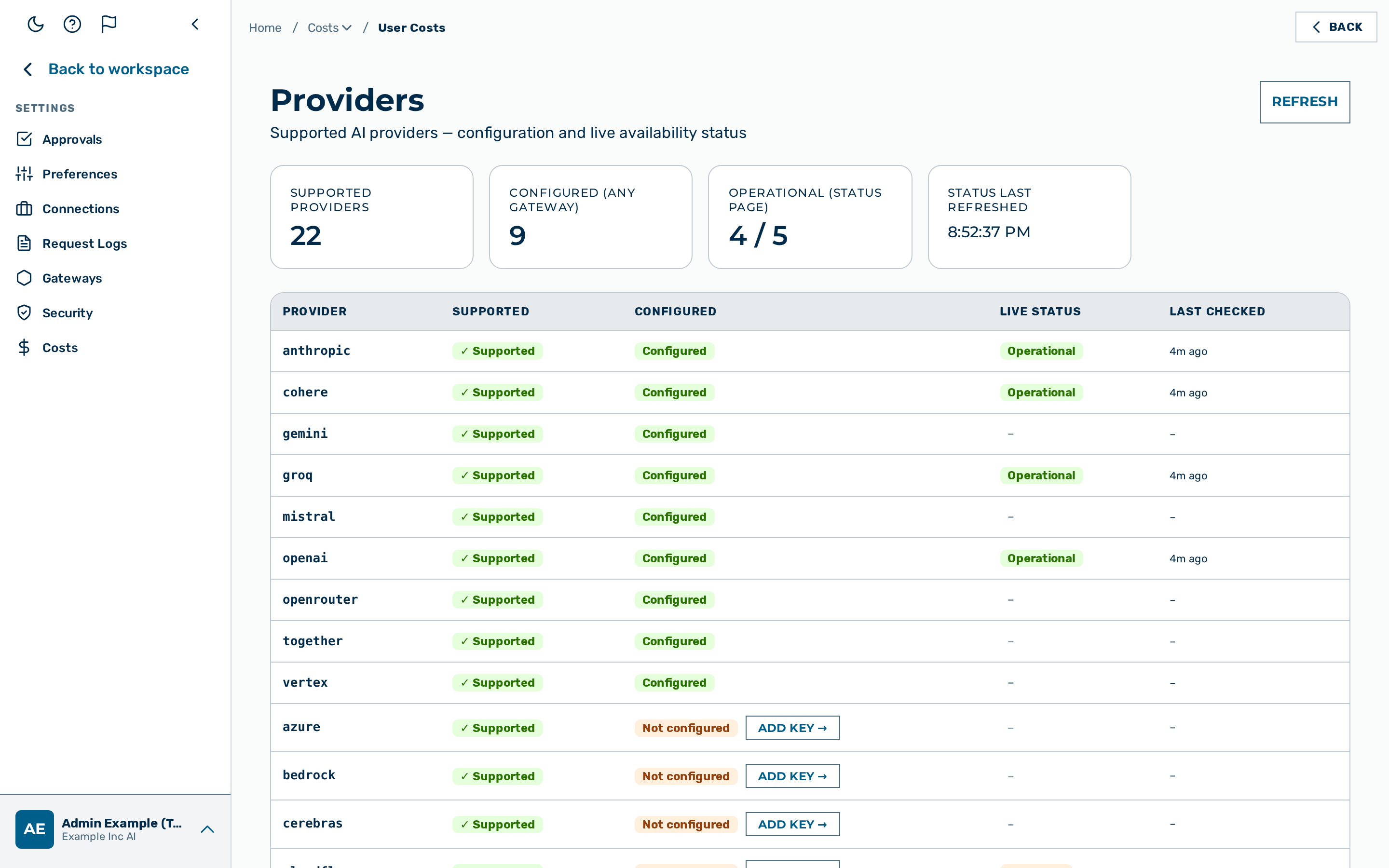
The Providers view lists every AI provider the gateway can route to and shows the live availability of each provider. The view is reachable via the direct URL /providers and is restricted to users with the platform admin (admin) role.
The page header shows four summary cards:
- Supported providers — the total number of provider integrations available.
- Configured (any gateway) — the number of providers for which at least one BYOK key is stored on at least one gateway in the tenant.
- Operational (status page) — providers reported as operational, divided by the number of providers that publish a public status page.
- Status last refreshed — the local time of the last refresh.
The table below the summary lists every provider with five columns:
- Provider — the provider identifier (for example
openai,anthropic,gemini). - Supported — a fixed badge indicating that the provider is supported by the gateway.
- Configured — one of three badges:
- No key needed — the provider does not require an API key (for example, the Myra-hosted model fleet).
- Configured — at least one BYOK key is stored.
- Not configured — no BYOK key is stored. An Add key → button next to the badge navigates to the Gateways view.
- Live Status — one of Operational, Degraded, or Outage, read from the provider's public status page. Providers without a public status page show –.
- Last Checked — the relative time of the last status refresh.
💡 Note: The status data is read from public Atlassian Statuspage endpoints every five minutes. Providers without an Atlassian Statuspage show – under Live Status. A status of Operational does not guarantee that requests succeed; per-key authentication errors and per-model availability are visible only in the Request logs view.
Refreshing the provider status
Proceed as follows to refresh the status manually:
- Click on the Refresh button at the top right of the view.
- The button label changes to Refreshing… until the data is loaded.
-> The status indicators and the Status last refreshed timestamp are updated.
Adding a missing provider key
Proceed as follows to add a missing provider key directly from this view:
- Locate a row with the Not configured badge.
- Click on the Add key → button next to the badge.
-> The Gateways view opens. Continue with Provider keys (BYOK) to store the key.