My PII configuration
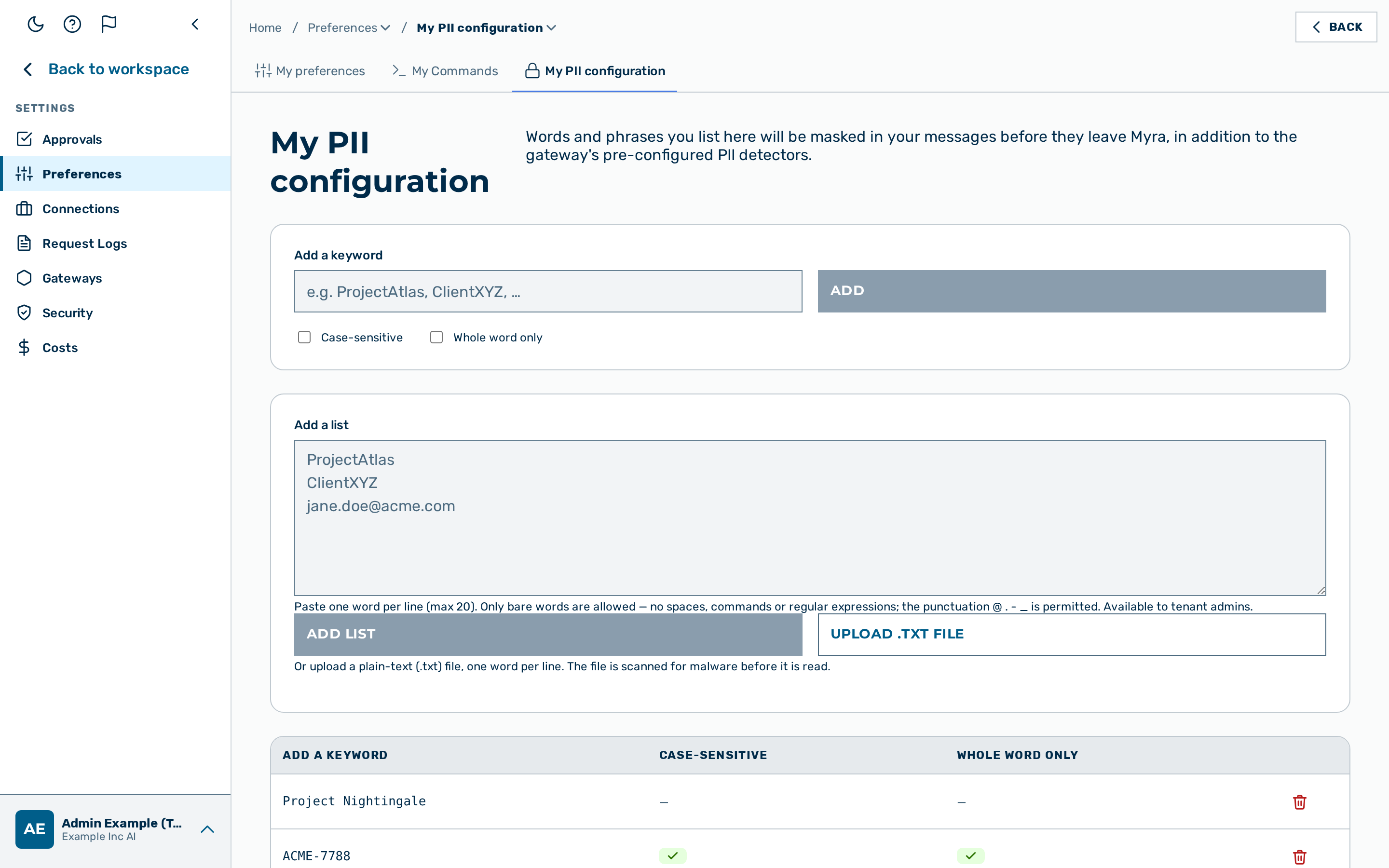 The My PII configuration view with the personal keyword list.
Description
The My PII configuration view lets the signed-in user list words and phrases that the gateway masks in the user messages before the messages leave Myra. The view is reachable from the My PII configuration tab in Settings › Preferences and via the direct URL /profile/pii. The view is available to every role.
Each entry is a personal keyword. Before a message reaches the model, the gateway replaces every match of a personal keyword with a [MYRA-CUSTOM:…] token. The personal keywords apply in addition to the PII detectors that the gateway already runs.
The table lists three columns and an action column: the keyword, the Case-sensitive state, the Whole word only state, and a Delete button per row. When the list is empty, the view shows the message No personal keywords yet. Anything you add will be replaced with [MYRA-CUSTOM:…] tokens before the model sees your message.
Personal keywords are private. The keywords are visible only to the user who created them.
💡 Note: Personal keywords take effect only when the active gateway already runs a PII layer. If the gateway has no PII detector configured, the keywords are not applied.
⚠️ Caution: A keyword is masked only where the text matches the configured options. A keyword with Whole word only enabled does not mask the keyword inside a longer word.
Personal keywords and the tenant policy
Personal keywords work together with the PII policy of the tenant. The interplay depends on whether the tenant enforces masking.
- The tenant does not enforce masking. Personal keywords apply on any gateway that runs a PII layer. In chat, the user can switch the Privacy pill to Privacy off, or unmask individual items in the masking preview, in which case the message is sent on an unprotected route and personal keywords are not applied. See Easy chat — Privacy pill.
- The tenant enforces masking. Masking is always on for every user in the tenant. The Privacy pill is read-only and cannot be switched off, and the masking preview does not offer the unmask action — the preview response itself withholds the original values server-side, so the raw data never reaches the browser (not merely a hidden button). Personal keywords are therefore applied to the messages of the user whenever the request egresses to an external AI provider — and they always apply to the search query sent to a web-search provider. The one exception is a request served wholly by a first-party local (Myra/EU) model: masking is skipped there even under enforcement, because the data never leaves Myra (the web-search query and other tool egress are still masked). See PII Protector — Local model legs are not masked.
💡 Note: Enforced masking is a tenant setting managed by a tenant admin. A regular user cannot turn masking off, but can still add personal keywords to extend what is masked.
Adding a keyword
Before you begin, ensure the following conditions are met:
- ☑ You are signed in.
💡 Note: A keyword can contain up to 200 bytes (fewer characters when it uses multibyte letters such as umlauts).
Proceed as follows to add a keyword:
- Enter the word or phrase in the Add a keyword text field.
- If required, select the Case-sensitive checkbox to match the keyword only in the exact letter case.
- If required, select the Whole word only checkbox to match the keyword only as a standalone word.
- Click on the Add button.
-> The new keyword appears in the list of keywords. Repeat this process for all required keywords.
Deleting a keyword
Before you begin, ensure the following conditions are met:
- ☑ You are signed in.
Proceed as follows to delete a keyword:
- Locate the keyword in the table.
- Click on the Delete button in the row.
-> The keyword is removed from the list of keywords.