Signing up and managing billing
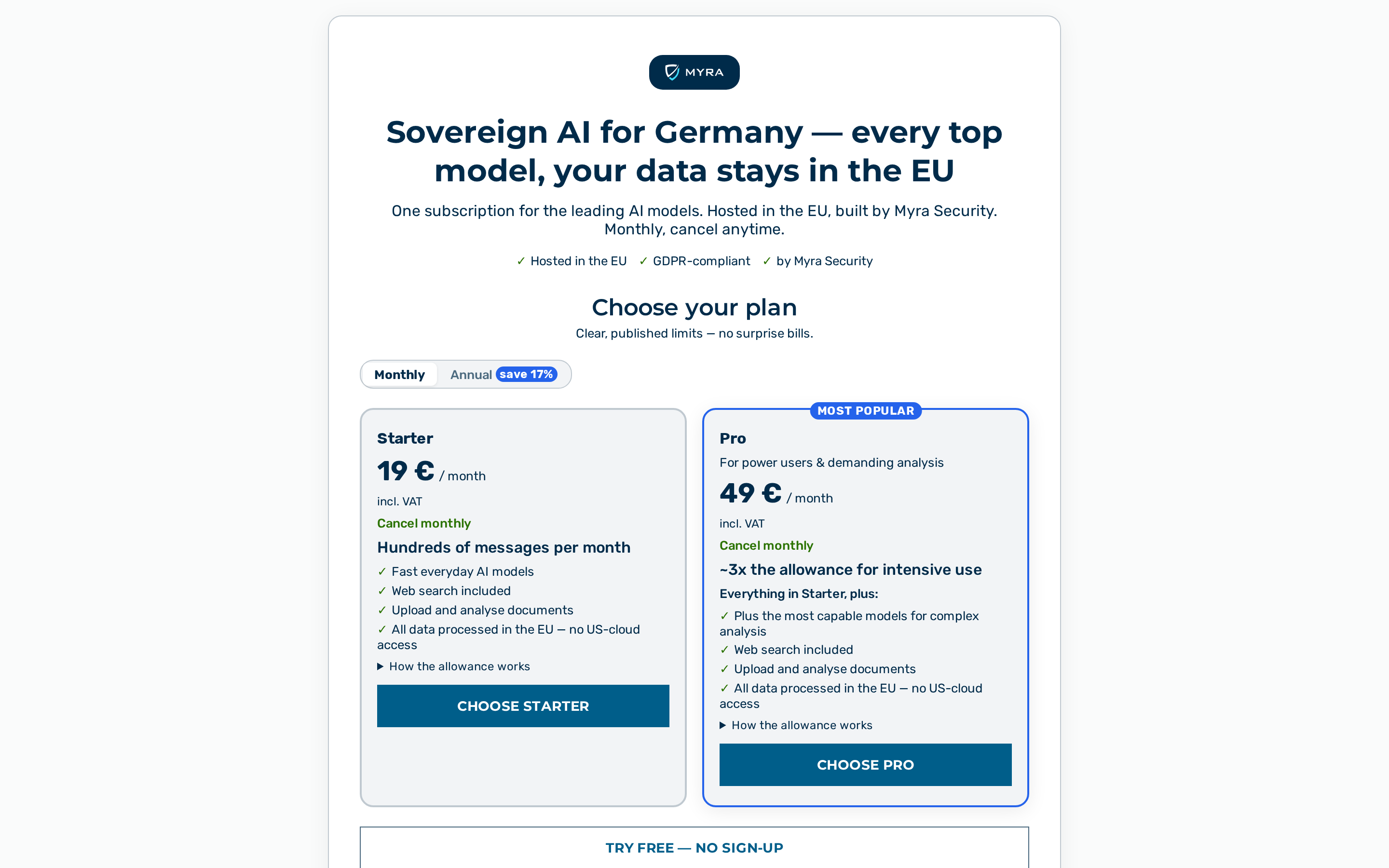 The sign-up funnel with the plan choice.
Description
Myra AI Workspace offers a self-service sign-up: a new customer chooses a plan, pays, and starts working — no operator provisioning. This chapter walks through the funnel and the in-app billing surfaces from the point of view of the customer.
Self-service sign-up is a per-deployment feature. When it is switched off, the sign-up pages are unavailable and the sign-up link does not appear on the sign-in page.
Creating an account
The funnel lives at /signup. It opens with a short benefit headline and a trust strip — Hosted in the EU · GDPR-compliant · by Myra Security. The free trial is a two-step flow: step 1 asks for your business email and the single I agree consent checkbox (Terms and Conditions + the data-processing agreement); step 2 is the six-digit verification code — and verifying it creates your trial workspace straight away. There is no separate details step and no other input field: the email is the only field, and the consent checkbox sits with it so the legal acceptance is captured up front, before the account is created. Where configured, Sign up with Google / Microsoft buttons sit above the email field; they stay greyed out until you tick the consent checkbox, because the same acceptance is recorded for a Google or Microsoft registration (clicking a greyed-out button tells you what is missing and moves you to the checkbox). The paid plan adds a plan choice up front and a confirm-and-pay step at the end, where the consent checkbox sits with the pay button.
The plans and prices come from the product catalog, which mirrors the payment provider exactly — the price you see is the price you are charged. The paid plan is priced per seat: its card shows the price per seat per month (or per year), whether VAT is included or added at checkout, and a Seats picker (from 1 up to the plan's maximum). Below the picker the card shows the total for the chosen seats, e.g. 3 seats · €39.00 / month. A plan the catalog marks as recommended carries a Most popular badge.
A Monthly / Annual billing-period toggle sits above the plans. On Annual the card shows the yearly price per seat; when the annual price is cheaper than twelve monthly payments, the saving is shown as computed from the two prices. The message allowance still refills every month; annual billing changes only the payment interval, not the allowance.
If you would rather evaluate the product before paying, contact Myra to arrange an evaluation. (The former Try free — no sign-up no-login demo button has been removed — the public no-login demo is disabled.)
Proceed as follows to create an account (free trial):
- Enter your business email address and select the I agree checkbox to accept the Terms and Conditions (AGB) and — when a data-processing agreement (AVV) is in force — the AVV; both are links inside the one consent sentence, marked Required. The checkbox is unticked by default and you must actively tick it. The Continue button is always available (it is never greyed out); if you click it without a valid email or without accepting, an error message appears and moves focus to the field that needs your attention. Then click Continue — or, where configured, use Sign up with Google / Sign up with Microsoft: the button becomes active once the consent box is ticked, your acceptance is recorded at that click, and you continue at the provider; the email-code steps below do not apply, and your trial workspace opens as soon as the provider confirms your account. If the provider round trip cannot complete (for example the acceptance could not be confirmed, or registration is closed), you return to this step with a message explaining why; for a missing acceptance the consent checkbox is focused for you.
- This affirmative acceptance is required and is recorded at this first step, before your trial workspace is created (which happens only after you verify the code).
- Confirm your email — the message gives you two ways, use whichever is easier: tap the Verify my email address button for one-tap confirmation, or enter the six-digit code on the sign-up page. Either one creates your trial workspace immediately (there is no further step). The button is a single-use link that opens the sign-up page and confirms automatically; it works even if you open the email on a different device.
- If the code does not arrive, use Resend on the code step (available again after a short cooldown) and check your spam folder. If you requested more than one code, any of the still-valid codes you received will work — you are no longer locked to the most recent one.
-> Your trial workspace is created and you land straight in the chat surface. No credit card is required. (No name is asked for during sign-up — you can set your display name later in your profile. A promo/voucher code applies to the paid plans, not the no-card trial.)
For the paid plan the funnel adds a plan choice at the start and a confirm-and-pay step at the end: choose the billing period and the number of seats and click Choose; enter your email and verify the code exactly as above; then a confirmation step restates the full price obligation — the plan, seats × price per seat = total per month or per year (for example 3 seats × €13.00 = €39.00 / month), whether VAT is included or calculated at checkout, and the contract term — and carries the optional voucher field and the I agree consent checkbox. Accepting the terms there is required before the checkout is created. Click on the Continue to payment button (it carries the total and the billing period you chose) to be redirected to the payment provider (Stripe Checkout), which shows the same seats × price before you enter your card. After payment your workspace can have as many users as the seats you bought.
💡 Note: If the price changes between the moment you saw it and the moment you continue, nothing is charged: the confirmation step shows the new price and asks you to confirm again.
💡 Note: The Terms (AGB) and, when in force, the data-processing agreement (AVV) are accepted together with one affirmative checkbox that carries a link to each document. The checkbox is unticked by default and must be actively ticked; the acceptance — including the AVV version in force — is recorded before the account or trial is created and is stored as the legal record (so it is separately provable). The service is offered to businesses (B2B); no consumer right of withdrawal applies.
Resuming a cancelled payment
If a payment is cancelled, the sign-up page returns to the plan step and shows Payment canceled with the note that your selection is saved. Click on the Continue to payment button to resume the same checkout — your plan selection is preserved on the server.
Completing setup
After payment, you land on /signup/success, which sets up your workspace and then takes you straight to the chat surface. Setup normally completes in seconds.
The welcome email that arrives is also your order confirmation in text form. If you entered a voucher code, it says what became of it — the redemption happens when your workspace is created, minutes after payment, so this is the first moment the outcome is known:
- Redeemed — the email names the code, the credit, and the exact moment the credit expires: "Your voucher code WELCOME-2026 has been redeemed: $50.00 in trial credit for your first billing period (until 2026-10-02 22:30 UTC)." The credit raises how much usage you can run in that period; it does not change the amount you are charged, and unused credit expires at the end of the period.
- Not redeemed — the code could not be redeemed when your workspace was created: it was never a valid code, or it was deactivated, expired, fully redeemed, already used by your account, or could not be applied for a reason on our side. The email says so, names the code, and invites you to reply if you believe the code was still valid. Your subscription and the amount charged are unaffected.
If setup takes longer, the page shows Payment received — setting up your workspace and, after a short wait, notes that you will also receive a welcome email with an access link. If setup is still finishing after a minute and a half, the page shows Payment confirmed — setup is taking longer than usual and confirms that your workspace will be emailed to you the moment it is ready. The welcome email with a sign-in link is the safety net — you can close the tab and return via that link.
Your first days
A new account lands on the chat surface with a short welcome card for its first seven days — on a paid self-service plan and on the free trial. The card shows your plan (Welcome to
The free trial
On a free trial the application shows where you stand without you going looking:
- In chat, a pill directly above the greeting (or above the composer once a conversation is open) reads Trial · N days left with an Upgrade button. On the last day it turns amber (Last day of trial). Once the trial has expired it turns red (Trial expired), Upgrade stays, See options re-opens the three routes, and sending is paused.
- On every other page, a banner at the top of the content reads N days left in your trial — Everything you create is kept when you upgrade. Nothing needs migrating., with one action (Upgrade now; on the Billing & plans page Open the price calculator once self-serve paid checkout is enabled) and a Wallet meter showing how much of your trial credit is left, linking to Wallet & usage. On a phone the action sits on its own line under the text. After expiry it reads Your trial has ended — Chat and inference are stopped. Everything you made is kept — upgrading turns it back on in place. with Upgrade to continue.
- Where an Upgrade action lands depends on whether self-serve paid checkout is open. While it is not (the current default), every upgrade action opens the Contact us tab (Settings → Billing & plans → Contact us) — a short, pre-filled contact form, no payment step. Once self-serve paid checkout is enabled, the same actions open the price calculator (Settings → Billing & plans → Upgrade). Either way every trial member can open it; only the workspace owner can pay.
When the trial expires, a dialog Your workspace is just getting started shows the three routes out (Free · Custom · Enterprise — see Contact us / Upgrade). Closing it (Escape or the ×) leaves the application readable; sending stays paused until you upgrade.
💡 Note: The banner's Wallet figure is your own remaining trial credit. Seat counts and the internal/external model split are not shown yet.
Billing
The Billing & plans page.
Open Billing & plans from the user-block menu at the bottom of the left sidebar → Settings → Billing & plans (visible to every customer-tenant role — trial, self-serve and manual/enterprise, owner and member — but not the platform super-admin or a demo account). The page has three tabs — Your plan, the upgrade-funnel tab (Contact us while self-serve paid checkout is not yet open — the current default — or Upgrade once it is enabled, a workspace owner only) and Invoices — plus Wallet, whose balance is visible to a paid owner and to a trial owner or member, while loading and automatic top-up stay owner actions (the balance you load in advance for model usage: Add budget pays a preset top-up amount — or a free-form Other amount you enter — on Stripe's hosted checkout page and returns to the Wallet, Automatic top-up reloads a chosen amount whenever the balance falls below your threshold up to a monthly ceiling you set (it needs a saved card — one manual top-up on Stripe's page saves it), Activity lists the most recent wallet movements — top-ups, automatic top-ups, refunds, charge-backs and a charge still being reconciled; after a declined automatic top-up the notice above the balance offers Resume automatic top-up (a manual top-up alone does not resume it) — and Forget card on the Automatic top-up tab removes the saved card and switches automatic top-up off (on a workspace with a paid subscription the card itself stays with Stripe for the renewals — it is managed in the billing portal); until the platform offers the wallet, the tab says so and nothing can be topped up).
Your plan
- a Plan card with your plan's name and, on a trial, the days left (or, for a subscription, the status badge Active / Payment overdue / Inactive and Renews on
— Ends on once a cancellation is scheduled); - a Wallet card — on a trial your remaining credit of €N loaded; on a subscription your Monthly allowance meter (spend in euros and as a percentage, with the date it renews — Included until
once a cancellation is scheduled) — on a phone a trial's two cards sit side by side, a subscription's cards stack; - Change or cancel: Cancel subscription opens the Stripe billing portal (invoices, payment method, cancellation at the end of the period). Changing the plan, the billing period or the number of seats of a paid subscription is not available yet — contact us if you need a change. A trial has nothing to cancel — it simply ends; its Upgrade opens the price calculator or the three routes.
When the subscription is inactive, this card also shows a Reactivate button.
Contact us / Upgrade
While self-serve paid checkout is not yet open (the current default), the second tab is Contact us: a short contact form pre-filled with your first name, last name and e-mail (all editable), which sends your upgrade enquiry by e-mail — no payment step, no price shown. Every upgrade action on the trial banner, pill and plan cards opens this tab. Your workspace keeps running on its current plan until we set the upgrade up with you.
Once self-serve paid checkout is enabled, the second tab becomes Upgrade and those same actions open the price calculator described below.
Two sub-tabs (Upgrade tab):
- Price calculator — Price it yourself (all prices from the product catalog): choose your Seats (from your current number of users up to the plan's maximum), the Platform (EU-located infrastructure, included; EU-governed infrastructure — its price per seat is shown) and the Model setup (models billed by Myra, your own provider key, or a mixed setup). Due today is exactly what the checkout charges: seats × the seat price. The EU-governed add-on and a wallet top-up are shown as arranged separately — not part of this payment. Continue to payment takes the workspace owner of a free trial to Stripe's hosted checkout page and returns to Confirming your payment…, which turns into You are on
the moment the payment is confirmed (usually at once; if it takes longer than a minute the page says so and links to Your plan, where the change appears as soon as it lands); a workspace that already pays sees Changing your plan, billing period or number of seats is not available yet; a member sees the button disabled with a note to ask the workspace owner. The button is not offered while the billing details are still loading or could not be loaded, on an account under review, or on an inactive subscription — the calculator cannot change an inactive plan, the note links to Your plan where Reactivate lives. The exact team size must be a whole number within the plan's seat range; anything else marks the field invalid and holds Next / Continue to payment until it is corrected. Discuss requirements opens a short form for procurement, DPA, SLA or dedicated-deployment questions that is sent by e-mail (it accepts any team size, including more seats than the self-service plan allows). - Compare plans — the three routes: Free (stay on the trial workspace), Custom (price it yourself — Open the calculator; on an inactive subscription the Custom card reads Reactivate on Your plan instead) and Enterprise (for procurement, DPA and SLA — Discuss requirements). Whichever route you take, the upgrade happens in place: same workspace, same conversations, agents, connectors and settings.
💡 Note: The calculator shows the catalog's current prices; Stripe's payment page shows the same seats × price before you enter your card.
Invoices
Invoices & payment lists every invoice (its Stripe invoice id, issue date, total, status and a PDF link when the document is available) and a Payment method card — Replace card opens the Stripe billing portal, where your card, VAT ID and invoice address are managed. A trial has no invoices yet. An account under review (a disputed payment) sees the review note instead of the payment card — the portal is not offered until the review is resolved.
When the allowance runs out
When you reach your monthly allowance, you can usually keep chatting on the efficient models: a notice above the composer reads Reduced models until
💡 Note: At 80 % of the monthly allowance, a dismissible banner reads You have used 80% of your monthly allowance. It renews on
.
Payment problems
- A failed renewal shows a banner A payment failed — please update your payment method by
. with an Update payment method action. The service keeps working during the grace period — update your payment method before it ends. - If the subscription becomes inactive (ended), a full-screen prompt Your subscription is inactive offers a Reactivate subscription button: a new checkout at the current catalog price, in your previous billing period, for your previous number of seats (at least your current users). An unpaid or overdue subscription is fixed with Update payment method instead.
- If your account is under review (for example after a payment dispute), a reactivation attempt returns a locked screen Your account is under review with the text Your account is being reviewed. Please contact support. and a Contact support link. Self-service reactivation is not available in this state.
Cancelling
You can cancel at any time — no sign-in required — via the public cancellation page at /kuendigung (linked in the footer of every public page as Cancel contract here).
Proceed as follows to cancel the subscription:
- Open the
/kuendigungpage. - Enter the email address of the account holder (the workspace owner).
- Click on the Continue button. If a subscription exists for that address, a 6-digit confirmation code is emailed to it.
- Enter the code on the Confirm cancellation page and click on the Cancel now button.
-> The page shows Code accepted. What happened is told by email: if the subscription was cancelled, a written confirmation with the receipt date, the end date and a reactivation link (the cancellation takes effect at the end of the current billing period); otherwise what was found — for example that the cancellation is being completed by our team. If you change your mind — or did not request the cancellation — open Billing & plans and reactivate before the end date.
Nothing is cancelled until the code is entered. If there is nothing to cancel for the address — a free trial, a workspace member who is not the account holder, a contract agreed directly with Myra, a subscription that already ended or is already cancelling — the email says so instead of carrying a code. Didn't get the code? Resend sends another one (with a short cooldown; at most five codes an hour per address — after that the page still lets you enter a code you already received); an earlier code stays valid until it is used, expires, or has had its five wrong guesses — and confirming with any code retires the others.
You can also cancel from the Stripe billing portal under Cancel subscription on the Billing & plans page.
💡 Note: For privacy, the cancellation page answers the same way whether or not a contract exists for the email address — what was found is told only by email, to that address.
What happens to your data after cancellation
Your workspace and all data stay available until the end of the paid period, and are then retained for 90 days. During those 90 days you can sign back in at any time and reactivate your subscription — everything is exactly as you left it.
After the 90 days, your workspace is permanently deleted: the account, all conversations, projects, uploaded documents and settings. You are warned by email 14 days and again 1 day before the deletion date, and each warning links to your personal data export so you can download a copy of your data first. The deletion never happens before the date stated in the warning emails. Invoices and billing records that Myra must keep under German tax and commercial law are unaffected.
Legal pages
Every public page carries a footer that links, in order, the Imprint (Impressum), Privacy (Datenschutz), Terms (AGB), the data-processing agreement (AVV), and the cancellation page (Cancel contract here).
The AVV page (/avv) serves the binding data-processing agreement verbatim (Version 1.1.1 / 21.08.2026). It is a single-authoritative-language document — the German version is legally binding (per its §13), so the German text is shown in every UI language; an English translation is pending and, until it lands, an on-page notice states the German version is authoritative.