Code interpreter
The code interpreter lets the assistant run a short program in a network-isolated sandbox to answer a question, then read the program output back into the conversation. The assistant uses it for calculation, data analysis, and transforming data — for example computing exact figures over a spreadsheet you attached, or producing a chart from a table. The program runs inside the sandbox only; the model never runs code on your device, and an attached data file is analysed inside the sandbox rather than being sent to the model provider.
The code interpreter is a model-driven tool, not a button. The assistant decides when to run code, based on your request. No toggle or mode is exposed in the chat composer.
The feature produces three kinds of result in the conversation:
- Text output — the program result, written into the assistant's reply.
- A chart — a PNG image rendered inline in the reply. The chart is downloadable and can be copied.
- A generated file — a file the program wrote to its output directory, shown as a download card in the reply. Supported formats are CSV, plain text, JSON, Excel (
.xlsx), Word (.docx), PowerPoint (.pptx), PDF, and OpenDocument (.odt,.ods,.odp). The assistant can author formatted documents directly (for example a Word letter or a PDF report), not only tabular data — the sandbox renders Word/PowerPoint/PDF/OpenDocument documents through a built-in document helper (with the usual Python libraries available as a fallback). The helper also produces interactive checklist PDFs: ask for a checklist you can tick off, and the generated PDF carries standard PDF form checkboxes next to each item (tickable in PDF viewers with form support). A file in any other format is not delivered.
💡 Note: The code interpreter is on by default on every gateway once Myra Security has configured the deployment sandbox. A tenant administrator can disable it on a specific gateway (a configuration action); when it is disabled there, the assistant answers without running code. Every user of a gateway on which it is available can use it from chat.
Availability and role
Access to the code interpreter is not a personal setting. The feature is available to every user of a gateway on which it is enabled, and unavailable to every user of a gateway on which it is not. There is no per-user opt-in and no chat control to switch it on.
The assistant runs code only when all of the following hold:
- The gateway has not disabled the code interpreter (it is on by default).
- The active model supports tool calling. A model without tool support answers in text and never runs code.
- The conversation is not restricted to local-only processing.
Running an analysis on an attached file
The assistant computes exact figures over a spreadsheet or a table you attach, instead of estimating from the extracted text. Attach the data file to the message that asks the question.
To answer a question about the file's contents — counting rows, summing or averaging a column, filtering, or any other aggregate — the assistant loads the raw attached file into the sandbox and computes over it, rather than reading the short text preview shown in the conversation. This applies to every model the gateway serves, including the locally hosted models, so the answer reflects the full file even when the preview is truncated. (Two cases where the raw file is not staged and the assistant instead works from the text preview: a PII-protected gateway that does not mask results fail-closed, and a private (ghost) conversation — see below.)
On a gateway with PII protection, the raw file is staged into the sandbox only when the gateway's PII configuration masks results fail-closed; otherwise staging is refused and the assistant answers from the extracted, masked text instead. See File attachments on a PII-protected gateway.
Honesty notices. When the file goes to a model as an inline text preview, the chat tells you what the model actually sees: a notice appears with the message when the preview is truncated (very large file), when personal data in it is masked, or when the gateway offers no code-execution path over the raw file — in each of those cases, answers about the file's contents can be estimates rather than computed results. Additionally, when a reply about an attached data file was produced without running any code, the reply carries an "estimated values" note with a regenerate action, so an eyeballed answer is never presented as a computed one. A private (ghost) conversation keeps no attachments on the server, so the raw file cannot be staged into the sandbox there; the assistant answers from the inline text preview instead (results can be estimates when that preview is truncated), and the notice says so. It will not claim the file is missing or promise a computation it cannot run.
Previews are bounded to the model. The preview a model receives is additionally bounded server-side on every request: when code execution can read the raw file, only a small head of the preview (schema and first rows) is sent — the sandbox computes over the complete file, so a large preview would only cost tokens; when no code-execution path exists, the preview is fitted to the selected model's context window instead of failing. Very large files therefore no longer make a small-window model reject the message outright, and this applies to existing conversations too — earlier messages carrying big previews are bounded the same way on every new turn.
Note: in a project restricted to local-only processing, code execution is unavailable as an egress tool, so regenerating will not produce a computed result there — move the analysis to an unrestricted conversation for exact numbers.
The code interpreter loads these file types as sandbox inputs: spreadsheets and tabular data (xlsx, xlsm, ods, csv, tsv), JSON data (json), Word documents (docx), PowerPoint decks (pptx), PDFs (pdf), plain-text documents including Markdown, HTML, XML, and YAML (txt, text, md, markdown, html, htm, xml, yaml, yml, rtf, log), and Python scripts (py, pyw) — so the assistant can, for example, analyse a JSON dataset, build a new document on an uploaded template, read a project spreadsheet, convert an uploaded Markdown note, or run an attached Python script (see below). (The /easy composer's + attach accepts spreadsheets, CSV/TSV, JSON, Word/PowerPoint/PDF, text/Markdown, and images; a JSON dataset can also live in the project's knowledge files.) Other file types (for example images or a legacy .xls) are not loaded into the sandbox. Each input is size-limited (see File size limit); a file over the limit is skipped with a note and the rest still load.
Running an attached Python script
A staged .py (or .pyw) is not only readable — the assistant can execute it in the sandbox. Attach a Python script to the message (or keep one in the project's knowledge files) and ask the assistant to run it; it runs under exactly the same sandbox as any code the assistant writes itself — isolated, no network, and bounded by the same file size and output limits — and it may read the other files you staged from /input and write results to /output. A .py is staged by its extension, so a file that is not really a Python script is still placed in the sandbox; it simply produces an error if the model tries to run it, exactly as running any invalid script would.
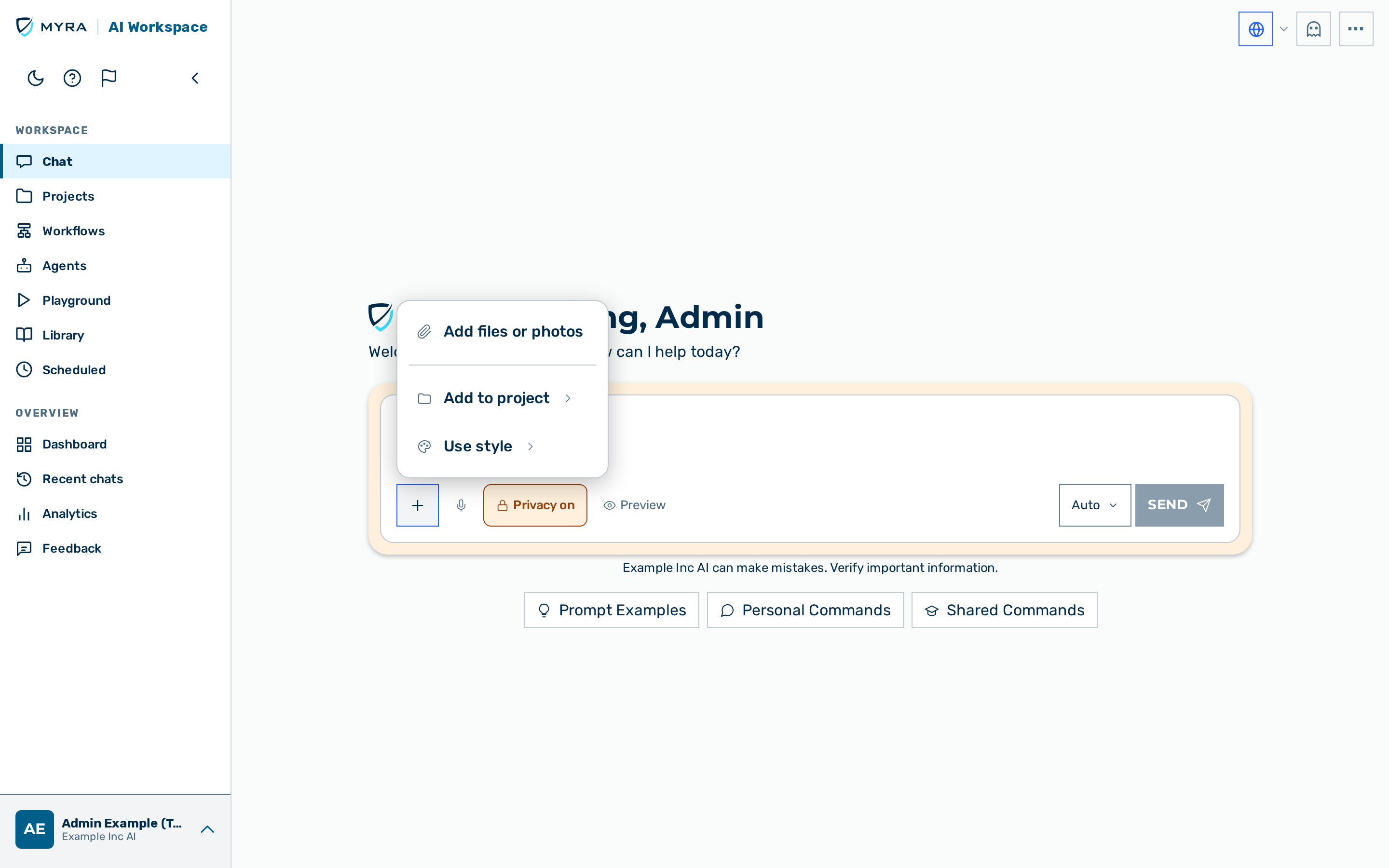 The + menu in the /easy composer, where Add files or photos attaches a file for the code interpreter to analyse.
Proceed as follows to run an analysis on an attached file:
- Open a conversation on the /easy chat surface.
- Click on the + button in the composer.
- The composer menu opens.
- Click on the Add files or photos item.
- The file picker opens.
- Select the spreadsheet or CSV file to analyse.
- The file appears as an attachment chip above the message input.
- Type the question about the file in the message input.
- Send the message.
- The assistant runs the analysis in the sandbox.
-> The assistant returns the result in its reply. A chart appears inline and a generated data file appears as a download card when the program produces one.
💡 Note: The assistant is told the exact filename of each file it produces — in the same turn and on later turns in the conversation — so it refers to a generated file by name and does not wrongly claim a file it created was not created.
💡 Note: You can attach more than one data file to the same message. Only the files the assistant needs for the question are analysed.
Loading a project's files
In a project conversation, the assistant can also load files you uploaded to the project's knowledge into the sandbox — not only files attached to the current message. Ask it by the file's name (for example "use FRV_Letterhead.docx as the template"), and it loads the real file so it can build on it — opening a Word template with python-docx, reading a project spreadsheet with pandas, and so on. This is what lets the assistant produce a document that inherits your actual letterhead or layout rather than a re-created approximation.
When you ask for a document on a template or letterhead you provided, the assistant opens that file as the base and adds your content into it — so the original header, footer, logo, and styling are preserved rather than approximated by hand. The whole program runs in a single sandbox step; the assistant does not save a helper script as a separate file for you to download.
Editing a file the assistant made earlier. You can build a file across several turns — "make a spreadsheet of these items", then "now add a total row", then "add a chart". When you ask it to change or add to a data file it produced earlier in the conversation, the assistant re-opens that exact file and edits it in place, rather than rebuilding it from scratch (which would drop the earlier content). This works for the sandbox input file types listed above — spreadsheets, CSV/TSV, JSON, Word, PowerPoint, PDF, and plain-text documents including Markdown, HTML, XML, and YAML.
How a name is resolved and what is allowed:
- A file attached to the current message wins when the same name exists both as an attachment and in the project. If the attachment is too large to load, a same-named project file within the size limit is loaded instead.
- Access is enforced server-side. Only a project you can access is reached (direct membership, a group grant, or an organisation share all count), and only files you are allowed to see within it — the project id is never taken from the client. A file you cannot access is simply not loaded.
- Newly uploaded files work immediately. A project file is loadable as soon as its upload is stored, even before text extraction finishes; only a file still uploading, or one with no downloadable content, is skipped (with a note).
- Self-correcting on a missed path. If the assistant tries to open a file by a bare name without loading it first, the run reports the file as staged at
/input/<name>and the assistant retries against that path — so a first-try mistake recovers instead of the assistant giving up or rebuilding the document from scratch. - The same PII rule applies. On a PII-protected gateway that does not mask results fail-closed, project files — like attachments — are not loaded into the sandbox.
- Note that the knowledge selection you make for a project (which files are included as context text) does not restrict this: loading a project file into the sandbox is a deliberate, by-name action, gated only by your access to the file.
Downloading a generated file
A program can write a data file — for example a CSV, a text file, a JSON file, or an Excel .xlsx workbook of results. The file is delivered as a download card in the assistant's reply.
Proceed as follows to download a generated file:
- Locate the file card in the assistant's reply.
- Click on the Download button on the card.
-> The file is saved to your device under its original name.
A generated file is stored with its conversation and is deleted when the conversation (or the owning account) is deleted. A file generated during a turn that is never persisted — for example, the user navigates away mid-stream — is swept by a periodic reaper, so an abandoned file does not linger. A file generated into a project is a deliberate addition to that project's knowledge base and is kept until it is removed there.
Generated files in a private (ghost) conversation
A private (ghost) conversation is not saved on the server — no messages are stored, and a file the code interpreter generates is not stored either, not even when the conversation is opened inside a project (it is not added to that project's knowledge base). The file is still delivered: the card appears in the reply and the download works exactly as above, but it exists only in your browser for as long as you stay in that conversation. The card says so, and leaving the conversation discards it along with the rest of the chat. Download the file before you navigate away if you want to keep it.
The same applies to charts, which are shown inline and downloadable but not stored.
⚠️ Caution: A generated file above the tenant's file size limit cannot be delivered in a private conversation. The assistant says the file could not be shown instead of offering a card that would not work. Run the analysis in a normal conversation to keep large results.
File size limit
A single generated file (document, chart, or data file) may be up to 4 MiB by default. A Myra platform administrator can raise this limit per tenant — up to a maximum of 25 MiB — in the tenant settings (Code interpreter file size limit). The same effective limit also applies to files and images delivered live in a private/unsaved conversation. A file larger than the tenant's limit is not delivered; the assistant reports that it could not be shown rather than offering a download card that would fail.
Limits
The sandbox enforces fixed limits on every run. When a limit is hit, the assistant is told what happened and reports it honestly — it does not offer a file it could not produce.
| Limit | Value | What you see |
|---|---|---|
| Wall clock | 30 seconds per run | The program is stopped and the assistant reports that it hit the time limit. |
| Memory | A bounded ceiling of about 1 GB (fleet-configured) | A program that keeps allocating is killed; the assistant reports the failed run. |
| Output | 64 KB per stream (stdout, stderr) | Longer output is cut and the assistant notes that it was truncated. |
| Program size | 64 KB of program text and 64 KB of input each, up to 128 KiB for the combined job | A larger job is refused before it runs, with a clear message. |
| Network | None — the sandbox has no network interface | Downloads, API calls and DNS lookups fail inside the sandbox; the assistant cannot fetch anything from the internet with code. |
Downloading a chart
A chart produced by the code interpreter is rendered inline in the assistant's reply as an image.
Proceed as follows to download a chart:
- Locate the chart image in the assistant's reply.
- Click on the Download original button below the chart.
-> The chart image is saved to your device.
💡 Note: Where the browser supports it, a Copy image button is shown next to the chart so the chart can be copied to the clipboard.
In a workflow — the Code node
The same network-isolated sandbox also powers the Code node in the visual Workflow Baukasten, where you write the Python yourself instead of the assistant. A workflow Code node receives run data only as data, never spliced into your program's source:
- Your code is opaque. The Python you author is run verbatim — it is never rewritten, so a
{{…}}-shaped token in your code (an f-stringf"{{x}}", a set literal) is literal Python, and the workflow's form/webhook input is never injected into your source. /input/_context.json— the run's trigger input, always staged as a JSON object. Read it withjson.load(open("/input/_context.json")); for a form run it is the{field, value}submission (a file field yields the extracted, PII-masked text). It is always present and always an object — a run with no input degrades to{}— sojson.load(...).get(...)never raises._context.jsonis a reserved name: an input artifact cannot use it.input_refs— up to 7 prior-node artifacts, each staged at/input/<name>(one of the sandbox's 8 input-file slots is reserved for_context.json).
See Workflows API — Code node for the full contract.
See also
- Configuration reference — Code interpreter — the gateway configuration and deployment prerequisites for enabling the feature.
- Workflows — the visual Workflow Baukasten, including the Code node.
- Chat features — attaching files and working with generated content in a conversation.
- Image generation — a separate tool that produces images from a description.