Governance
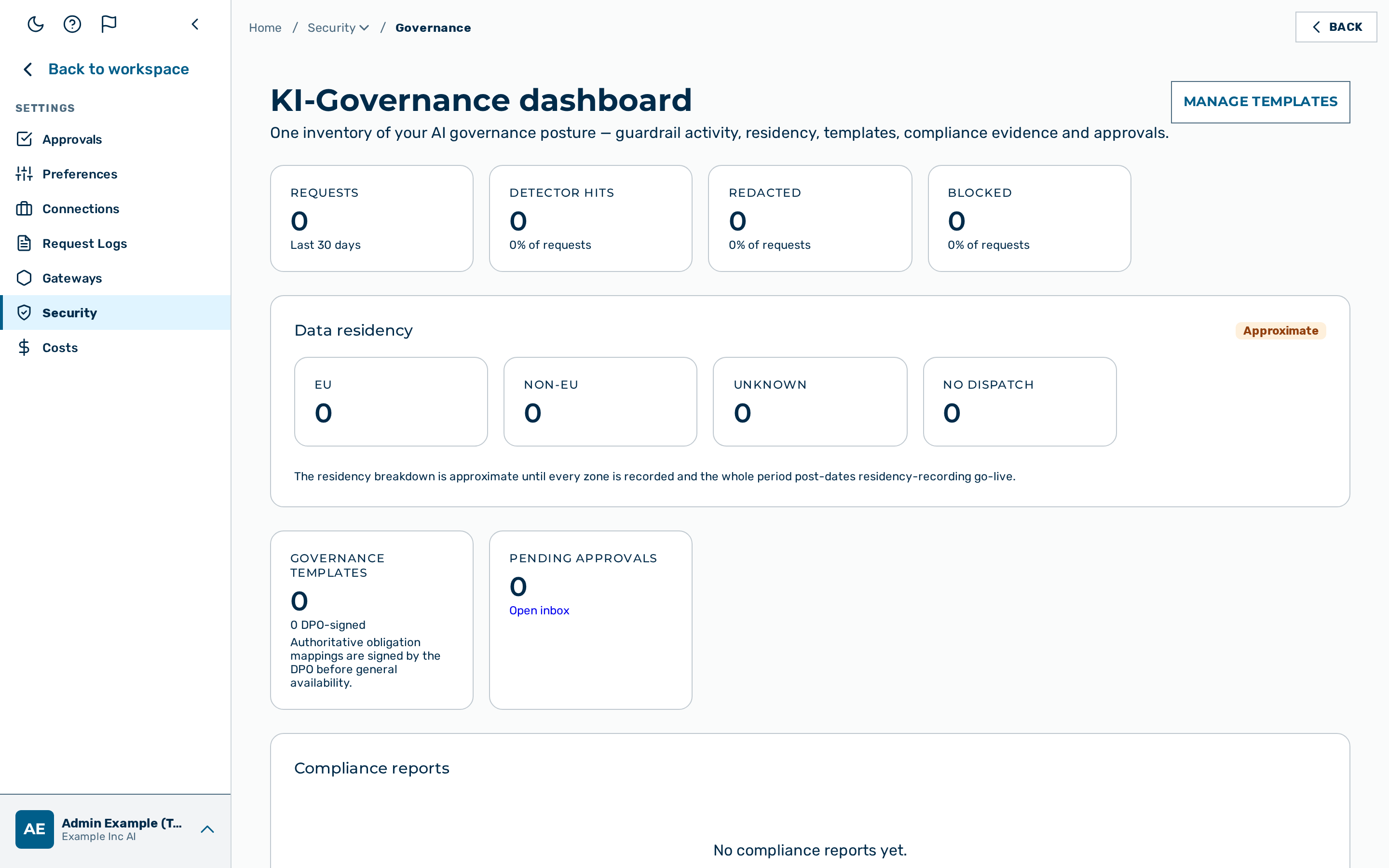 The KI-Governance dashboard.
Description
The Governance area gives a tenant one place to see and steer its AI governance posture. It has two views:
- The KI-Governance dashboard at
/governance— a read-only inventory of guardrail activity, data residency, governance templates, pending approvals, and compliance evidence. - The KI-Governance templates view at
/governance/templates— the catalogue where rule templates are created, edited, previewed, and applied to a gateway.
Both views, and creating and applying templates, are restricted to users with the role admin, tenant admin, or KI-Manager. Concepts and data model are described in Governance templates.
💡 Note: Templates created in this view are non-authoritative and are not a legal compliance guarantee. Authoritative content is signed off by the Data Protection Officer, and authoritative templates are read-only in the interface.
Reading the dashboard
Select a tenant from the Tenant drop-down list to load its dashboard. The dashboard shows:
- Requests and Detector hits tiles for the last 30 days, with the count of Redacted and Blocked requests and their share of all requests.
- Data residency — the split of dispatched requests across EU, Non-EU, Unknown, and No dispatch, marked Authoritative or Approximate. The breakdown stays approximate until every zone is recorded and the whole period post-dates the residency-recording go-live.
- Governance templates — the number of templates and how many are DPO-signed.
- Pending approvals — the count of agent-delivery approvals waiting for a decision, with an Open inbox link to the Agent approvals page.
- Compliance reports — the history of generated reports, each with its Period, its Generated date, and a CSV and PDF download.
💡 Note: The monthly compliance-report snapshots are off by default and are enabled per tenant. A platform administrator opts a tenant in by setting
compliance_report_enabledviaPATCH /admin/v1/tenants/{id}(see the Compliance API). Until a tenant is opted in, its Compliance reports list stays empty. Enablement is a database setting, not a deployment switch.
Click on the Manage templates button to open the templates view.
Creating a governance template
Before you begin, ensure the following conditions are met:
- ☑ You are signed in with the
admin,tenant_admin, orki_managerrole. - ☑ A tenant is selected in the Tenant drop-down list.
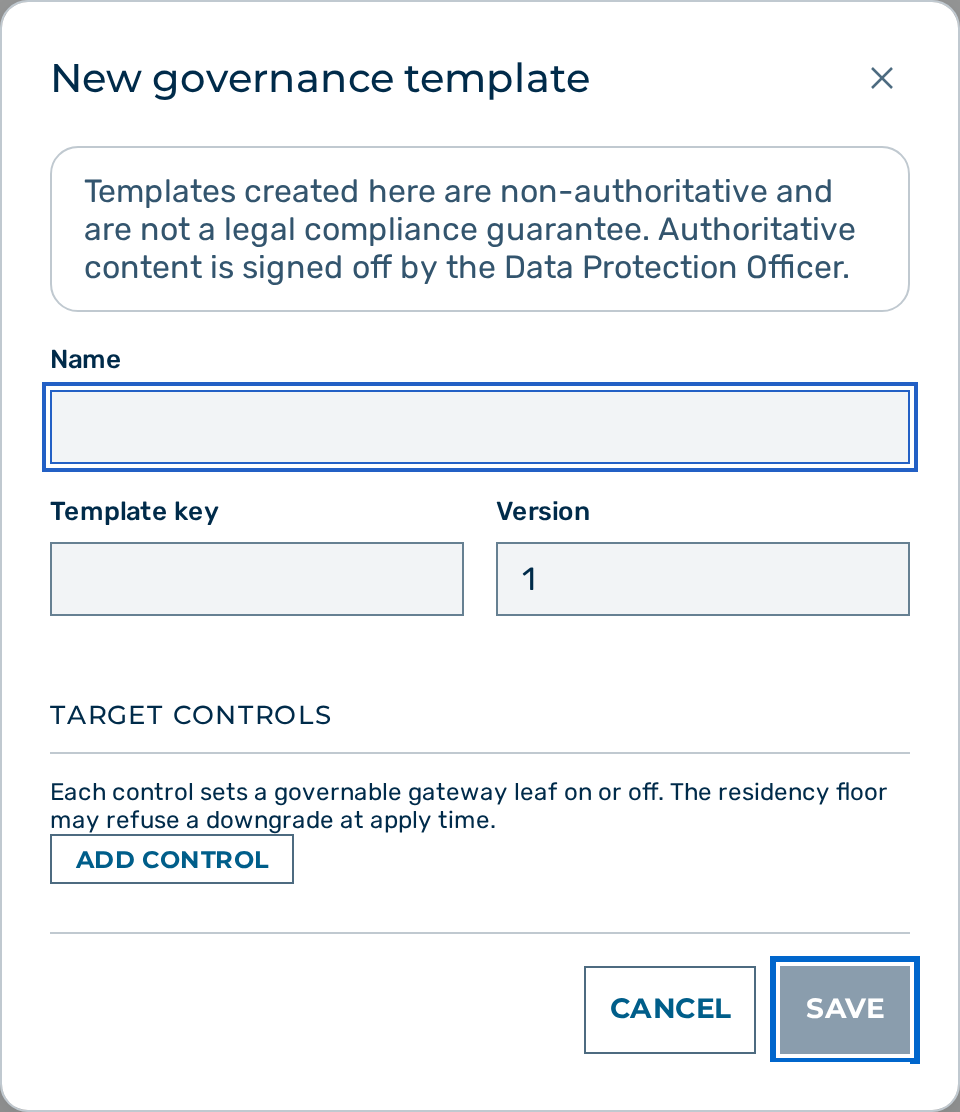 The New governance template dialog.
Proceed as follows to create a governance template:
- Open Settings → Security → Governance (user-block menu at the bottom of the left sidebar → Settings), then open the templates view with Manage templates.
- Click on the New template button.
- The New governance template dialog opens.
- Enter a name for the template in the Name text field.
- Enter a stable identifier in the Template key text field.
- Enter a version in the Version text field.
- Under Target controls, click on the Add control button for each obligation you want to map.
- Select the gateway control in the Control drop-down list of the new row.
- Set the Value to on or off.
- If required, enter an Obligation reference for the row.
- Click on the Save button.
-> The new template appears in the templates list. Repeat this process for all required templates.
💡 Note: The Template key and Version fields are set only when a template is created; they cannot be changed later.
Editing a governance template
Proceed as follows to edit a governance template:
- Open the templates view.
- Click on the row of the template you want to change.
- The Edit governance template dialog opens with the current values.
- Change the name, or add, edit, or remove rows under Target controls.
- Click on the Save button.
-> The template is updated in the list.
💡 Note: An authoritative template is read-only and cannot be edited in the interface.
Deleting a governance template
Proceed as follows to delete a governance template:
- Open the templates view.
- Click on the Delete button in the row of the template you want to remove.
- A confirmation prompt appears.
- Confirm the deletion.
-> The template no longer appears in the list.
Applying a template to a gateway
Applying a template previews the change first, so you always see what it will do before it takes effect. The residency floor is always enforced — a control that would weaken the tenant's residency posture is refused, never applied.
Proceed as follows to apply a template:
- Open the templates view.
- Click on the Preview & apply button in the template's row.
- The Preview & apply dialog opens.
- Select the target gateway from the Gateway drop-down list.
- Click on the Preview button.
- The dialog lists each control with its Requested value, the Result, and a Status of Will change, Unchanged, Set on tenant, or Blocked by residency floor.
- Click on the Apply button.
-> The template is applied to the gateway. Controls blocked by the residency floor stay unchanged.
Downloading a compliance report
Proceed as follows to download a compliance report:
- Open the KI-Governance dashboard and select the tenant.
- Find the report in the Compliance reports list.
- Click on the CSV or PDF link in the report's row.
-> The compliance report downloads in the selected format.
💡 Note: A compliance report carries an Approximate residency basis until the reporting period post-dates the residency-recording go-live for the deployment.