Approvals — Personal
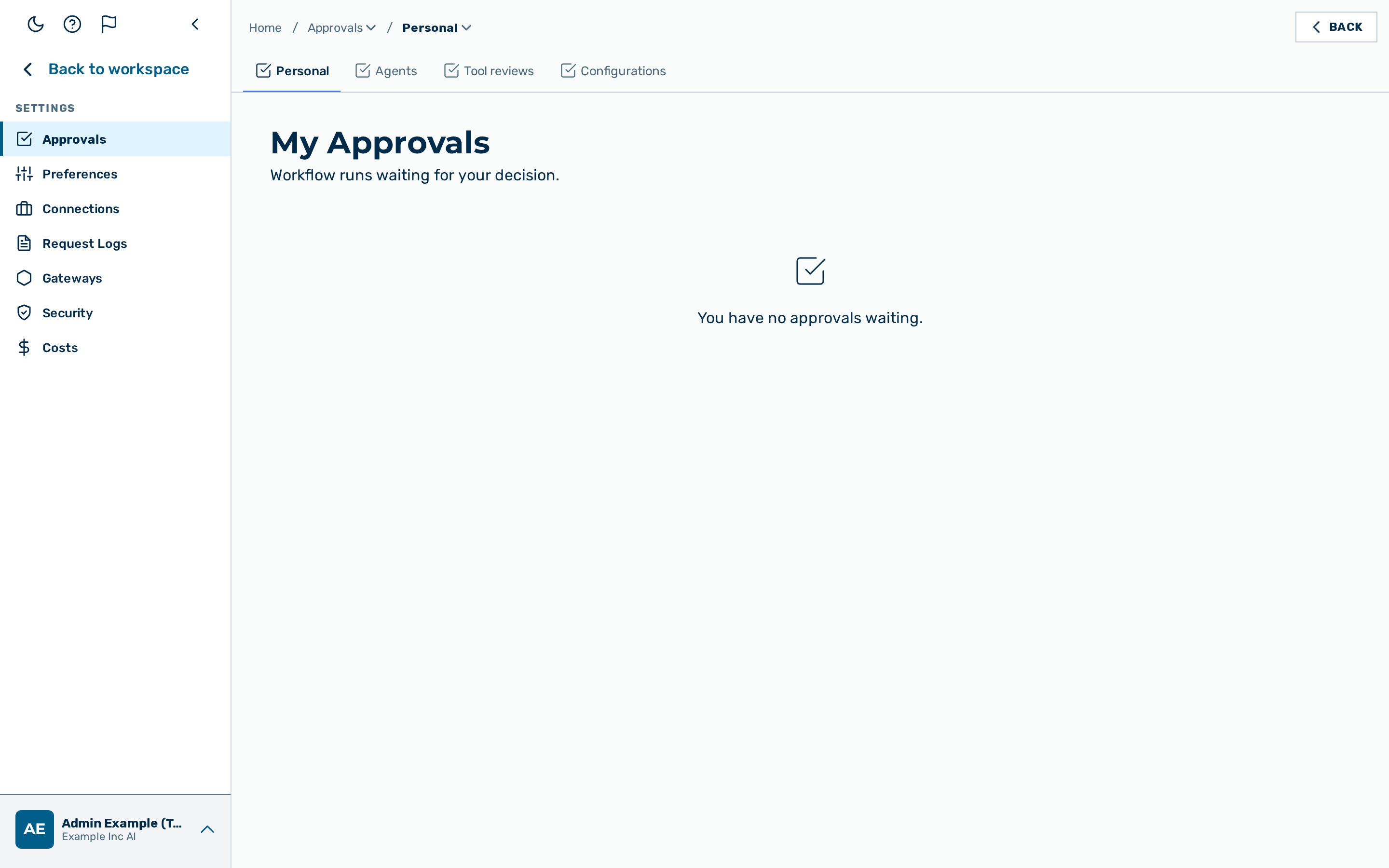 The Personal tab of the Approvals page.
The Personal tab is your inbox for workflow runs that are waiting for your decision. When a workflow reaches a Human-Approval step and names you as the approver, its run is suspended and appears here until you approve or reject it.
It is the first tab of Settings › Approvals (route /approvals), reached from the user-block menu at the bottom of the left sidebar → Settings → Approvals. It is available to every signed-in user —
any user can be named as an approver, whether or not they can build workflows, so a member
sees a single tab-less Approvals page landing here. You see and decide only the runs where
you are the named approver. (See the Approvals overview for the full tab set.)
💡 Note: This inbox is for workflow Human-Approval steps. Scheduled agent-run deliveries that require sign-off before they are sent are handled separately on the Agents tab of the Approvals page, available to administrators and tenant administrators.
Each pending request is shown as a card with the workflow name, who requested the run (Requested by), the decision deadline (Decide by), the cost so far (Cost so far), the approval Step, and a short Run reference. When the inbox is empty, the page shows You have no approvals waiting.
For the underlying API — the inbox, the detail, and the decision endpoint — see the Workflows API reference.
Reviewing a pending approval
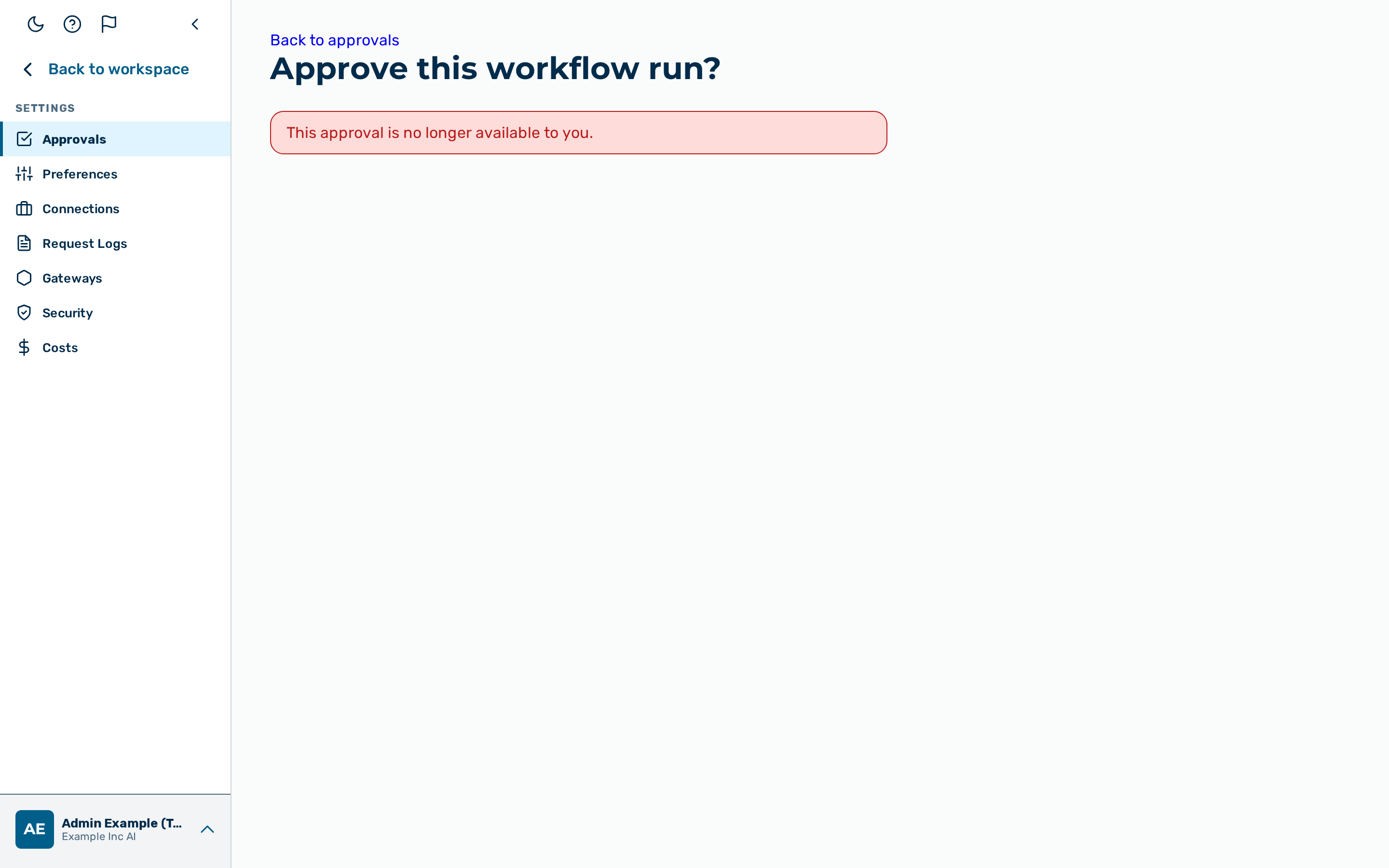 The approval confirmation page.
Selecting a card opens the confirmation page for that run. The page is the trust surface for the decision: it names the workflow, who requested the run, the run reference, the approval step, the cost so far, and the deadline.
Under What was produced so far, the page shows the output the run has produced up to the approval step, rendered as readable text where possible, with the raw detail available under Technical details. When the run has handled personal data, a notice states that delivery stays blocked until the data is cleared.
Proceed as follows to open a request for review:
- Click on a card in the Personal approvals inbox.
-> The confirmation page for the run opens, showing the run summary and its output so far.
To return to the inbox without deciding, click on the Back to approvals link.
Approving a request
Approving a run lets it continue past the approval step.
Proceed as follows to approve a run:
- Review the run summary and the What was produced so far section.
- Click on the Approve button.
-> The run resumes and continues past the approval step, and the request leaves your inbox.
Rejecting a request
Rejecting a run ends it. A reason is required, so the run owner can see why the run was stopped.
Proceed as follows to reject a run:
- Click on the Reject button.
- A Reason for rejection text field appears.
- Enter the reason in the Reason for rejection text field.
- Click on the Confirm rejection button.
-> The run ends, the rejection reason is recorded on the run, and the request leaves your inbox.
💡 Note: A reason of between 1 and 1000 characters is required to reject a run. To abandon the rejection without deciding, click on the Cancel button.
Each run can be decided only once. If the run was already decided, or its deadline passed first, the confirmation page reports that the run is no longer available and returns you to the inbox.