Playground
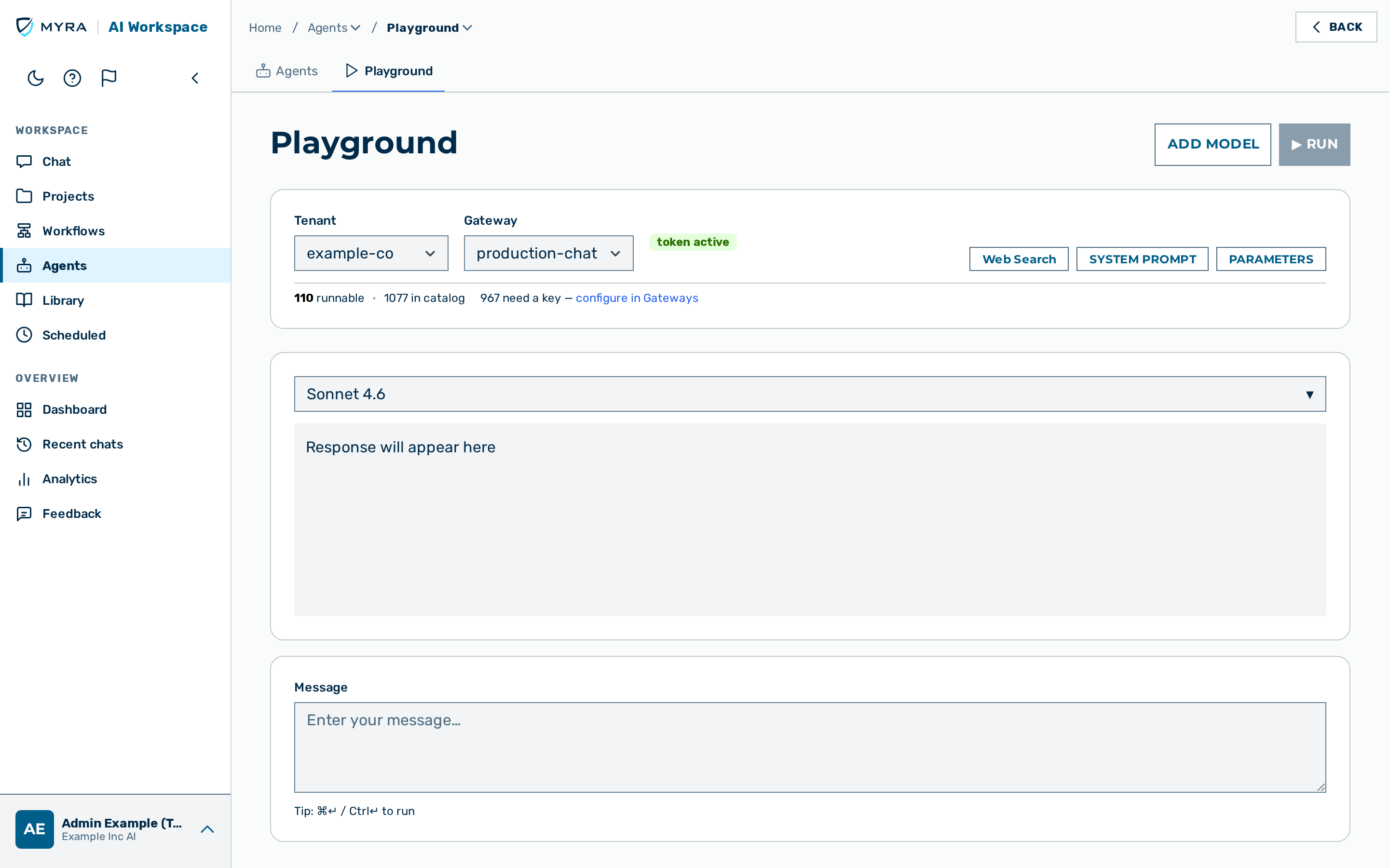 The playground showing a multi-panel comparison with response cards and status bars.
The Playground view lets you send prompts to one or more models simultaneously and compare responses side-by-side without writing any code.
Multi-panel comparison
The playground supports up to four model panels side by side. All panels receive the same prompt at the same time when you click the ▶ Run button.
Proceed as follows to add a model panel:
- Click on the Add Model button.
- A new panel opens (up to four panels total).
- Choose a model in the new panel's model picker.
-> The new panel is ready to receive prompts.
Each panel has its own combined model picker, where provider and model are chosen together in a single control. Response cards display in a horizontal scroll layout on wide screens and stack on mobile.
The multi-panel layout supports comparing the following configurations:
- Two models from the same provider (for example a large model against a faster, cheaper one)
- The same model served through two different gateways
- Cloud vs local inference (cloud vs local models)
Tenant and gateway
Above the panels, a Tenant picker and a Gateway picker select the context the prompts run in. The chosen tenant and gateway determine which models the panel pickers offer: the runnable set is the union of the providers configured across that tenant's gateways (the same resolution the /easy chat uses). A gateway with no configured providers offers no runnable models. Both selections persist across page reloads (see State persistence).
Request configuration
The following settings are shared across all panels in a session:
| Control | Range / type | Description |
|---|---|---|
| System prompt | Free text (collapsible) | Prepended as a system message to every request |
| Temperature | 0–2 (slider) | Controls response randomness |
| Web search | Toggle | Enables web search grounding (when enabled by your account configuration) |
💡 Note: Settings apply to every panel simultaneously. To set different temperatures for different panels, use separate sessions.
Real-time streaming
Responses stream token-by-token using server-sent events (SSE). Each panel renders markdown in real time as tokens arrive.
Status bar
Each panel has a status bar beneath the response that shows the following fields after the response completes:
| Field | Description |
|---|---|
| Elapsed | Wall-clock time from send to last token (ms) |
| Input tokens | Prompt token count |
| Output tokens | Completion token count |
| Cache write tokens | Anthropic prompt cache creation tokens (if applicable) |
| Cache read tokens | Anthropic prompt cache read tokens (if applicable) |
| Cost estimate | Estimated cost in USD based on the prices table |
Error badges
If a provider returns an error, the panel shows a badge instead of a response:
| Badge | HTTP status | Meaning |
|---|---|---|
AUTH ERROR |
401 / 403 | Missing or invalid API key / auth token, or request blocked by authorisation |
NOT FOUND |
404 | Model not found or endpoint path incorrect |
RATE LIMITED |
429 | Provider or gateway rate limit exceeded |
SERVER ERROR |
5xx | Upstream provider or gateway internal error |
State persistence
The playground saves its configuration in the browser automatically. The following fields persist across page reloads:
| Field | Description |
|---|---|
| Tenant selection | Last-used tenant |
| Gateway selection | Last-used gateway |
| Model selections | Model chosen in each panel |
| System prompt | System prompt text |
| Temperature | Temperature slider value |
| Web search | Whether the web-search toggle is enabled |
💡 Note: Conversation history is not persisted — each page load starts with an empty conversation.
Web search
Web search is available when enabled by your Myra Security account configuration. Toggle the single Web search control in the shared configuration bar to have the models search the web before answering. The toggle applies to every panel at once.