Content Reports
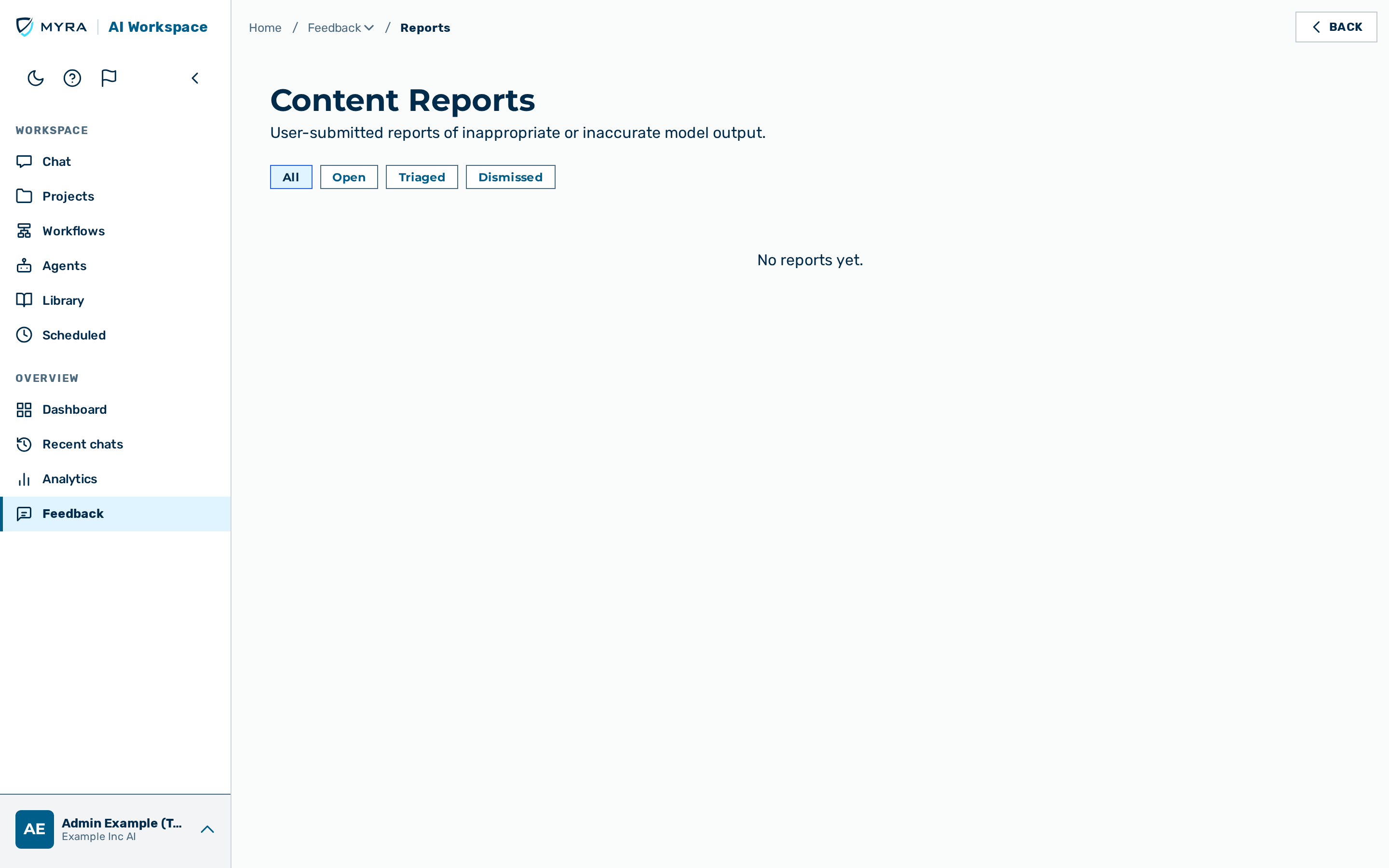
Description
The Content Reports view (nav label Reports) is a moderation inbox for reports filed by chat users against AI-generated content. A report is produced when a user clicks the Report button on an assistant message in the Chat view. It is the Reports tab of the Overview › Feedback group (route /reports). The backend authorizes the admin and tenant_admin roles (a tenant admin is scoped to their own tenant); a tenant admin sees the Feedback group landing on this tab.
The view exists to satisfy generative-AI moderation requirements published by the major mobile application stores: every application that exposes generative AI to end users must give those users a way to flag offensive output and must operate a moderation pipeline that triages flagged content.
The page header shows the heading Content Reports plus a badge with the number of reports in the open status.
The filter row contains four buttons: All, Open, Triaged, Dismissed.
The table lists six columns:
- When — the submission timestamp.
- Reporter — the email address of the reporting user.
- Reason — a coloured badge: Offensive, Unsafe advice, Inaccurate, or Other.
- Status — the label Open, Triaged, or Dismissed.
- Preview — the first 120 characters of the reported message text.
- An action column with the buttons Mark triaged, Dismiss, and Reopen. A button is shown only when the corresponding transition is valid.
Expand a row's detail panel — the full message text and the optional notes added by the reporter — by clicking the row (the whole row is clickable).
Marking an open report as triaged
Proceed as follows to mark a report as triaged:
- Locate the report in the list. The status reads Open.
- Click on the Mark triaged button in the row.
-> The status changes to Triaged and the open counter on the page heading decreases by one.
💡 Note: Triage is the moderator confirming that the report has been reviewed. The action does not remove the message from the source conversation.
Dismissing an open report
Proceed as follows to dismiss a report:
- Locate the report in the list.
- Click on the Dismiss button in the row.
-> The status changes to Dismissed and the open counter on the page heading decreases by one.
Reopening a closed report
Proceed as follows to reopen a triaged or dismissed report:
- Click on the Reopen button in the row.
-> The status changes back to Open.