Prompts
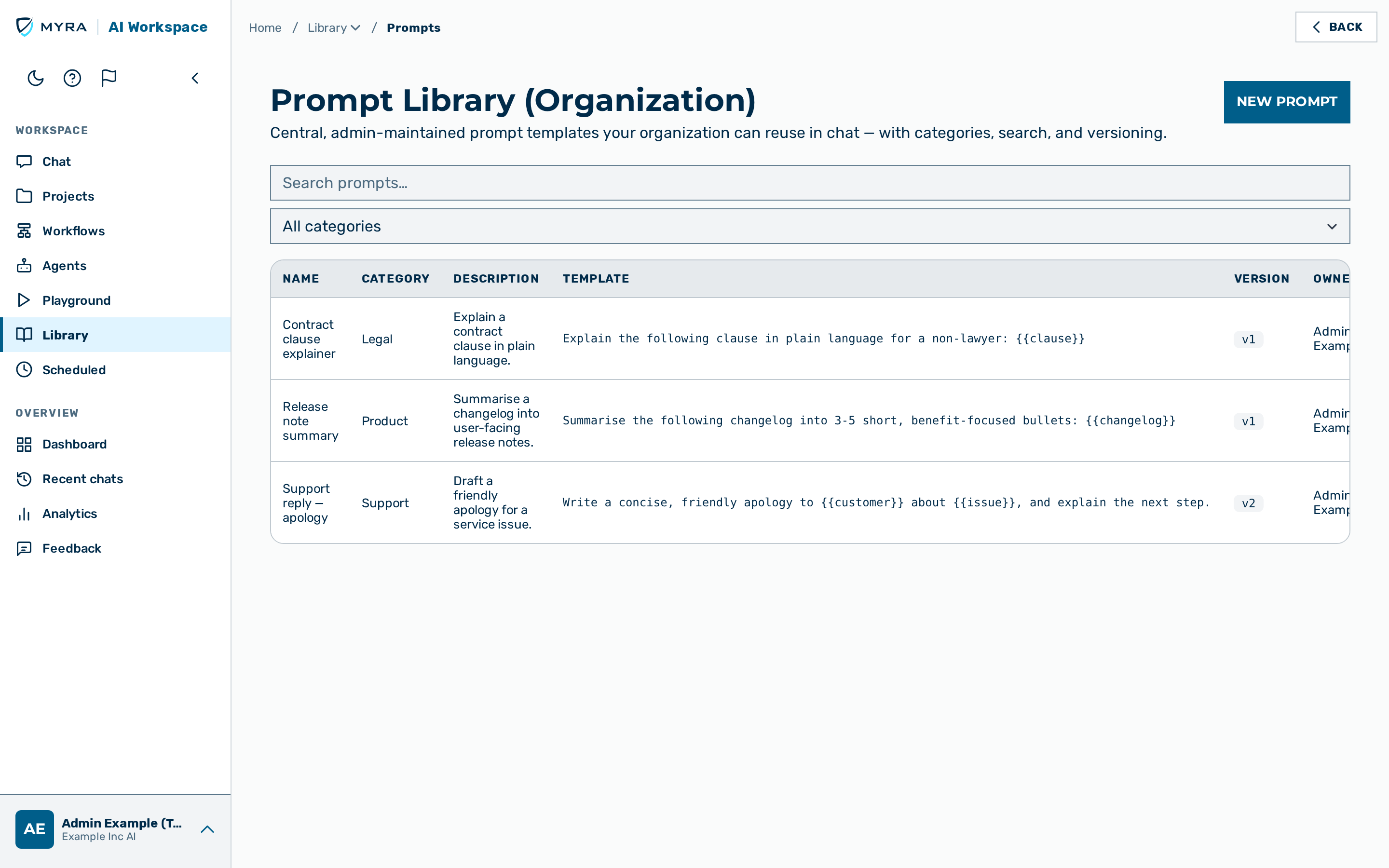 The Prompts list view, showing the organization's prompt templates with their categories, descriptions, and current versions.
Description
The Prompts page (the focused tab of the Library group) is the central,
organization-wide collection of admin-managed prompt templates. It is reached from the
Library entry in the Workspace cluster of the left rail and is visible to the admin,
tenant_admin, and ki_manager roles. The backend re-checks the role and scopes every request
to a single organization; the client is never the authorization boundary.
A prompt-library entry is a reusable prompt template that belongs to one organization. Each entry has a display name, an optional category, an optional description, the prompt template text, and a version counter. Every create and every edit stores a full snapshot of the entry, so a previous version can be restored at any time.
The Prompts library is separate from a user's personal commands. A personal command belongs to a single user; a prompt-library entry belongs to the whole organization.
The list view shows one row per entry with the columns Name, Category, Description, Template, Version, Owner, and Updated. Each row carries a Use in chat action (pre-fills the composer of a new chat without sending — it replaces any unsent draft, and what you edit afterwards is what is kept), an Edit button, a Versions button, and a Delete button.
The toolbar above the list provides a search field, a category drop-down list, and — for platform administrators only — an organization drop-down list.
💡 Note: A
tenant_adminor aki_manageralways manages the prompts of their own organization. A platformadminmanages any organization and must first select one from the Organization drop-down list; until an organization is selected, the New prompt button, the search field, and the category drop-down list stay disabled.⚠️ Caution: If the organization has enabled four-eyes config approval, a create, edit, delete, or restore action is not applied immediately. The action is held until a second, different administrator approves it, and the message Change submitted for approval. appears. The list stays unchanged until the approval is granted. See Config approvals.
Creating a prompt
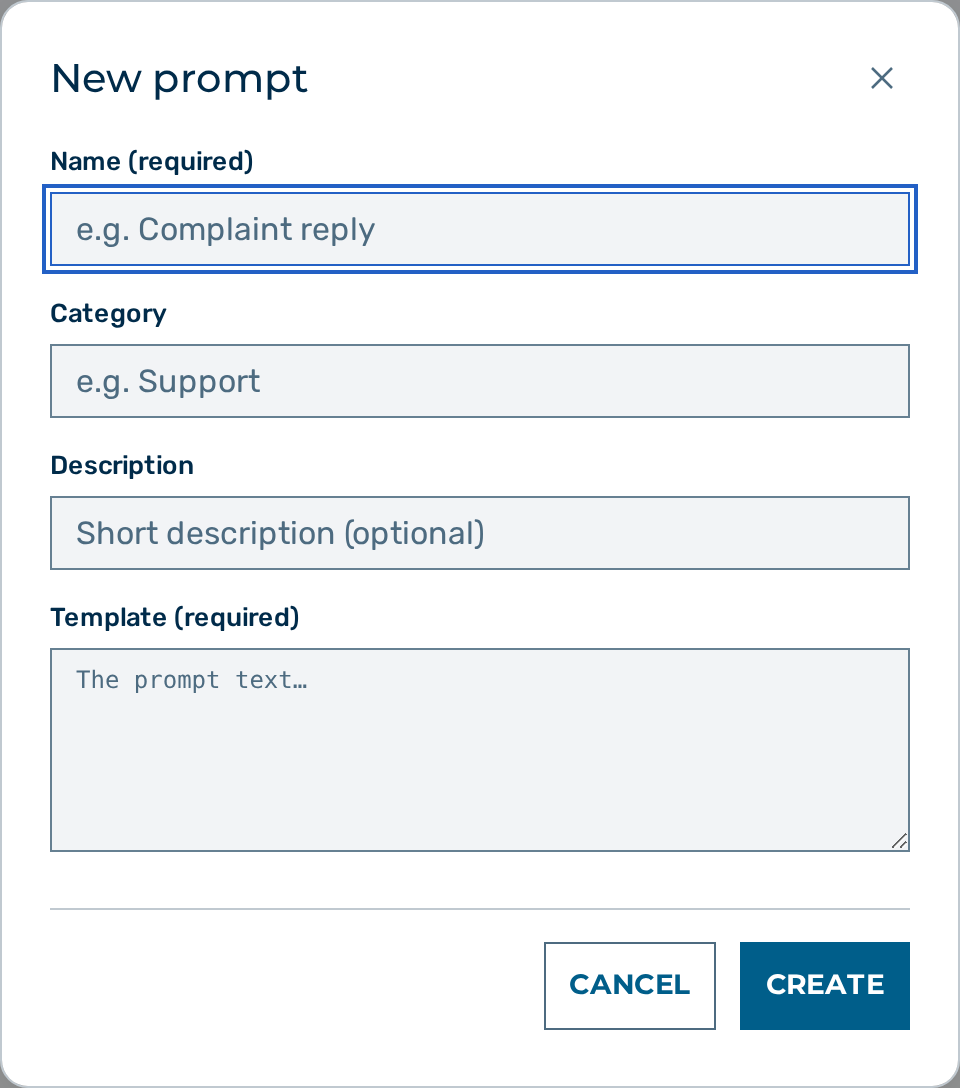
Create a prompt to add a reusable template to the organization's library.
Proceed as follows to create a prompt:
- If you are a platform administrator, select the target organization from the Organization drop-down list.
- Click on the New prompt button.
- The New prompt dialog opens.
- Enter a name in the Name (required) field.
- If required, enter a category in the Category field.
- If required, enter a description in the Description field.
- Enter the prompt text in the Template (required) field.
- Click on the Create button.
-> The new prompt appears in the list of prompts at version v1.
💡 Note: The Name field accepts between 1 and 255 characters. The Category field accepts up to 64 characters. The Template field accepts up to 65535 bytes. The Description field is optional and clears to no value when left empty.
Editing a prompt
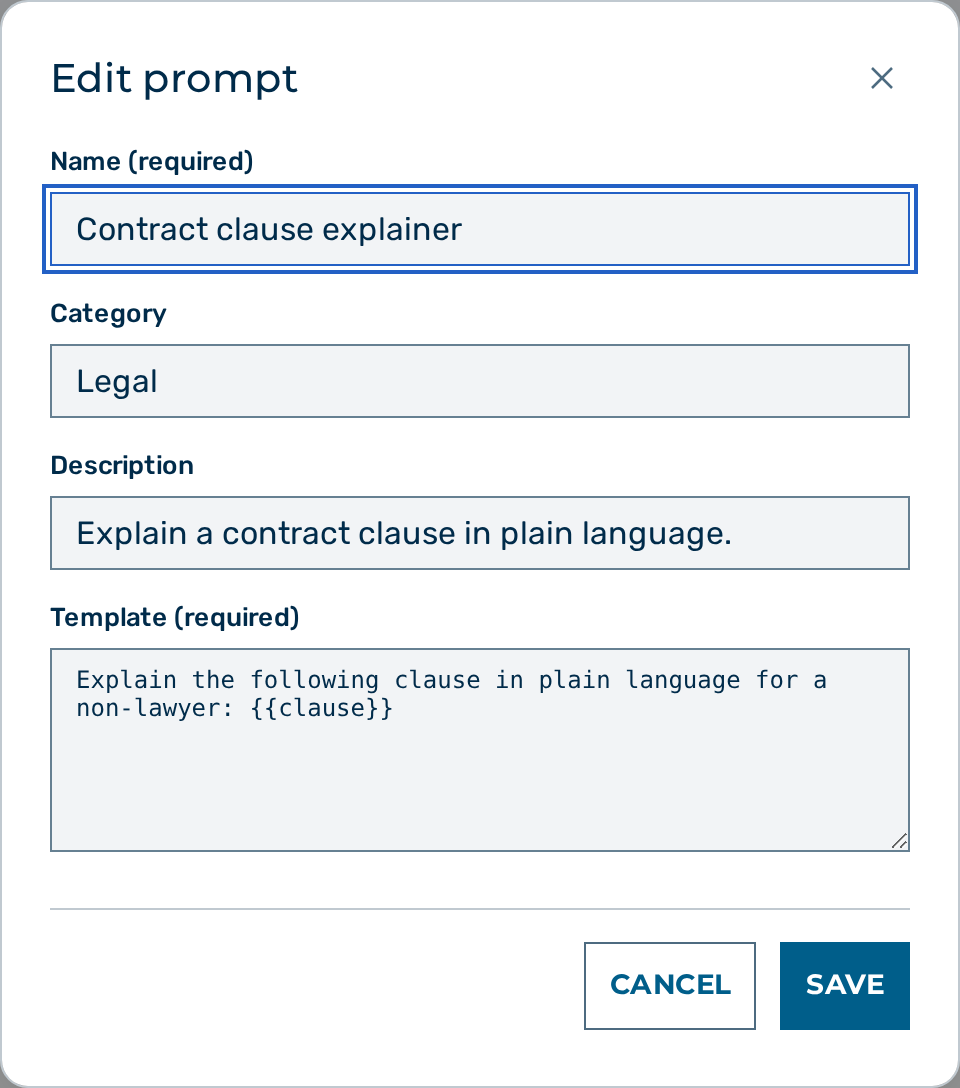
Edit a prompt to change its name, category, description, or template.
Proceed as follows to edit a prompt:
- Click on the Edit button in the row of the prompt.
- The Edit prompt dialog opens with the current values.
- Change the values in the fields.
- Click on the Save button.
-> The updated prompt appears in the list of prompts, and the version counter increases by one.
💡 Note: Each edit stores a new version snapshot. No previous version is overwritten, so any earlier version stays available for restore.
Deleting a prompt
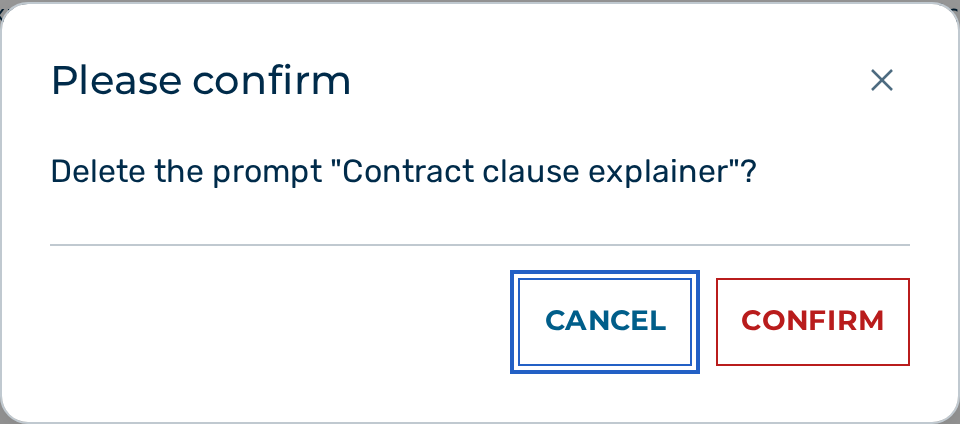
Delete a prompt to remove it from the organization's library.
Proceed as follows to delete a prompt:
- Click on the Delete button in the row of the prompt.
- A confirmation dialog opens and asks to confirm the deletion of the named prompt.
- Confirm the deletion.
-> The prompt disappears from the list of prompts, and the message Prompt deleted. appears.
💡 Note: The version history of a deleted prompt is retained until the organization is purged.
Restoring a previous version
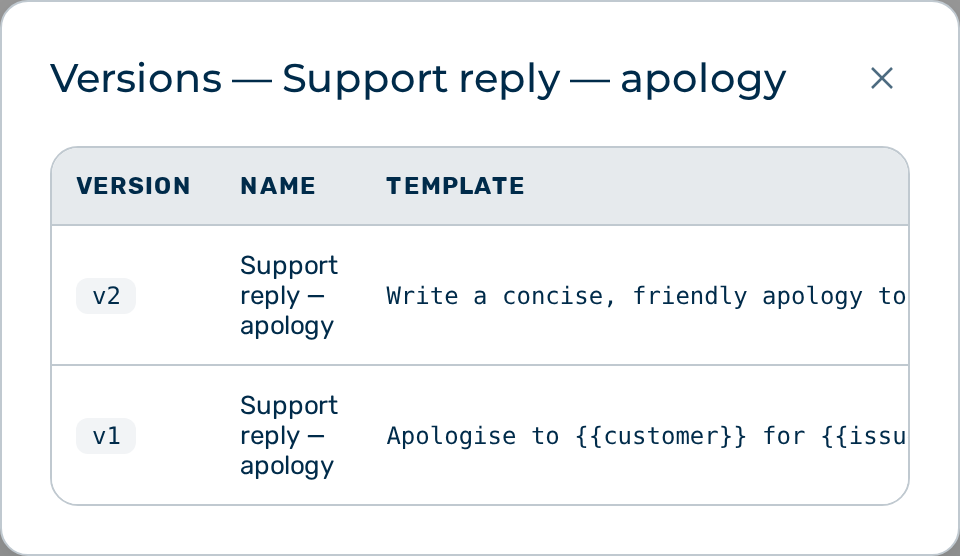
Restore a previous version to bring back an earlier name, category, description, and template.
Proceed as follows to restore a previous version:
- Click on the Versions button in the row of the prompt.
- The Versions dialog opens and lists the version history, newest first.
- Click on the Restore button next to the required version.
- A confirmation dialog opens and states that the restore creates a new version with the restored content.
- Confirm the restore.
-> The restored content becomes the current version, and the message Version restored. appears.
💡 Note: A restore does not delete any history. It creates a new version whose content equals the chosen version, so the version counter increases by one.
Searching prompts
Use the toolbar to find an entry in a large library. The search field and the category drop-down list appear above the prompt list (see the screenshot at the top of this chapter).
Proceed as follows to search for a prompt:
- Enter a search term in the search field.
-> The list shows the prompts whose name, description, or template match the search term. The search runs on the server across all of the organization's prompts.
💡 Note: A search term shorter than three characters is ignored by the server-side search.
Filtering prompts by category
Proceed as follows to filter prompts by category:
- Select a category from the category drop-down list.
-> The list shows only the prompts in the selected category. Select All categories to remove the filter.
💡 Note: The category drop-down list offers only the categories present in the current list.