Config approvals
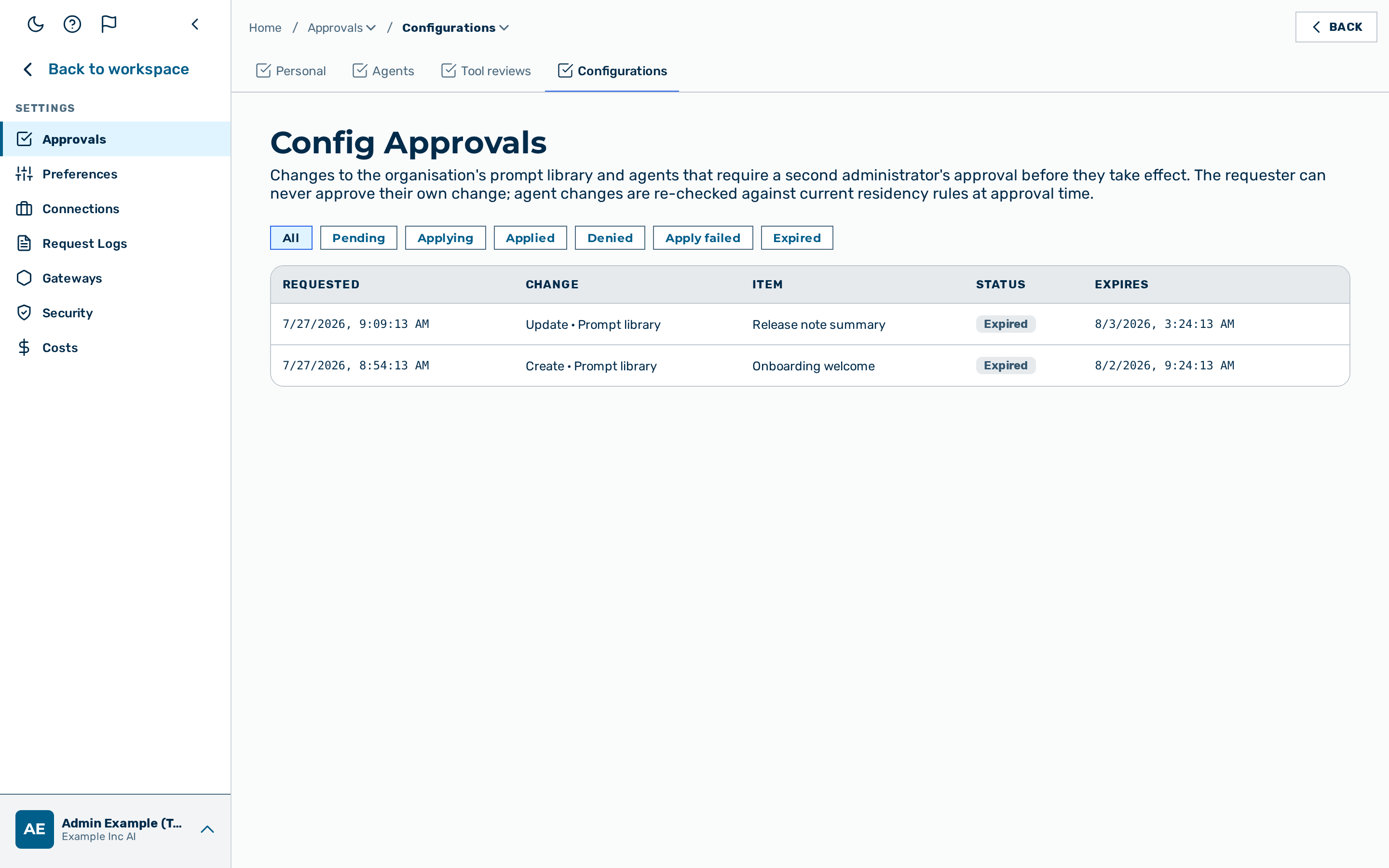 The Config Approvals inbox listing pending configuration changes that await a second administrator's approval.
Description
The Config Approvals page is the review inbox for the four-eyes control on configuration changes. A config approval is a pending, mutating configuration change that one administrator has requested and that a second, different administrator must approve before it takes effect. This is the four-eyes principle: no single administrator can change the governed configuration alone.
The page is the Configurations tab of Settings › Approvals, reached from the user-block menu at the bottom of the left sidebar → Settings → Approvals (route /config-approvals unchanged). It is
visible to the admin, tenant_admin, and ki_manager roles (the manage roles). The gate is
re-checked and tenant-scoped on the gateway; the inbox never lists another organization's rows.
(See the Approvals overview for the full tab set.)
The four-eyes control is a per-organization switch that is off by default. While it is on, a change requested by an organization administrator (a tenant_admin or ki_manager) is held in this inbox instead of applying at once. The held change governs the following areas:
- The organization's central prompt library — a Create, Update, or Delete operation. A prompt-library restore is held as an Update.
- A saved agent — a Create, Update, Restore, or Delete operation.
- An agent schedule — a Create, Update, or Delete operation.
- A project (knowledge space) — a Create, Update, or Delete operation.
- The organization's own settings — a change a
tenant_adminmakes under Settings › Organisation.
Budget changes are governed separately. A
tenant_admin's change to the organization's spend budget (budget_usd) is not governed by the general four-eyes switch above. It has its own per-tenant control, Require a second admin's approval (four-eyes) for budget changes, set by a platform administrator in User Management › Organisation › Edit › General and off by default. When it is off, a budget change applies immediately (any platform-set budget cap still holds); when it is on, the budget change is held in this same inbox as an Update to the organization. The two switches are independent — turning on the general control does not gate budget changes, and turning on the budget control does not gate the areas above.
The inbox lists each held change as one row. The table has the following columns.
| Column | Content |
|---|---|
| Requested | The date and time at which the change was requested. |
| Change | The operation and the affected area, joined with a middle dot — for example Create · Prompt library. |
| Item | A short summary of the affected item, for example the prompt or agent name. A row without a summary shows a dash. |
| Status | The current status of the change, shown as a coloured badge. |
| Expires | The date and time at which a pending change expires. A change that is no longer pending shows a dash. |
A change moves through the following statuses.
| Status | Meaning |
|---|---|
| Pending | The change waits for a second administrator's decision. |
| Applying | An approved agent change is being re-validated and applied. |
| Applied | The change was approved and has taken effect. |
| Denied | The change was denied and discarded; nothing took effect. |
| Apply failed | The change was approved but could not be applied — for example an agent model that is now blocked by the residency rules. Nothing took effect. |
| Expired | The change stayed pending past its expiry window and can no longer be approved. |
The page title carries a
💡 Note: A pending agent change is re-checked against the organization's current residency and provider rules at the moment of approval, not from the state at the time it was requested. If a model is no longer permitted, the approval is refused and the change moves to Apply failed; nothing is written.
⚠️ Caution: A pending change expires seven days after it was requested. After the expiry window, the change shows the status Expired and can no longer be approved. Ask the requester to submit the change again.
Filtering the inbox by status
The status filter bar sits above the inbox table (see the screenshot at the top of this chapter).
Proceed as follows to filter the inbox by status:
- Locate the filter bar above the table.
- The filter bar shows one button per status.
- Click on the required status button — All, Pending, Applying, Applied, Denied, Apply failed, or Expired.
- The selected button is highlighted.
-> The table lists only the approvals with the selected status. Click on the All button to remove the filter.
Approving a change
A requester can never approve their own change; a second, different administrator must approve it. On a change that the current administrator requested, the Approve button is hidden and the note Your request is shown instead. The gateway also refuses a self-approval on the server side.
Proceed as follows to approve a pending change:
- Click on the Pending button in the filter bar.
- The table lists only the pending changes.
- Locate the row of the change to approve.
- The Change and Item columns identify the affected configuration.
- Click on the Approve button in that row.
- The decision is sent to the gateway and the row refreshes.
-> The change takes effect and the Status column shows Applied. If the change can no longer be applied, the Status column shows Apply failed and nothing is written.
Denying a change
Denying a pending change discards it; nothing takes effect. Unlike an approval, an administrator may deny their own pending change to withdraw it.
Proceed as follows to deny a pending change:
- Click on the Pending button in the filter bar.
- The table lists only the pending changes.
- Locate the row of the change to deny.
- The Change and Item columns identify the affected configuration.
- Click on the Deny button in that row.
- The decision is sent to the gateway and the row refreshes.
-> The change is discarded and the Status column shows Denied.