Gateways
Description
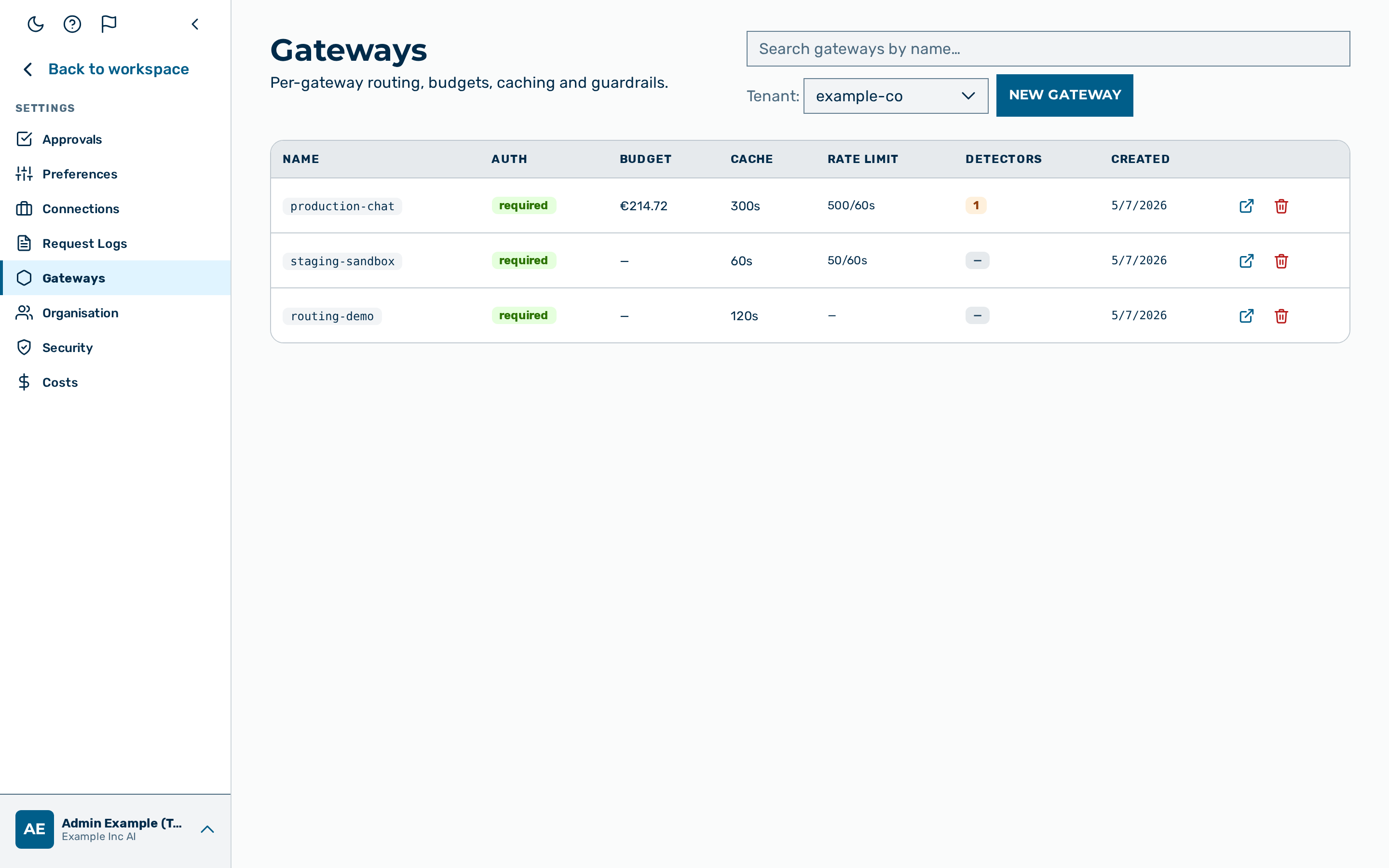
A gateway is the central routing object. Each gateway exposes an inference endpoint, enforces auth, rate limit, budget, and guardrail policies, and routes requests to one or more upstream providers. Every gateway belongs to a tenant.
The Gateways view is reached from the user-block menu at the bottom of the left sidebar → Settings → Gateways (route /gateways unchanged). It is restricted to users with the role tenant admin or admin.
When you have access to more than one tenant, the Gateways view opens on a tenant picker: a grid of tenant pills above a tenant search box. Type in the tenant search box to filter the pills and to open an autosuggest drop-down list of the matching tenants.
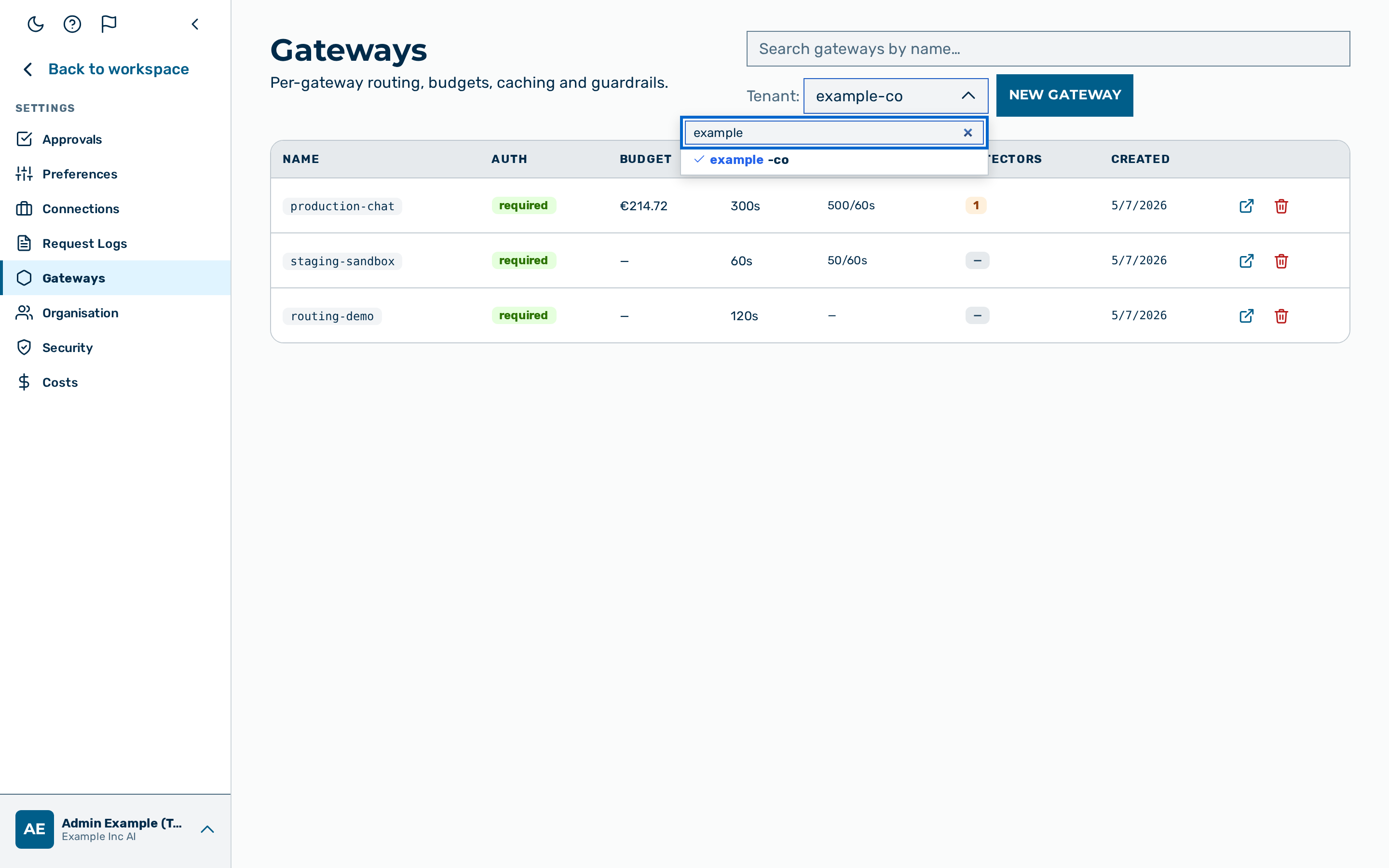
Proceed as follows to select a tenant from the autosuggest drop-down list:
- Enter part of the tenant slug in the tenant search box.
- The autosuggest drop-down list shows the matching tenants.
- Press the Arrow Down or Arrow Up key to highlight a tenant.
- The highlighted tenant is marked in the drop-down list.
- Press the Enter key to open the highlighted tenant.
-> The gateway list for the selected tenant opens. Press the Escape key to close the drop-down list without selecting a tenant.
The view lists every gateway accessible to the caller. Each row exposes an Open → button that opens the gateway detail view. The detail view has a Gateway card header containing the slug plus an Edit and a Delete button.
The search field at the top of the view filters the table as you type, matching the entered text against the gateway slug (case-insensitive). The empty field shows all gateways for the selected tenant. When no gateway matches, the table is replaced with a short "no match" message; clear the field to show the full list again. The search only narrows the visible table for the currently selected tenant; switching tenants clears the search.
For the consolidated reference for every gateway-config field, see Gateway configuration reference.
Creating a gateway
Required role: tenant admin or admin.
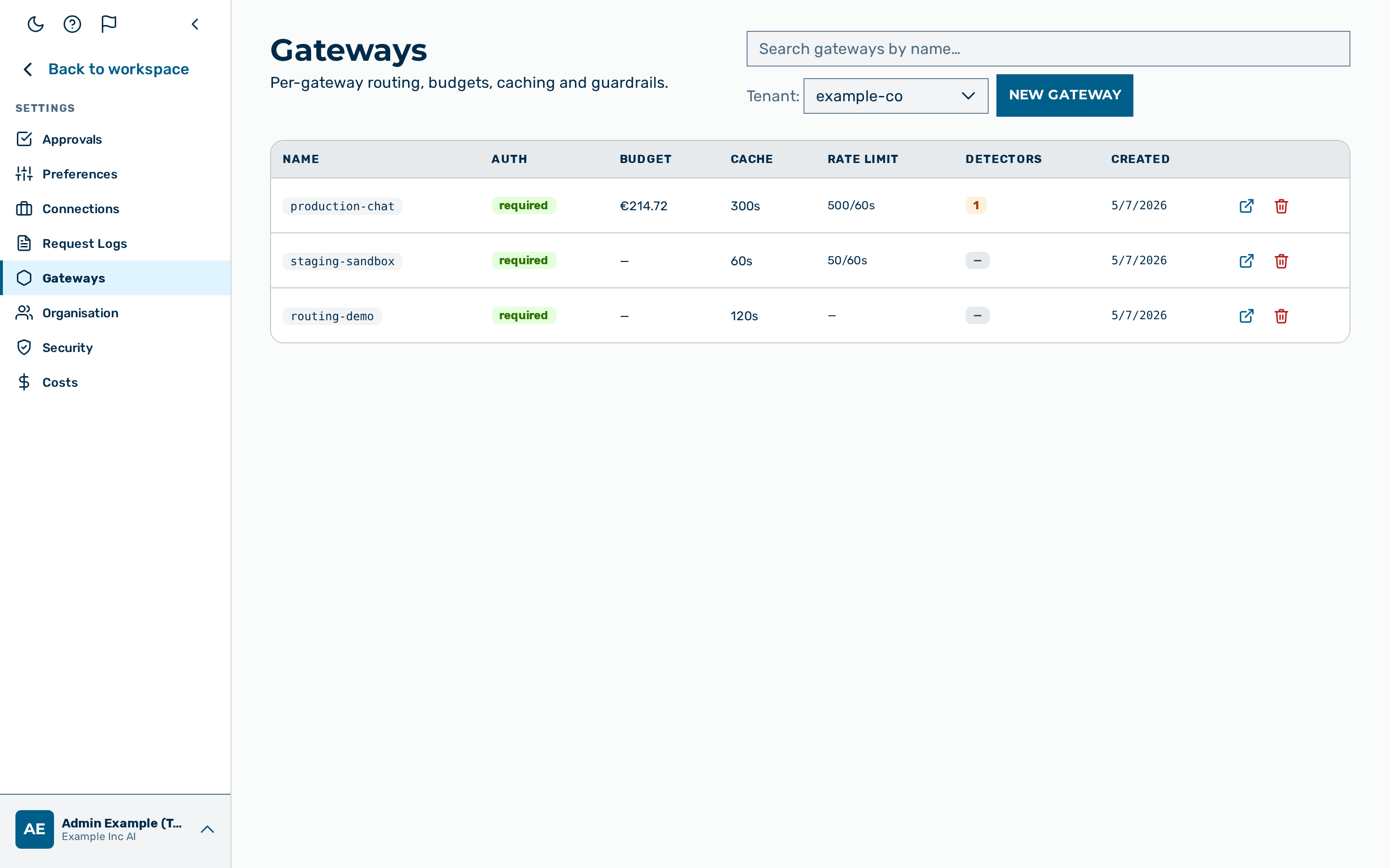
Proceed as follows to create a gateway:
- Click on the New Gateway button at the top of the Gateways list.
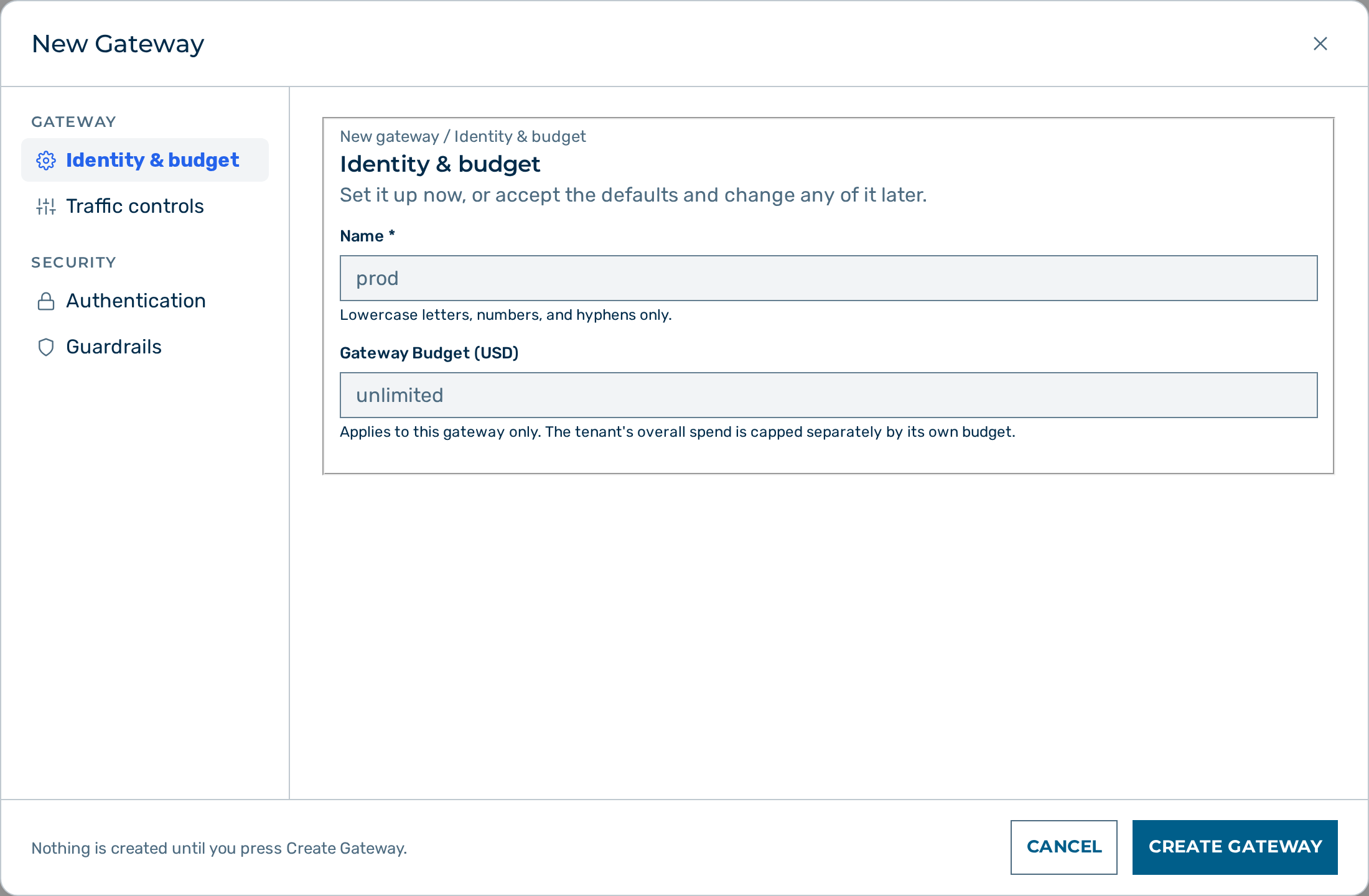
- The New Gateway popup opens on the Identity & budget section. A side-navigation panel on the left lists the sections, grouped under Gateway (Identity & budget, Traffic controls) and Security (Authentication, Guardrails); the active section's fields appear on the right. Switching sections keeps the values already entered — nothing is created until you click Create Gateway.
- On the Identity & budget section, enter a value in the Name text field. The name must be lowercase, contain only letters, digits, and hyphens, and is used in inference URLs.
- If required, enter a value in the Gateway Budget (USD) text field. The budget applies to this gateway only; the tenant's overall spend is capped separately by its own budget.
- Open the Traffic controls section and adjust the fields as required:
- Cache TTL (s) — the default is
300; enter0to disable response caching. - Retry Count — the default is
2; enter0to disable retries. - Timeout (ms) — pre-filled
120000; how long to wait for the upstream before failing. - Open the Authentication section. Leave the Require auth token check box ticked unless explicitly developing with auth disabled.
- If required, open the Guardrails section and configure a guardrail pipeline. See Building a guardrail pipeline.
- Click on the Create Gateway button.
-> The new gateway appears in the list and is active immediately. Configure provider keys and routing rules from the gateway detail view.
💡 Note: Creating a gateway declares create-intent, so a duplicate name is refused rather than silently overwriting the existing gateway. If a gateway with the same name already exists in the organisation, the dialog stays open and shows "A gateway with this name already exists in this organisation. Choose a different name to create a new one, or edit the existing gateway." — your entry is kept so you can rename it. To change an existing gateway, edit it from its detail view instead.
💡 Note: The New Gateway popup has no provider field. Add provider keys after creation through the Add Model dialog. See Provider keys (BYOK).
Editing a gateway
Required role: tenant admin or admin.
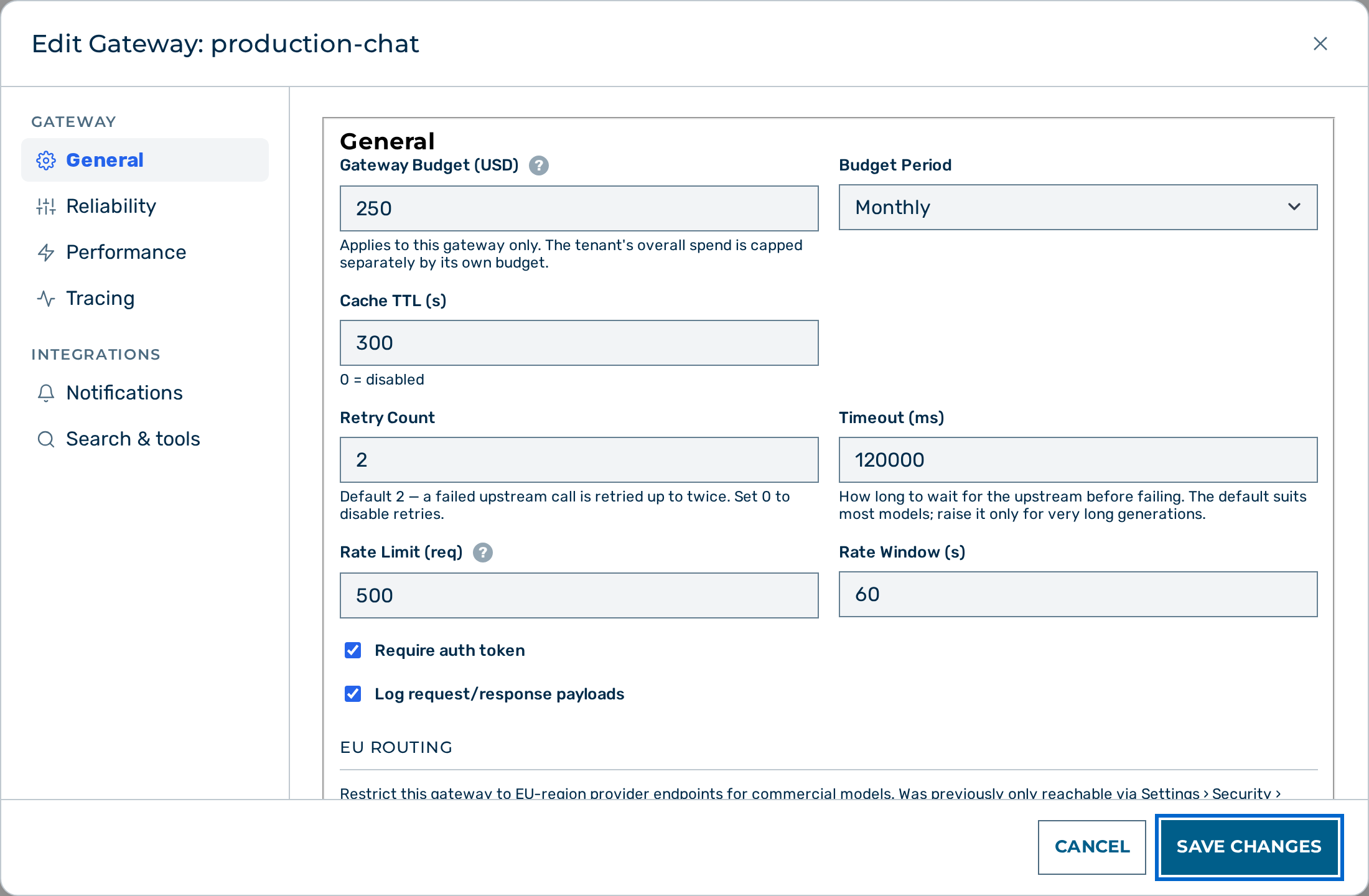
The full gateway configuration is edited in an M-popup opened from the gateway detail view: a side-navigation panel on the left lists 6 sections, and the active section's fields scroll on the right. Only the active section's fields are edited at a time; the Save Changes button at the bottom commits every section's changes in a single request.
Proceed as follows to edit a gateway:
- Click on the Open → button of the gateway in the Gateways list.
- The gateway detail view opens.
- Click on the Edit button in the Gateway card header.
- The Edit Gateway:
popup opens on the General section. - Click a section in the side navigation, and update its fields as required:
- General — Budget (USD) and Budget Period (Monthly / Daily / Lifetime); Cache TTL (s); Retry Count and Timeout (ms); Rate Limit (req) and Rate Window (s); Require auth token and Log request/response payloads toggles; EU routing (see below); Provider Base URLs override list.
- Reliability — Circuit Breaker (enabled toggle, failure threshold, window in seconds, cooldown in milliseconds).
- Notifications — Webhooks (URL, secret, event types) and the SIEM target (drop-down with Splunk HEC, Elasticsearch / OpenSearch, Vector, Syslog / CEF) with its type-specific connection fields.
- Search & tools — Web Search (enabled toggle, search provider selector — Brave — US or Linkup — EU, API key, max results — select Linkup — EU for gateways that enforce EU data residency), Image Generation, the IP allowlist, Code interpreter, Agentic fetch, Malware scanning, and Max parallel tools.
- Performance — Prompt caching (enabled toggle, TTL
5mor1h; on by default with a1hTTL — a gateway that has never had the setting saved shows and uses that default, and saving an unrelated setting does not write a caching value), Context compaction (enabled toggle, threshold tokens, keep last turns; on by default), and the Compact error threshold. - Tracing — enabled toggle, include bodies, and a retention-hours field (stored but inert — trace retention is a deployment-wide setting, not per-gateway).
- Click on the Save Changes button.
-> The gateway uses the new configuration for every subsequent request. The popup closes and the gateway detail view refreshes.
EU routing
Required role: tenant admin or admin.
The Route to EU-region providers only toggle, in the EU routing block of the General section, restricts this gateway to EU-region provider endpoints for commercial models. Previously this control was reachable only by creating a guardrail template and opening its Target Controls section; it is now a direct, top-level gateway setting.
💡 Note: When your organisation enforces EU routing platform-wide (a tenant-level residency floor), this gateway is always EU-only regardless of this toggle — a gateway may only raise EU routing to on, never lower it below the organisation's floor. Turning the toggle off on a floored gateway has no effect on the next reload; the floor still governs. The per-template Target Controls override still exists for advanced, per-template cases.
Deleting a gateway
Required role: tenant admin or admin.
⚠️ Caution: Deleting a gateway is irreversible. The gateway, its routing rules, its tokens, and its provider keys are removed. Logs are retained but no longer associated with a live gateway.
Proceed as follows to delete a gateway:
- Open the gateway detail view.
- Click on the Delete button in the Gateway card header.
- A browser confirmation dialog opens.
- Click on OK in the confirmation dialog.
-> The gateway is removed and the application returns to the Gateways list.
Resetting the spend counter
When a gateway has a configured budget, the Budget stat card shows the current spend. The Reset Spend button appears beside the value when a budget is configured.
🔒 Platform-admin only. Resetting the spend counter re-opens the gateway's budget cap, so it is reserved for platform administrators. A tenant admin who invokes it (via the API or a stale UI) receives
403 Forbiddenand the counter is unchanged; ask your platform operator to reset spend. Every reset is recorded in the audit log.
Proceed as follows to reset the spend counter:
- Open the gateway detail view.
- Locate the Budget stat card.
- Click on the Reset Spend button.
-> The spend counter resets to zero for the current period. Requests blocked with quota_exceeded are admitted again, up to the configured budget.
Provider base URLs
The Provider Base URLs list in the General section of the gateway settings popup overrides the upstream endpoint of any provider on a per-gateway basis. Use it for private deployments, self-hosted models, or corporate proxies.
The provider is chosen from a dropdown of supported providers — it is not free text. The list is the provider registry the gateway routes on; a value that is not a supported provider is refused on save (see the validation note below), because an override keyed by an unknown provider is never looked up at request time and would silently never route.
The override value is a bare protocol://host:port with no trailing slash and no path. The gateway appends the standard request path of the provider automatically.
| Provider id | Override example | When to use |
|---|---|---|
myra |
http://172.28.0.1:8003 |
Self-hosted model endpoint (e.g. a vLLM server). Use the myra id — the legacy vllm id is not a routable provider and is rejected. |
openai |
https://proxy.internal/openai |
Corporate proxy in front of the OpenAI API. |
Validation and the Test button. On save, each override is checked for a
supported provider and for URL format. The provider must be one the gateway can route to
(the dropdown offers only these); an unknown slug is rejected, and a legacy alias such as vllm is
rejected with a message pointing at its canonical id (myra). The URL must be a valid http:// or
https:// URL with no userinfo and no whitespace; a malformed value
is rejected inline so it can never be saved and then silently fail to route. A saved override that
passes this check can still be blocked when traffic is actually sent if its host resolves to a
private or internal address (the SSRF guard runs at request time, and returns a
configuration_error). Use the per-row Test button as the pre-save check: it performs the same
SSRF-guarded dial and reports reachable (with HTTP status + latency) or the reason it failed,
before you save.
Search & tools
The Search & tools section of the gateway settings popup exposes per-gateway capability controls that were previously reachable only through the admin API:
| Control | Effect | Notes |
|---|---|---|
| IP allowlist | Restricts inference to the listed source IPs (CIDR notation). | One CIDR per row; an empty list allows all source IPs. A malformed CIDR is flagged inline and rejected on save. Filters inference only, not the admin API. See IP allowlist. |
| Code interpreter | Offers the code-interpreter tool to models on this gateway. | On by default — a gateway that has never had the setting saved offers the tool; clear the toggle to turn it off. Persistent kernel (stateful) additionally keeps variables across turns; only available when the tool is enabled. |
| Agentic web fetch | Enables the URL-triggered agentic fetch tool. | The inner fetch-leg model override (agentic_fetch.model), if set via the admin API, is preserved on save. |
| Max parallel tool calls | Caps how many tool calls are dispatched per round. | Leave blank for the default (4). Values below 1 are treated as the default. |
Per-request header overrides
The following request headers override gateway behaviour for a single inference request without changing the gateway configuration.
| Header | Type | Description |
|---|---|---|
x-aig-byok-alias |
string | Selects a non-default BYOK alias for this request. See Provider keys (BYOK). |
x-aig-meta-{key} |
string | Attaches arbitrary metadata to the log entry. Available as meta:{key} in routing-rule conditions. |
x-aig-collect-log |
0 or 1 |
Overrides whether the request is written to the log table. 0 disables logging for this request. |
x-aig-collect-log-payload |
0 or 1 |
Overrides whether request and response bodies are stored. |
x-aig-provider-{field} |
string | Forwards a client-controlled provider header for this request, only for the allow-listed names anthropic-beta, openai-organization, openai-project (for example x-aig-provider-anthropic-beta); any other name is dropped. See provider header pass-through. |
x-aig-extensions |
1/true/yes/on |
Opts a streaming request into the gateway's aig_* SSE side channel (thinking, tool telemetry, sources). Absent or any other value ⇒ the response is a pure OpenAI stream. Implied by a valid x-aig-turn-id. See Inference — what a plain client receives. |
⚠️ Caution:
x-aig-collect-log-payload: 0suppresses body storage for the affected request only. The gateway-levellog_payloadssetting still applies to every other request.
API
Gateway configuration can also be updated through the admin API with a PATCH request. See Tenants and gateways API.