Rate limiting
Rate limiting controls how many requests a gateway or an individual auth token accepts within a time window. The gateway enforces rate limits before any upstream call is made, so blocked requests never reach the AI provider.
How rate limiting works
The gateway uses a sliding-window dual-bucket algorithm. It maintains two time buckets: the current window and the previous window. On each request, the effective request count is calculated as:
Where elapsed is the number of seconds into the current window. This smooths out burst spikes at window boundaries without storing a full log of request timestamps.
Two independent limit levels exist:
- Gateway-level rate limit — applies to the aggregate of all requests through the gateway.
- Per-token rate limit — applies only to requests authenticated with a specific auth token.
Both levels are evaluated independently. A request can be blocked by the gateway-level limit even if the limit of the token has not been reached, and vice versa.
Rate limit configuration fields
| Field | Type | Description |
|---|---|---|
requests |
integer | Maximum number of requests allowed in the window. |
window_sec |
integer | Length of the sliding window in seconds. |
Response headers
When a request is rate limited, the gateway returns HTTP 429 with the following headers:
| Header | Description |
|---|---|
X-RateLimit-Limit |
The configured request limit for the window. |
X-RateLimit-Remaining |
Estimated requests remaining in the current window (0 when blocked). |
Retry-After |
The window duration in seconds — the minimum time before retrying. |
⭐ Example:
429response body:
The message is dynamic and states the observed count, the limit, and the window
(Token rate limit: … when a per-token limit is the one exceeded). Branch on the stable
code, never on the message text.
⚠️ Caution: Clients must implement backoff and retry logic. The
Retry-Afterheader gives the window duration in seconds — waiting at least this long before retrying is sufficient.
Configuring a gateway-level rate limit
The gateway-level rate limit applies to the aggregate of all requests through the gateway.
Before you begin, ensure the following conditions are met:
- ☑ You have the
tenant_adminoradminrole.
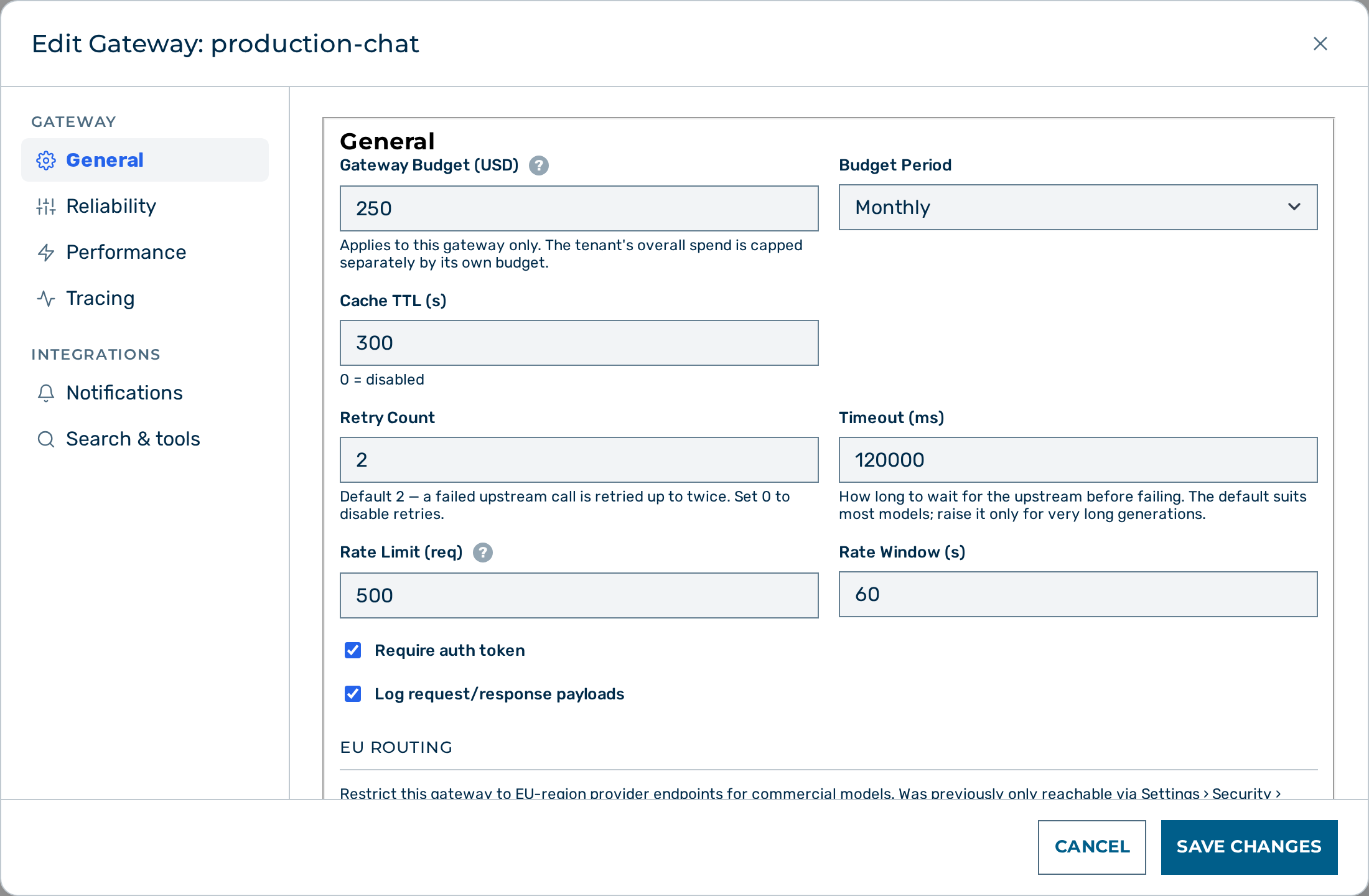
Proceed as follows to configure a gateway-level rate limit:
- Open the Gateways view.
- Click on the Open → button of the gateway.
- The gateway detail view opens.
- Click on the Edit button in the Gateway card header.
- The Edit Gateway:
modal opens. - Enter the request count in the Rate Limit (req) text field.
- Enter the window duration in seconds in the Rate Window (s) text field.
- Click on the Save Changes button at the bottom of the modal.
-> The gateway enforces the new rate limit on every subsequent request.
A gateway has no rate limit until you set one, and an empty Rate Limit (req) field means exactly that — no limit, not a hidden default. Clearing the field and saving removes the limit.
💡 Note: The
100requests per60seconds fallback mentioned in older documentation is not a default for an empty field. It applies only to a stored rate limit that is missing its request count — for example one written directly through the API — and never to a gateway that simply has no rate limit configured.⚠️ Caution: An absent rate limit and a malformed one are handled differently. Absent means "no limit". A malformed stored rate-limit configuration (a value of the wrong shape, not merely a missing one) is not silently ignored: the gateway fails closed and refuses every request on that scope with
configuration_error(HTTP500) until the value is corrected. Fix the stored configuration to restore traffic.
Configuring a per-token rate limit
A per-token rate limit applies only to requests authenticated with a specific auth token. Attach it to a token at creation time.
Before you begin, ensure the following conditions are met:
- ☑ You have the
tenant_adminoradminrole.
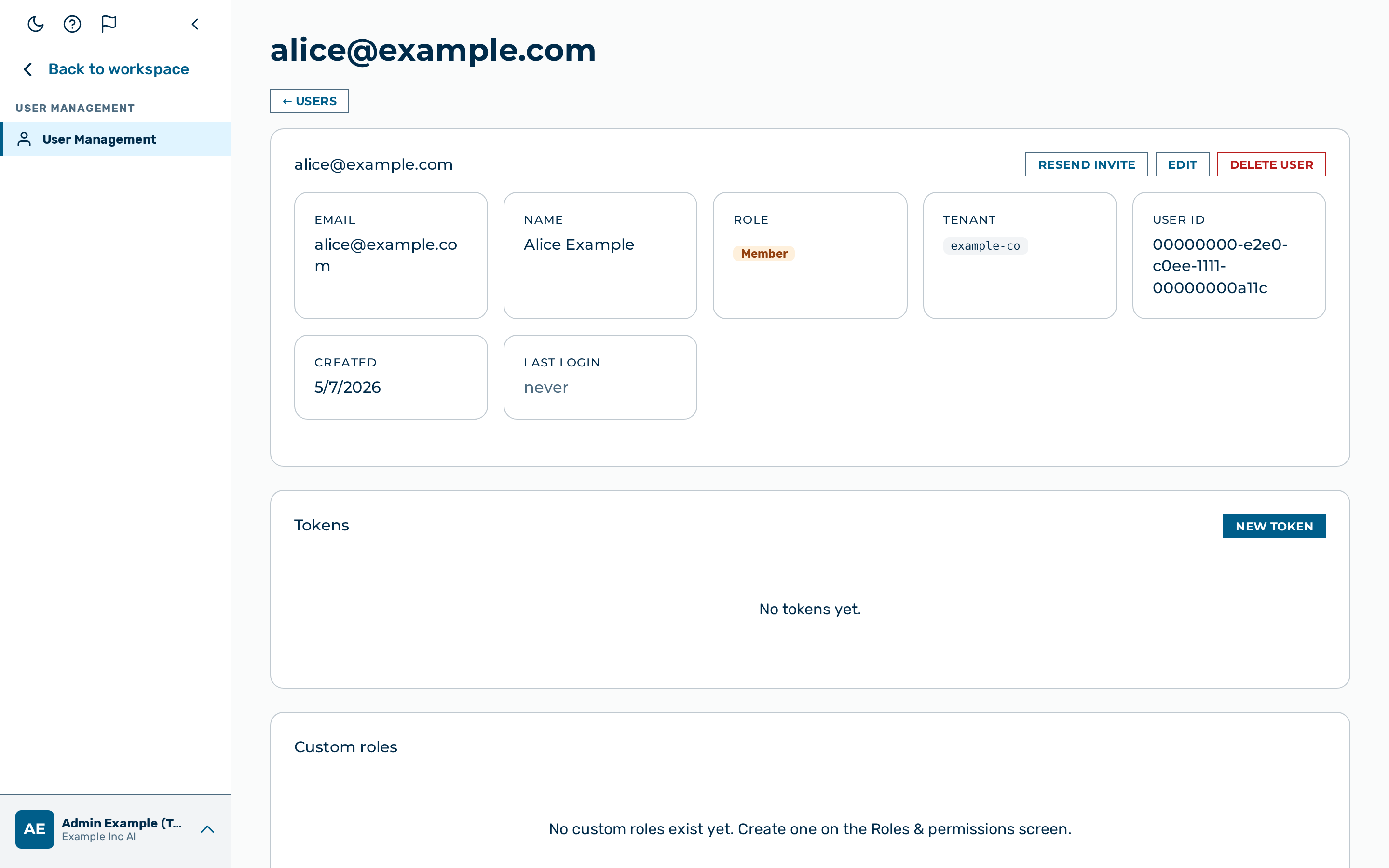
Proceed as follows to configure a per-token rate limit:
- Open the Users view.
- Click the open action icon on the user's row.
- The user detail view opens.
- Click on the + New Token button in the Tokens card.
- The Create Auth Token dialog opens.
- Enter the request count in the Rate limit (req, optional) text field.
- Enter the window duration in seconds in the Window (s) text field.
- Click on the Generate Token button.
-> The token rate limit applies to every request authenticated with the new token.
API
Rate limits are part of the gateway config object and the token creation request. See Tenants & Gateways API and Users & Tokens API for examples.
See also
- Rate limiting — what rate limiting is and why
- Gateway Configuration
- Budget & Quota Enforcement
- Authentication & Tokens