Google Gemini
Myra AI Workspace translates the OpenAI chat completions format to the Google GenerateContent API (used by both Google AI Studio and Vertex AI) and translates responses back.
Request translation
| OpenAI field | Gemini field | Notes |
|---|---|---|
messages[].role: "system" |
system_instruction.parts[].text |
Extracted and placed in the top-level system instruction |
messages[].role: "user" |
contents[].role: "user" |
|
messages[].role: "assistant" |
contents[].role: "model" |
Role name translated |
max_tokens |
generationConfig.maxOutputTokens |
|
temperature |
generationConfig.temperature |
|
top_p |
generationConfig.topP |
|
stream |
?alt=sse query param |
SSE pass-through |
| Image / document content blocks | — | Not forwarded. Replaced with a text placeholder |
System messages are extracted from the messages array and passed as the system_instruction top-level object.
⚠️ Caution: Vision and document input is not forwarded to Gemini. Image and document content blocks in a message are replaced with a text placeholder (for example,
[The user attached an image this model cannot view directly; the original image is retained by the system.]), so the model receives only the text parts. Native image support is a follow-up (media normalisation).
Web search
Gemini supports native web search through Google Search grounding. When a request carries a web_search tool, the gateway enables grounding by sending tools: [{ "googleSearch": {} }] in a single upstream leg; no separate search round-trip is performed. The grounded answer is returned in the normal response.
Endpoint
Native endpoint
Compat endpoint
The compat endpoint routes to Gemini for any model whose name starts with gemini-:
with "model": "gemini-2.0-flash".
Adding a Google AI Studio API key
The gateway stores API keys using a bring-your-own-key (BYOK) mechanism. The key is sent in the x-goog-api-key request header on every upstream call.
Before you begin, ensure the following conditions are met:
- ☑ You have a Google AI Studio API key (starting with AIza).
- ☑ The gateway exists and is accessible.
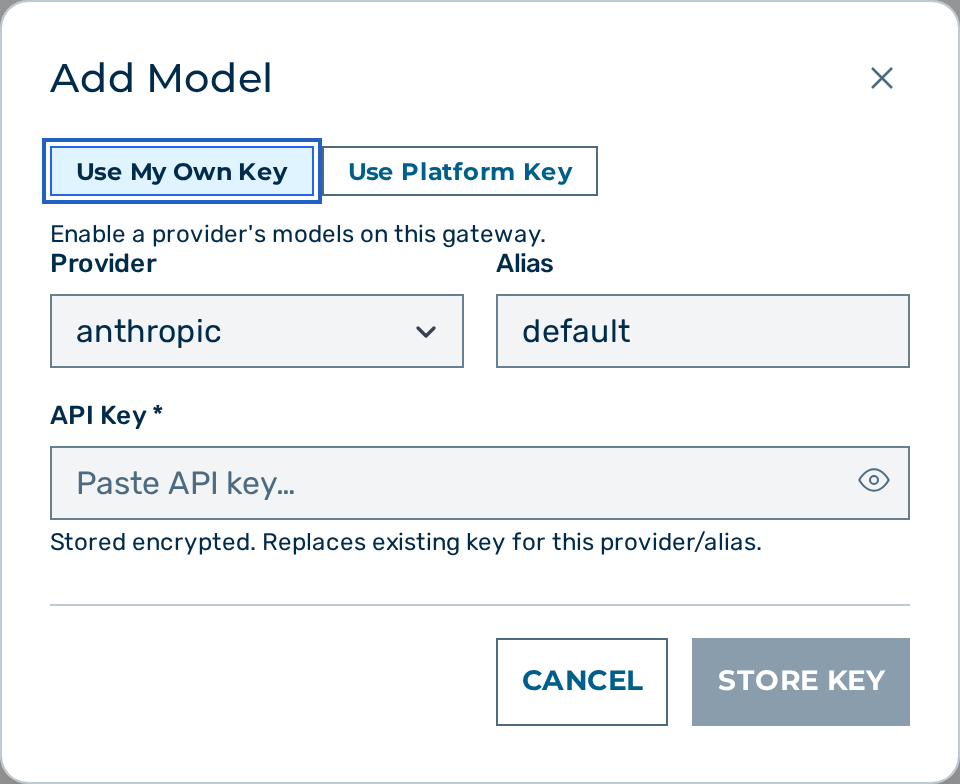
Proceed as follows to add a Google AI Studio API key:
- Open the Gateways view.
- Click on the Open → button of the gateway.
- The gateway detail view opens.
- Locate the Provider Keys card.
- Click on the + Add Model button.
- The Add Model dialog opens.
- Select gemini in the Provider drop-down list.
- Enter
defaultin the Alias text field, or a custom alias when storing multiple keys. - Enter the Google AI Studio API key (starting with
AIza) in the API Key field. - Click on the Store Key button.
-> The new entry appears in the Provider Keys list. The key is stored encrypted and is used for every Gemini request on this gateway.
To add the key via the API:
curl -s -X POST "https://gateway.example.com/admin/v1/gateways/{gateway_id}/keys" \
  -H "Cookie: aig_admin=<SESSION>" \
  -H "Content-Type: application/json" \
  -d '{
    "provider": "gemini",
    "alias": "default",
    "key": "AIza..."
  }'
Request example
curl -s -X POST \
  "https://gateway.example.com/v1/myapp/production/gemini/chat/completions" \
  -H "Content-Type: application/json" \
  -H "Authorization: Bearer <token>" \
  -d '{
    "model": "gemini-2.0-flash",
    "messages": [
      {"role": "system", "content": "Reply only in haiku form."},
      {"role": "user",   "content": "Describe a sunset."}
    ],
    "max_tokens": 128,
    "temperature": 1.0
  }'
Vertex AI variant
Vertex AI uses the same GenerateContent wire format but is reached at a per-project per-region URL on *-aiplatform.googleapis.com. See the dedicated Google Vertex AI page. The gateway authenticates Vertex AI requests with an OAuth2 Bearer token it mints from a Google Cloud service-account JSON credential (RFC 7523 JWT-bearer grant), sent as Authorization: Bearer.
Configuring Vertex AI
Before you begin, ensure the following conditions are met: - ☑ You have a Google Cloud project with the Vertex AI API enabled. - ☑ You have a Google Cloud service-account JSON key with access to the Vertex AI API.
Vertex AI requires vertex_project and (optionally) vertex_region to be set in the gateway configuration. The keys are not exposed in the Edit Gateway dialog of the SPA; set them through the admin API:
- Open the Gateways view.
- Send a
PATCHrequest to set the configuration:
curl -X PATCH "https://<your-gateway-host>/admin/v1/gateways/<ID>" \
  -H "Content-Type: application/json" \
  -d '{
    "config": {
      "vertex_project": "my-gcp-project-id",
      "vertex_region":  "us-central1"
    }
  }'
| Config field | Default | Description |
|---|---|---|
vertex_project |
unset | Google Cloud project ID. Required. |
vertex_region |
us-central1 |
Google Cloud region. |
💡 Note: Requests to the Vertex AI provider fail only when neither
vertex_projectnor a deployment-wide default project is set. The gateway authenticates with a Google Cloud service-account JSON credential, minting a short-lived OAuth2 Bearer token from it per service account (RFC 7523 JWT-bearer grant).
Store the service-account JSON through the Add Model dialog (select vertex in the Provider drop-down list and paste the entire service-account JSON). The gateway mints a short-lived OAuth2 access token from it and sends it as Authorization: Bearer on every upstream call.
Vertex AI request example
curl -s -X POST \
  "https://gateway.example.com/v1/myapp/production/vertex/chat/completions" \
  -H "Content-Type: application/json" \
  -H "Authorization: Bearer <token>" \
  -d '{
    "model": "gemini-2.0-flash",
    "messages": [{"role": "user", "content": "Hello from Vertex AI"}],
    "max_tokens": 256
  }'
See also
- Providers overview
- Gateway configuration —
vertex_project,vertex_region