Chat Integrations
Description
The chat bridge connects a saved agent to a chat platform. Users message a bot in Mattermost, Slack, or Microsoft Teams, the bridge runs the configured agent as its owner, and the answer comes back in the same thread. Each connection binds one chat workspace to one agent, so a user in that workspace always talks to the same agent. ("Chat bridge" remains the backend/API name; the UI page is Chat Integrations.)
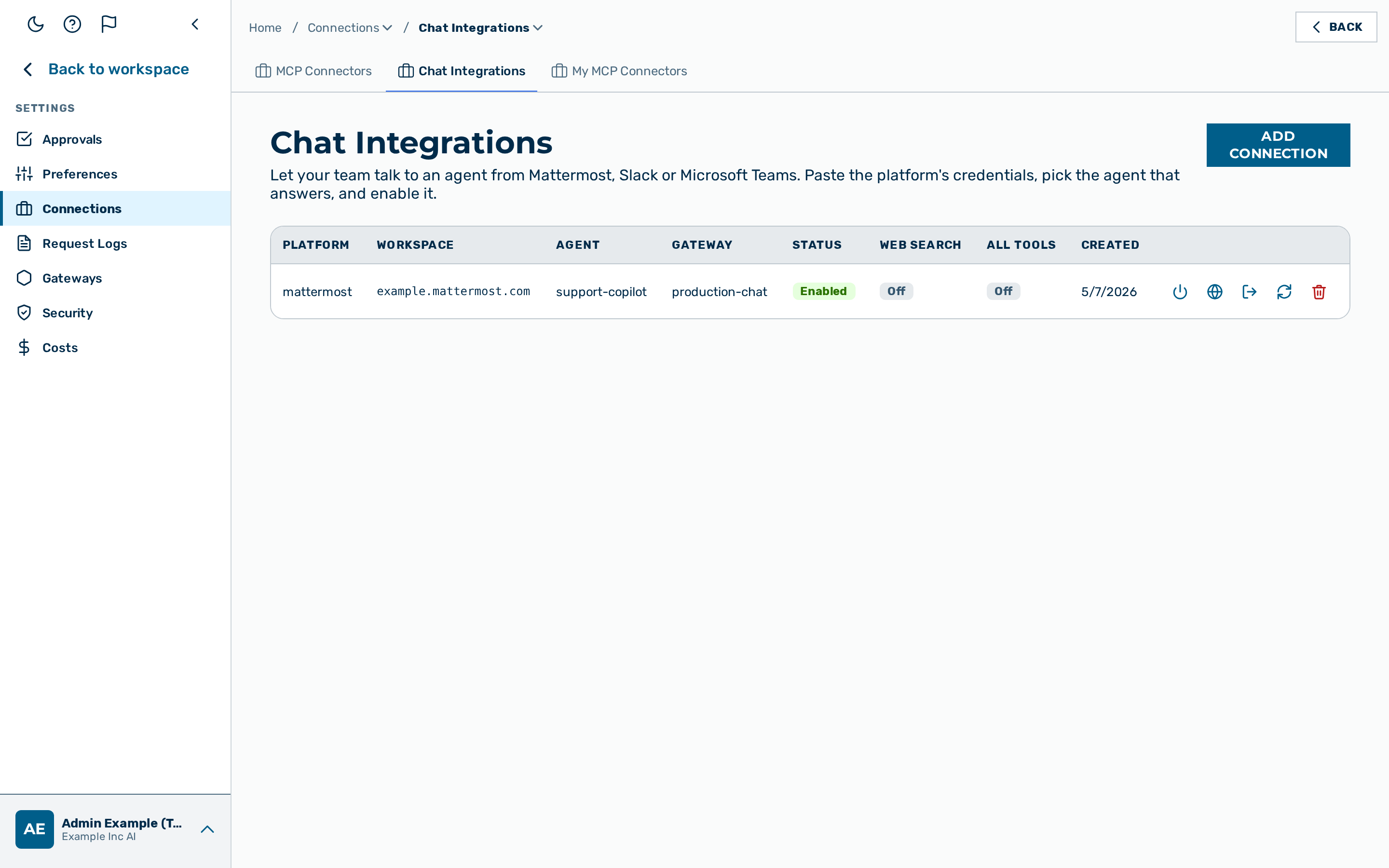
The Chat Integrations view is the Chat Integrations tab of Settings › Connections, reached from the user-block menu at the bottom of the left sidebar → Settings → Connections (route /chat-bridge unchanged). The view is visible to users with the role tenant admin or admin. A connection is always created for the caller's own tenant; the tenant is derived from the session and cannot be set from the request.
The list shows one row per connection with the Platform, Workspace, Agent, Gateway, Status, Web search, All tools, and Created columns. The Status column shows Enabled or Disabled; the Web search and All tools columns show On or Off, each with a row action to toggle it. (The All tools column is the allow_egress setting described below.)
⚠️ Full tool access (Egress). The Egress setting (
allow_egress) grants the bound agent its full toolset — code interpreter,fetch_url, and MCP connectors — over the chat channel. Because a chat bridge is an unauthenticated channel (anyone who can message the bot drives the agent), leave Egress off unless the agent genuinely needs those tools; when off, only web search (if enabled) is available. See Chat bridge API — full-tool opt-in.
Credentials are write-only. The gateway never returns a bot token, secret, or client secret, so those fields are blank when a connection is reopened.
💡 Note: The chat bridge documented here is the tenant-admin configuration surface. For the inbound receiver, the per-platform trust boundary, and the run-as-owner execution model, see Chat bridge API.
Creating a connection
Required role: tenant admin or admin.
A connection binds a chat workspace to one agent on one gateway of the tenant. Each platform needs its own credentials, listed in the tables below.
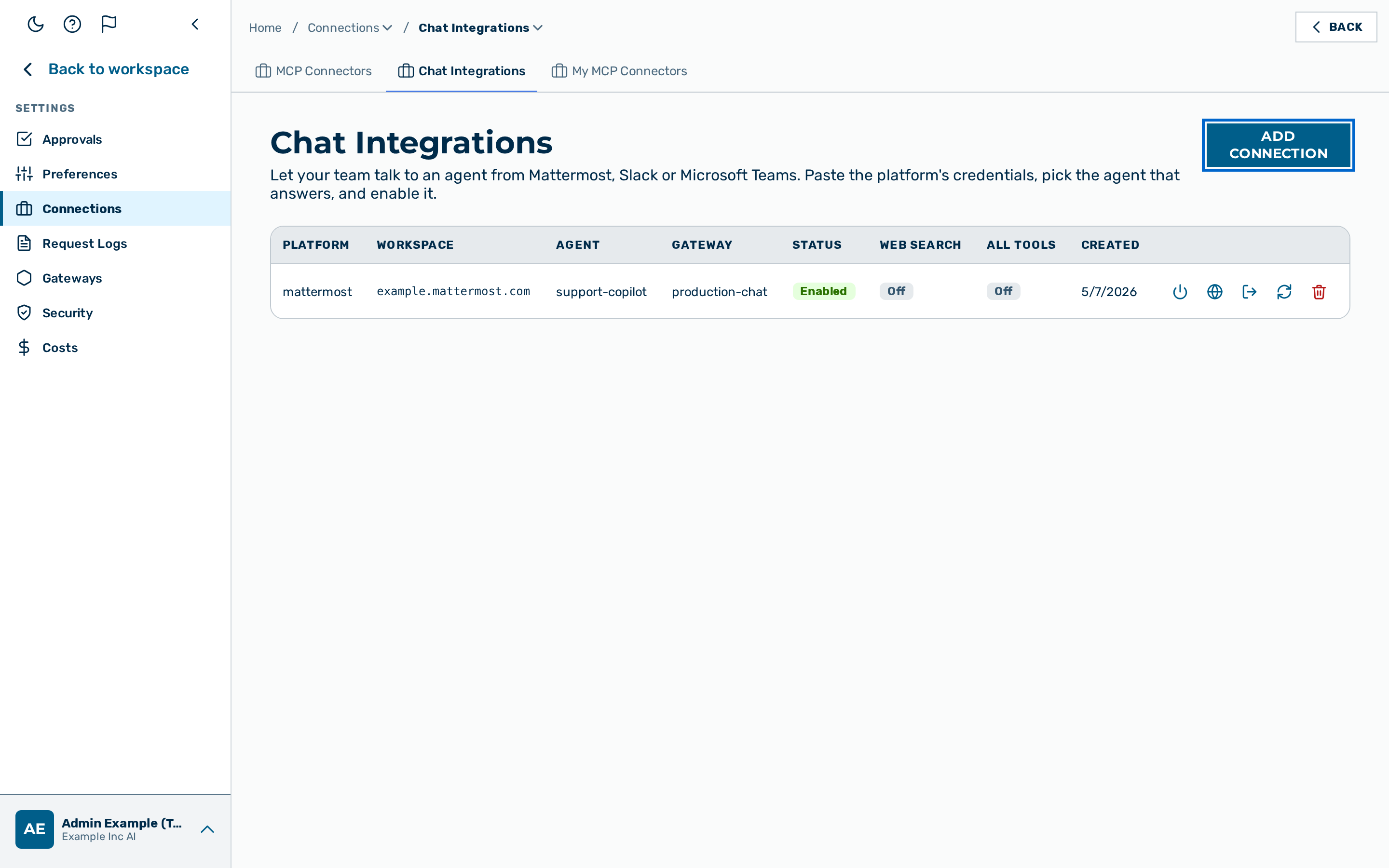 The Add chat connection dialog.
Proceed as follows to create a connection:
- Click on the Add connection button.
- The Add chat connection dialog opens.
- Select the chat platform in the Platform drop-down list.
- The list shows only the platforms a platform admin has activated for the deployment (the default active set is Mattermost). A platform admin sees every platform, each flagged with its active state, and controls the active set from the Feature Flags card (
active_chat_platforms). - Select the gateway in the Gateway drop-down list.
- Select the agent in the Agent drop-down list.
- Enter the workspace identifier in the Workspace text field.
- Enter the credentials of the selected platform in the fields described below.
- If required, select the Allow web search check box.
- If the agent needs its full toolset over the chat channel, select the Allow all tools (Egress) check box — but see the warning above; leave it off for an unauthenticated channel unless required.
- Click on the Save button.
-> The new connection appears in the list. Repeat this process for all required connections.
Mattermost credentials
For a Mattermost connection, enter the following values:
| Field | Value |
|---|---|
| Workspace (team id) | The Mattermost team id. |
| Mattermost URL | The base URL of the Mattermost server. The URL must be an https URL that resolves to a public IP. |
| Bot access token | The access token of the bot account. |
| Relay secret | A high-entropy shared secret the relay presents on every event. Store the secret only in the relay configuration. |
Native Mattermost slash commands
A Mattermost connection can also power two native slash commands, alongside the message relay:
/agents— lists the agents the connection exposes./agent <name>— starts or continues a chat with the named agent.
Auto-provisioned. When you create a Mattermost connection, the gateway registers both commands in your Mattermost workspace for you — it calls the Mattermost API, points each command at the bridge slash endpoint, and stores the verification token Mattermost returns on the connection. There is no manual command creation and no token copying.
Two Mattermost server settings must be on first (these belong to your Mattermost administrator, not the gateway):
- System Console → Integrations → Integration Management → Enable Custom Slash Commands.
- The connection's bot account needs the
manage_slash_commandspermission. Adopting a command that a different user pre-created at the same URL additionally needsmanage_others_slash_commands.
If provisioning cannot complete — the settings above are off, the bot lacks the permission, or
Mattermost is unreachable — the connection is still created and fully usable over the message relay
and the !agents / !agent directives; only the /-commands are skipped, and a warning records
which command and why. Each command works independently, so a partially-provisioned connection still
serves the one that succeeded.
Re-run provisioning at any time with the idempotent, non-destructive Re-provision slash commands
action (POST /admin/v1/chat-bridge/connections/{id}/provision-slash): it lists the workspace's
commands and adopts/refreshes the ones pointing at the bridge endpoint rather than creating
duplicates. (If the gateway's public host changes after a command exists, that command reads as
foreign and is left in place — remove it in Mattermost, or re-create the connection, to re-provision.)
For the endpoint, the token fields, and the response shape, see the
Chat bridge API reference.
Slack credentials
For a Slack connection, enter the following values:
| Field | Value |
|---|---|
| Workspace (Slack team ID) | The Slack team id, for example T0123ABCD. |
| Bot token (xoxb-…) | The bot access token of the Slack app. |
| Signing secret | The request-signing secret from the Slack app credentials. |
Microsoft Teams credentials
For a Microsoft Teams connection, enter the following values:
| Field | Value |
|---|---|
| Workspace (Entra tenant ID) | The Entra (Azure AD) tenant GUID. |
| Bot app ID | The application id of the Azure Bot registration. |
| Bot app type | Select Multi-tenant or Single-tenant in the drop-down list. |
| Home tenant ID (Entra GUID) | The home tenant GUID of the bot. |
| Service URL | The Bot Connector service URL, for example https://smba.trafficmanager.net/emea/. |
| Client secret | The client secret of the Azure Bot registration. |
Rotating a bot token
Required role: tenant admin or admin.
Rotate the credentials of a connection when a secret is compromised or expires. A rotation replaces the named secret only; it does not change the bot itself. The platform, workspace, and agent of a connection cannot be changed after creation — to change the underlying bot, delete the connection and create a new one.
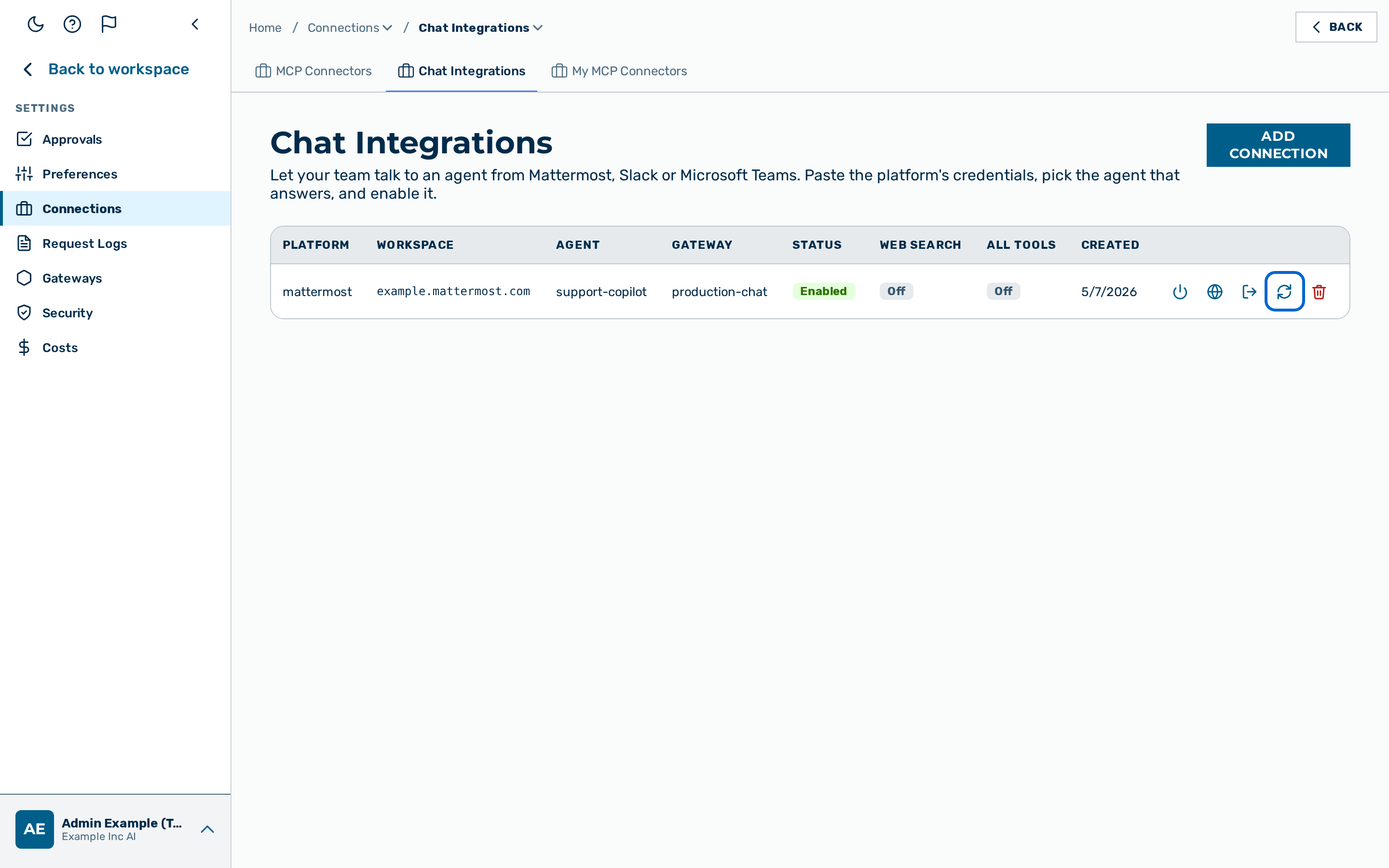 The Rotate bot token dialog.
Proceed as follows to rotate a bot token:
- Click on the Rotate token button on the connection row.
- The Rotate bot token dialog opens with the platform, workspace, and agent shown read-only.
- Enter the new secret in the credential text field. For a Mattermost or Slack connection, the field is New bot access token or New bot token. For a Slack connection, enter a new New signing secret if required. For a Microsoft Teams connection, the field is New client secret.
- Leave a credential field blank to keep the current value.
- Click on the Rotate token button.
-> The new secret takes effect immediately. The bot id does not change.
Changing the connection status
Required role: tenant admin or admin.
A disabled connection stops answering. An inbound event for a disabled workspace is rejected.
Proceed as follows to change the connection status:
- Locate the connection in the list.
- Click on the Disable button on the row to disable an enabled connection.
- Click on the Enable button on the row to enable a disabled connection.
-> The Status column shows Enabled or Disabled for the connection.
Allowing web search
Required role: tenant admin or admin.
Web search is the one external tool the bridge re-enables for a bot. When web search is on, the bot can run a web search to answer, but every other external tool — fetching URLs, running code, external connectors, image generation — stays disabled on the chat channel. Web search is off by default. Set the opt-in when creating a connection with the Allow web search check box, or change it later from the list.
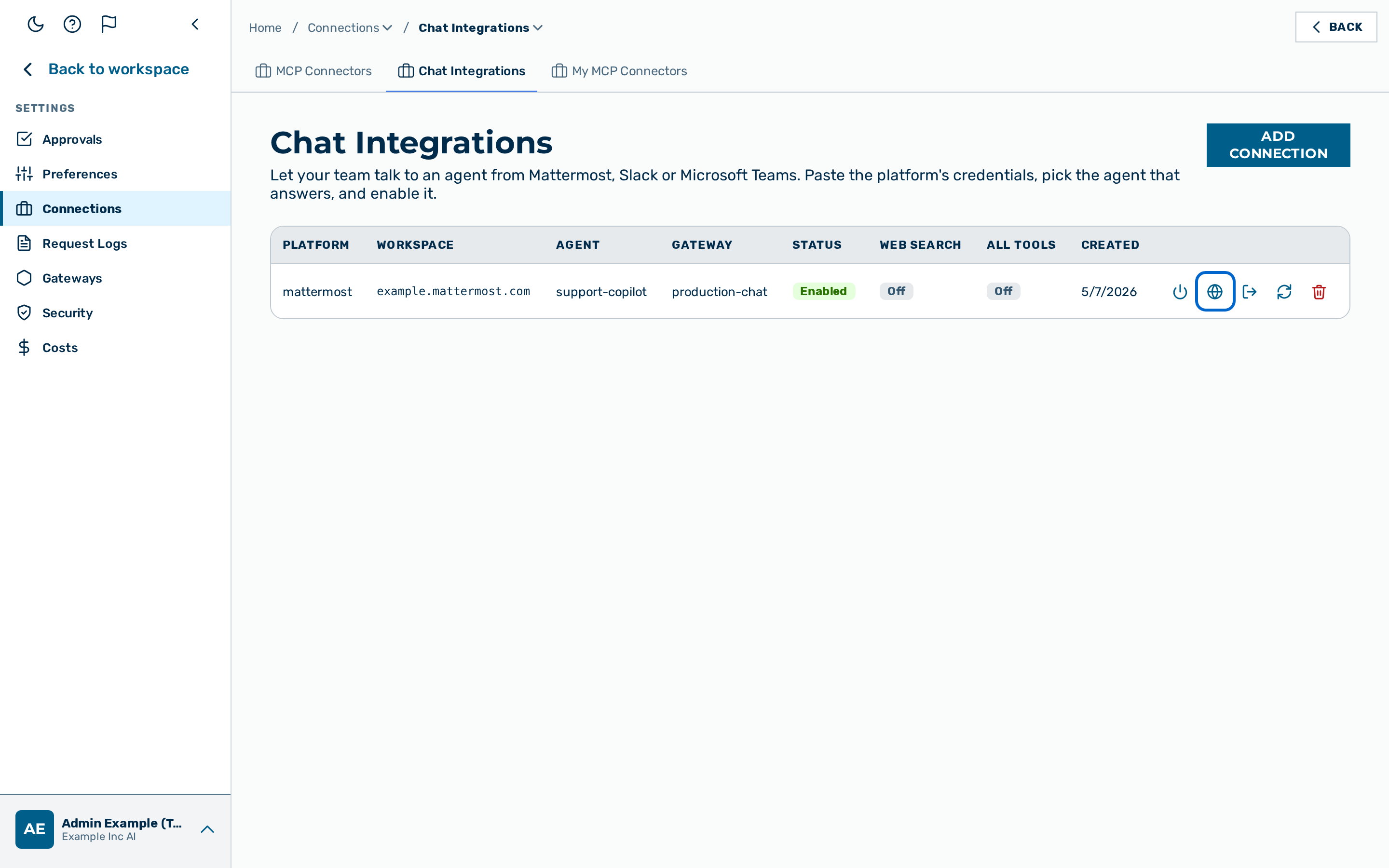 The web-search opt-in on a connection row.
Proceed as follows to allow web search for a connection:
- Locate the connection in the list.
- Click on the Enable web search button on the row.
-> The Web search column shows On for the connection. Click on the Disable web search button to turn web search off again.
⚠️ Caution: Enabling web search widens the outbound surface of the bot on an unauthenticated channel. A workspace user can prompt the agent to run a search. The search query is masked and routed to the EU-resident search provider, so the residual risk is a search being triggered, not data leaving to an arbitrary endpoint. Leave web search off unless the bot needs current information.
💡 Note: Web search takes effect only when the agent itself has web search enabled. A local-only (Tier 1) project or knowledge area still blocks web search entirely.
Deleting a connection
Required role: tenant admin or admin.
⚠️ Caution: Deleting a connection stops the bot answering and revokes the connection's access token. The action cannot be undone.
Proceed as follows to delete a connection:
- Click on the Delete button on the connection row.
- A confirmation dialog opens.
- Confirm the deletion.
-> The connection is removed from the list.