Departments
Description
A department is a level below the organisation (tenant). A department controls which gateways its members may use and, optionally, how much its members may spend together. A department holds the following settings:
- A set of allowed gateways.
- Optionally a default gateway (one of the allowed gateways).
- Optionally a spend limit for the combined spend of its members.
Everything that protects data stays on the gateway itself — guardrails, PII masking, data residency, the provider allow-list. A department only decides which of those configured gateways its members can route through.
Rules:
- A user belongs to exactly one department, or to none.
- A user without a department is not restricted — they can use every production gateway of the organisation, exactly as before departments existed.
- A department with no allowed gateway blocks its members completely until a gateway is allowed.
- A project can belong to a department. Its members see the project; others see it only when it is shared with them explicitly (member, group, or organisation share).
-
A project can lock its gateway. Inside a locked project, conversations run through that one gateway only.
-
A department can be locked (the Lock: members get only these gateways, even if a group or personal grant adds more switch on the Gateways tab of the department editor). Group gateway grants normally add gateways for the group's members on top of the department's own list; while the department is locked, its own list is the final word.
The user details panel and My access show where each gateway comes from: via department R&D, via
When several rules apply, the strictest one wins: a request is allowed only if the gateway is allowed by the user's department and by the project's lock (if any). The organisation-wide protection of each gateway applies on top.
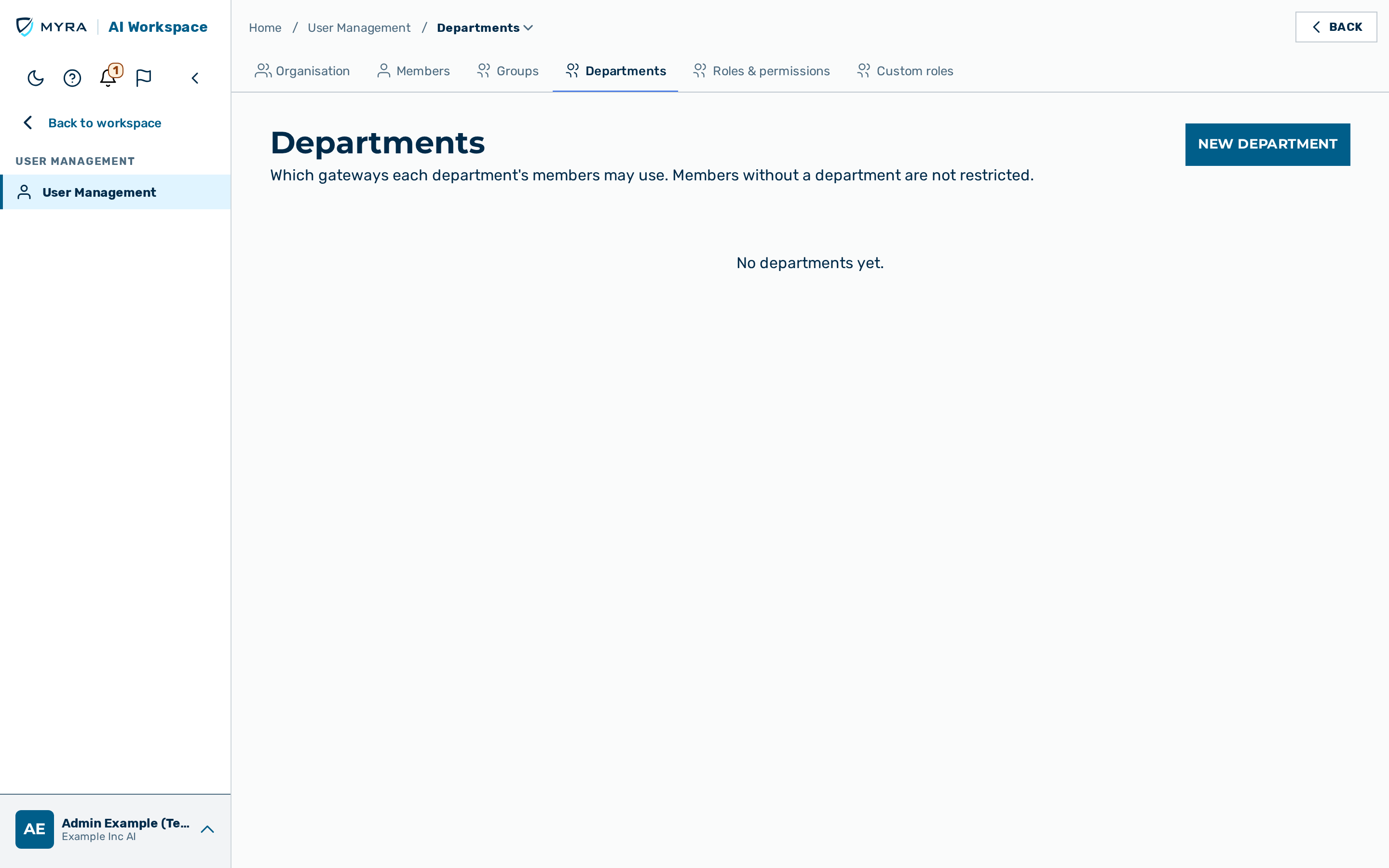
The Departments view is the Departments tab of User Management, reached from the user-block menu at the bottom of the left sidebar → User Management (route /departments). It is visible to users holding the Manage departments and gateway access permission (DEPARTMENTS_MANAGE) — by default admins and tenant admins. A platform administrator selects the organisation in the drop-down list at the top of the view. The list starts with the own organisation of the platform administrator; with no organisation selected, the view shows Select an organisation. The view enforces the permission itself: opening /departments without DEPARTMENTS_MANAGE redirects to the dashboard, and the New department button and the row Delete action are shown only to holders of the permission (an absent or malformed permission list counts as not holding it). The server re-checks every call.
The list shows one row per department with the following columns:
- Department: the name. Click on it to open the department.
- Members: the number of users assigned to the department.
- Spend this month: the department's own spend in the current period of its spend limit. A limit per day, per week or total shows the period next to the amount, for example $12 (today). If the spend cannot be read, the cell shows —. The column is shown only to holders of the budget permission (
BUDGETS_MANAGE); the server sends no spend to anyone else. - Limit: the spend limit, No limit, or Frozen for
0. A limit that is not monthly shows its period, for example $100 per day.
A department that allows no gateway shows None — blocked; a department whose masking twin is missing shows Check PII pair. The allowed gateways and the default gateway are shown in the department editor.
For the endpoints, accepted shapes and error codes, see Departments API.
Creating a department
Required permission: DEPARTMENTS_MANAGE.
Proceed as follows to create a department:
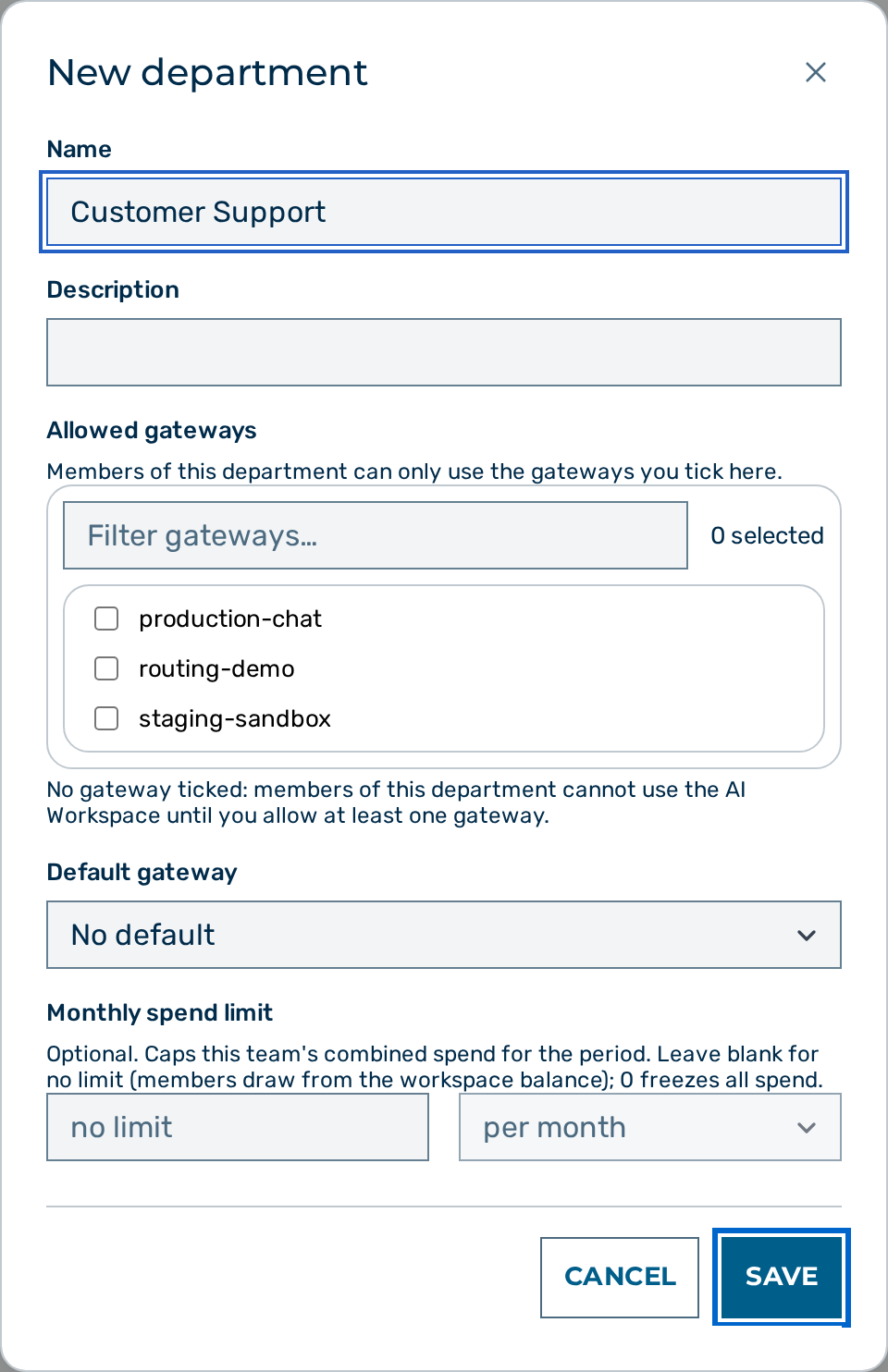
- Click on the New department button.
- The New department dialog opens with the tabs General, Limits and Gateways. Saving with an entry that is refused (an empty name, a malformed amount) switches to the tab of that field.
- On the General tab, enter a value in the Name text field. The name must be unique within the organisation and has a maximum of 255 characters. Saving without a name shows Please enter a name. The message disappears as soon as you type a name.
- If required, enter a value in the Description text field. The description has a maximum of 2000 characters.
- On the Gateways tab, select the checkbox of every gateway that the members of the department may use under Allowed gateways. Only production gateways are listed. Use the Filter gateways… field to find a gateway in a long list. A gateway row shows the chip default for the department's default gateway and PII-masking twin for a gateway that is the masking twin of another one.
- If no gateway is selected, the dialog shows No gateway ticked: members of this department cannot use the AI Workspace until you allow at least one gateway.
- If required, select a gateway in the Default gateway drop-down list. Chats of the members use the default gateway when nothing else (a project setting, a personal default model, an explicit choice) decides the gateway.
- If required, on the Limits tab, enter an amount in US dollars in the Department spend limit field and select the Period below it. The field shows its unit (for example USD / month, shared). See Spend limit of a department.
- Under Default budget per member, choose Inherit, No limit or Amount (with an amount in USD). The hint below names what Inherit would use: Inherit would use the tenant default ($25.00), … (no limit), or The tenant default could not be loaded. when the organisation's default cannot be read.
- Click on the Save button.
-> The department appears in the list.
PII masking pairs
Gateways are often set up in pairs: a plain gateway (for example acme) and its PII-masking twin (acme-pii). Requests that must be masked switch automatically from the plain gateway to its masking twin. For that switch to work in a department, both gateways of a pair must be allowed.
- Ticking a plain gateway ticks its masking twin with it. If you untick the twin while the plain gateway stays ticked, the dialog warns right away, before you save. Saving such a set is refused with A gateway's PII-masking twin must be allowed too — otherwise requests that need masking would be refused. If the pairs cannot be loaded, the dialog says so and the check happens when you save.
- Allowing only the masking gateway is possible; the list shows a Check PII pair hint. Members of the department then always work masked.
- If a masking twin is created later, the department list shows the hint until you allow it. Until then, chats of the department's members that need masking are refused with a clear message instead of being sent unmasked.
Spend limit of a department
The Department spend limit field (on the Limits tab) caps the combined spend of all members of the department. The following rules apply:
- Leave the Department spend limit field empty for no limit. The members then draw from the balance of the workspace.
- With a saved limit, the line under the field shows the share already used in the current period, for example · 61 % used (holders of
BUDGETS_MANAGEonly). If the spend cannot be read, it reads · usage could not be loaded — never 0 %. - The value
0freezes the department. Every request of a member is refused. While the field holds0, the form shows a warning below it. You can still save the value. - A positive value caps the combined spend for the selected period: per month, per day, or total. The maximum value is 1,000,000 US dollars.
- The limits of the workspace and of the individual user still apply in addition.
- A request over the limit is refused with HTTP status 429 and the code
team_budget_exceeded. The body carriesresets_at(Unix seconds of the next period start; absent for a total limit). In the chat, a member reads the period, the department name and the reset date, never an amount, and can open Who is my department admin? (the names fromGET /admin/v1/me/admins). - No webhook is sent for a team limit. The gateway records when spend reaches 80% of the limit and when it is used up, once per limit and period (raising the limit starts a new record), and e-mails it: every active workspace admin and the member whose request crossed the line each get one mail at 80% and one when the limit is reached (en / de, by each person's language; a member who is also an admin gets one mail). If the department is deleted before the mail goes out, or nobody can be mailed, nothing is sent. Delivery is at most once per crossing; see Budgets.
- The limit applies to every model call a member causes, including conversation summaries (compaction), agent plan proposals, agent instruction tidying and the Copilot lane.
- The limit is enforced with a hold: a request is admitted only while the department's recorded spend plus the amounts held by its running requests is below the limit. If running requests hold the rest, the request is refused with
429 quota_exceededandRetry-After: 5(retry in a moment); if the spend itself has reached the limit it getsteam_budget_exceeded. One request can still cost slightly more than it held. Side calls (summaries, plan proposals, instruction tidying, Copilot) are checked against the limit but take no reservation.
Assigning users to a department
Required permission: DEPARTMENTS_MANAGE. The assignment is made in the user editor of User Management; a delegated holder of DEPARTMENTS_MANAGE without access to User Management uses the API (PUT /admin/v1/users/{id}/department).
Proceed as follows to assign a user:
- Open User Management → Members and open the user.
- Click on Edit.
- Select the department under Department, or No department (unrestricted) to remove the user from their department.
- Click on Save changes.
-> The change applies to the user's next request. If the user owns agents, scheduled tasks, or workflows on a gateway the new department does not allow, the dialog lists them — they are refused from now on. Agents, scheduled tasks and workflows belong to one gateway: recreate them on an allowed gateway. If the list could not be loaded, the dialog says so.
A user assigned to a department can also see that department's projects (as a viewer) — assigning is a data-access decision as well as a routing one.
A user who moves to another organisation leaves their department automatically.
Chargeback. Each request's cost is booked to the user's department at the time it is made, so a move to another department affects only new spend; requests made before the department existed, or by users without one, appear as unassigned. See Finance API.
Below the tenant-admin role, a holder of DEPARTMENTS_MANAGE cannot change their own department, nor edit or delete the department they belong to, nor change the department of a user who outranks them (a tenant administrator or platform admin) or the gateways or the spend limit (set, change, freeze to 0 or clear) of a department such a user belongs to — a rename or description edit stays allowed.
Giving a project to a department and locking its gateway
Who can do this:
- a tenant admin holding
DEPARTMENTS_MANAGE— for every project of the organisation, with every department to choose from; - the project's owner — for their own project. An owner can give the project to the department they belong to, keep its current department, or select None (ordinary project); other departments are not offered. Giving a project to a department makes its knowledge and files readable by all of that department's members.
Open the project in Projects; the Department and gateway lock section is on the Overview tab. If your own department no longer exists, the section says so and offers no department to move into.
- Owning department — the department's members see the project (they can chat in it; editing needs an explicit share). Select None (ordinary project) to make it an ordinary project again (visible to its owner and the people it is shared with). A project's gateway must be one the department allows.
- Lock gateway — the project can then only be used through this gateway: the chat model picker offers only that gateway, switching away is refused, and a conversation cannot be moved out of the project except by its owner or by department administration. Select Not locked to remove the lock.
If your organisation uses four-eyes approval for configuration changes, a change made here by an organisation administrator (a tenant admin or KI manager) waits for approval by a second administrator, exactly like a change of the project's gateway: the section says so, and nothing changes until it is approved (in Settings › Approval management › Config approvals). It also shows which agents, scheduled tasks and workflows the lock would affect. A project owner who is not an organisation administrator saves at once. If the project's department or lock changes while a request waits, approving it fails and nothing is changed.
After a successful save the section confirms with Saved. (or lists the affected agents, scheduled tasks and workflows, see below).
To lock a gateway, choose it under Lock gateway and save. If it differs from the project's current gateway, the section first changes the project's gateway (this needs the editor role on the project and follows your organisation's four-eyes approval for project changes, if enabled — while the change waits for approval, nothing is locked; lock again once it is approved), then locks it. If the lock itself is then refused, the section tells you that the project now uses the new gateway but is not locked.
A locked project offers only its current gateway — unlock and save first to lock a different one. When you change the owning department, the section offers only the current gateway, and only if the new department allows it — save the department first to lock a different gateway.
After locking, the section lists the agents (and the scheduled tasks and workflows that run them) that use this project as a knowledge area on another gateway (an owner sees their own items by name and only the number of other users' items): their knowledge tools return the lock error for this project, and an agent whose first knowledge area is this project is refused. Remove the area from the agent, or recreate the agent on the locked gateway. If the list cannot be loaded, the section says The list of affected agents, scheduled tasks and workflows could not be loaded — check them manually. While the lock waits for four-eyes approval, the same list is shown as the items that will be refused once it is approved.
A locked project can be deleted, and its conversations moved out, only by its owner or by a tenant admin holding DEPARTMENTS_MANAGE.
Good to know about the section:
- The section is not shown to a user who may not govern the project.
- Lock gateway offers only production gateways, and only those that the chosen department allows.
- If the project's department no longer exists, Owning department shows Department no longer exists — choose another or none, so you can clear it.
- If the project's gateway is not allowed for the chosen department, the section shows The project's gateway is not allowed for this department. Change the project's gateway in the project settings first. and Save stays disabled.
- If the departments cannot be loaded, the section shows The departments could not be loaded. Reload the page before changing the department or the lock. and Save stays disabled.
- If the locked gateway does not mask PII and the lock excludes its masking gateway, the section warns The locked gateway does not mask PII and its masking twin is excluded by the lock.
- If the save fails, the section shows The project's department and gateway lock could not be saved. If the department or the lock was changed by someone else in the meantime, the section reloads the project so that the next save uses the current values.
- If changing the project's gateway is refused because you lack the editor role, the section shows Changing the project's gateway needs the editor role on the project.
Editing a department
Proceed as follows to edit a department:
- Click on the department name in the list.
- The Edit department ·
dialog opens with the tabs General (name, description, the department's projects), Limits (the department spend limit, the default budget per member, the members exempt from the spend limit), Gateways (the allowed gateways, the lock, the default gateway) and Members (a read-only list of the department's members; users are assigned in the user editor).
- The Edit department ·
- Change the name, the description, the allowed gateways, the default gateway, the lock, or the limits.
- Click on the Save button.
-> The changed department appears in the list.
A gateway cannot be removed from a department while a project of the department uses it.
Deleting a department
A department is deleted only when it has no members and no projects. Otherwise the deletion is refused with Remove all members and projects from the department first.
Proceed as follows to delete a department:
- Click on the Delete action in the row of the department.
- A confirmation dialog opens with the message Delete the department "
"?
- A confirmation dialog opens with the message Delete the department "
- Confirm the deletion.
-> The department is removed from the list.
Removing a project from a department
A tenant admin holding DEPARTMENTS_MANAGE can release a department's projects in the department editor — without being the project's owner or a member of it (for example when the owner has left):
- Click on the department name.
- The Edit department dialog opens; its General tab lists the department's projects.
- Click on Remove from department next to the project and confirm.
-> The project becomes an ordinary project: department members lose the access they had through the department; the owner and explicit shares stay. A gateway lock is kept. A lock shown as gateway lock broken (locked without a usable gateway — it blocks the project completely) is removed, and the confirmation says so. With four-eyes approval enabled, the removal waits for a second administrator and the dialog says so; nothing changes until it is approved.
A gateway that a department allows (or uses as default), or that a project is locked to, cannot be deleted until it is removed there.
Stricter guardrails for one department
A department does not hold guardrails of its own. Guardrails always belong to a gateway. To give one department stricter rules than the rest of the organisation (for example, Legal stricter than Engineering), give that department a gateway that carries the stricter rules and allow only that gateway for it:
- Create a gateway for the department (for example
acme-legal) with the same providers and models as the general gateway. Then add the extra guardrails to it, for example a keyword detector withaction: "block". See Gateways and Guardrails.- If the general gateway has a PII-masking twin, create one for the strict gateway too and allow both (see PII masking pairs).
- Edit the department (see Editing a department). Under Allowed gateways, select only the strict gateway (and its masking twin), and select it as the Default gateway.
- Click on the Save button.
-> Members of the department route through the strict gateway only, so its guardrails apply to every request they make: API calls (/v1), chats, and agent runs. A request that names any other gateway is refused with 403 department_gateway_not_allowed (see Troubleshooting). Members of other departments keep their own gateways. Members without a department can still use every production gateway, including the general one. To hold them to the strict rules as well, assign them a department.
The organisation-wide guardrail baseline still applies on top of the strict gateway, as on every gateway.
A gateway's role_policies block (see Per-role policy) tightens the rules per system role (member, viewer, …) only. It has no department key, so the per-department recipe above is the only way to scope guardrails to a department.
What departments do not cover
Departments decide which gateway a request is routed through and cap the spend of their members. They do not cover the following areas:
- Features that run on Myra's own models without a gateway — text-to-speech, speech-to-text, OCR, image analysis, document conversion, retrieval embeddings, and the complexity classifier.
- Gateway service tokens without a bound user (infrastructure credentials managed under gateway administration), and anonymous requests to a gateway that does not require authentication.
- Administration: a department restricts routing, not who may configure gateways.
- Copying text by hand: departments stop the product from sending data through a gateway that is not allowed; they are not a data-loss-prevention boundary against a member who re-types or pastes data elsewhere.
Resilience during a database outage
The department and the project lock are read fresh on every request. If that read fails, the gateway uses the last successful answer it saw within the past 5 minutes on that server; with none, the request is refused and can be retried. A change made within those 5 minutes can therefore be missed on one server while its database read is failing.
See also
- Users
- Groups — sharing projects with sets of users (groups do not restrict gateways)
- Projects
- Departments API