Billing & plans
The Billing & plans area shows the plan of your workspace, the prepaid wallet balance and the invoices. Depending on your role and plan, you also buy or change a plan, add budget to the wallet and answer budget requests of members.
Open the area from the user-block menu at the bottom of the left sidebar → Settings → Billing & plans. The sign-up flow, the free trial and the price calculator are described in detail in Signing up and managing billing.
Tabs and visibility
The area consists of up to six tabs. Each tab is visible only to the users that the following table names. The visibility is an interface affordance; the server checks every request again (see Billing API — Settings tab visibility).
| Tab | Route | Visible to |
|---|---|---|
| Your plan | /billing |
Every signed-in user of a customer workspace. Not visible to the platform administrator (role admin) and to a demo account. |
| Upgrade (or Change plan) | /billing/upgrade |
A user of a free-trial or paid self-serve workspace who is the workspace owner or holds the permission Buy plans and add budget. Visible only while the platform switch Offer paid upgrade at signup is on. On a paying workspace with plan changes switched on, the tab reads Change plan. |
| Contact us | /billing/contact |
The same users as Upgrade, but only while the switch Offer paid upgrade at signup is off. Contact us and Upgrade never appear together. |
| Wallet | /billing/wallet |
A user whose sign-in data carries a wallet balance (the server decides this audience), and the tenant admin of a workspace on a plan managed by Myra. |
| Invoices | /billing/invoices |
A free-trial user, the workspace owner of a self-serve subscription, the tenant admin of a managed workspace, and a member of a paid self-serve workspace whose role holds Manage billing settings. A link to the tab opens Your plan for everybody else. |
| Providers | /billing/providers |
The tenant admin (role tenant_admin) only. |
The switch Offer paid upgrade at signup is set by the platform administrator under Pricing → Billing switches.
Your plan
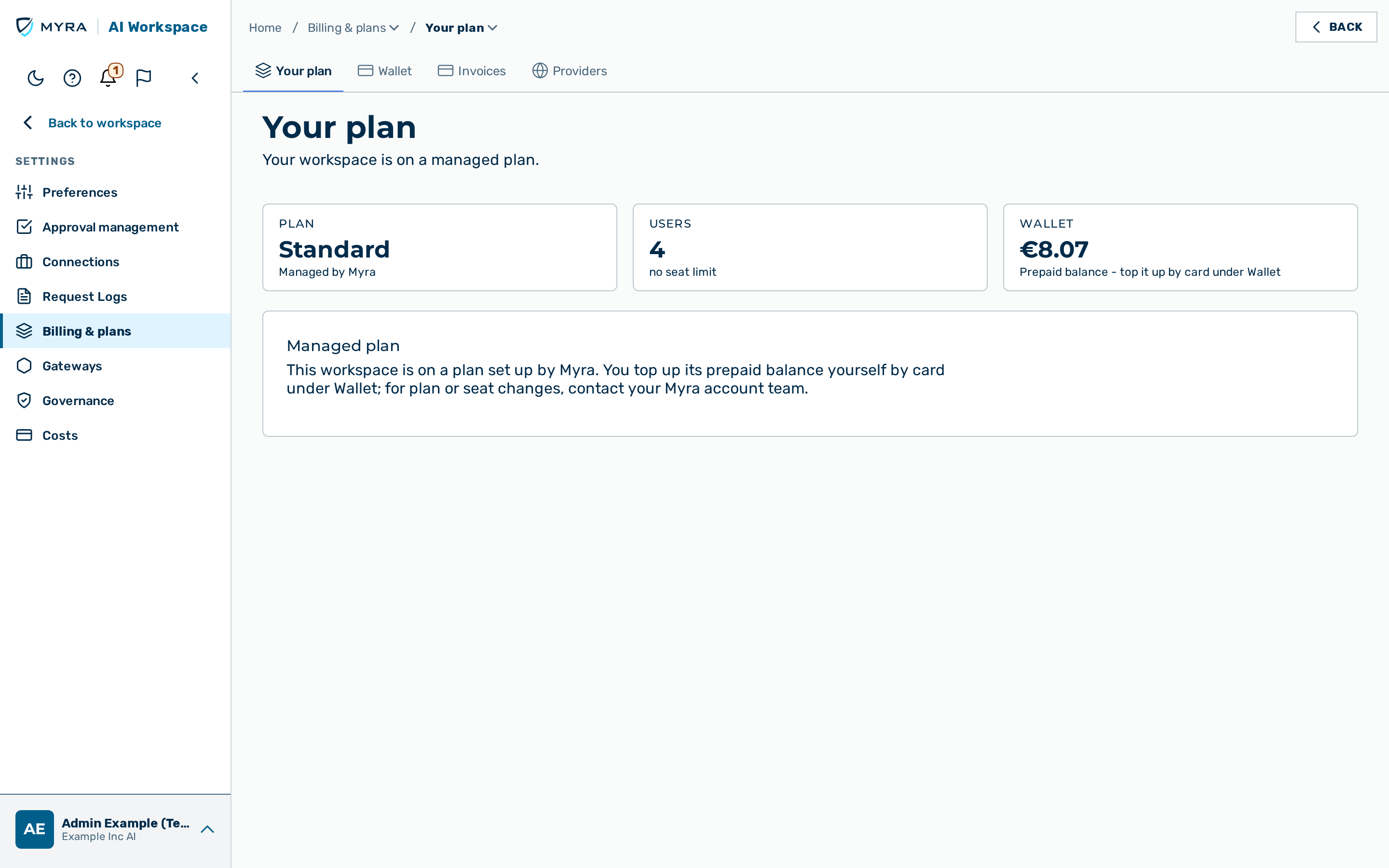
The Your plan tab shows the Plan card, the Wallet card and the Change or cancel section. The content depends on the plan:
- Free trial: The Plan card shows the days left. The Active spend limits card shows the lowest admin spend limit that applies to you.
- Paid self-serve plan: The Plan card shows the status Active, Payment overdue or Inactive and the renewal date. The workspace owner opens the Stripe billing portal with Cancel subscription and reactivates an inactive subscription with Reactivate. Other members read The workspace owner manages the subscription: payment method, cancellation and reactivation.
- Managed plan (billed by Myra): The tenant admin reads Managed plan with the users in use and the prepaid balance. Other members read Your plan is managed by Myra. Ask your workspace owner if you need a change.
If members of the workspace sent budget requests, Your plan shows the number of waiting requests to the people who pay.
If a plan change is scheduled, the banner Scheduled plan change shows the date and the seats. If an upgrade payment is still open, the banner Payment needs confirmation offers the Confirm payment button. All details of these banners and of the plan change are described in Your plan.
Changing the plan
A paying workspace can change the number of seats and the EU-governed add-on itself. The plan and the billing period (monthly or yearly) cannot be changed this way. The workspace owner and members with Buy plans and add budget find it in the tab that otherwise reads Upgrade and now reads Change plan (also opened with Change plan on Your plan); it appears only once plan changes are switched on for your workspace. Before anything happens, Review your change shows what will be charged.
- More seats or a more expensive setup (upgrade). The difference for the rest of the billing period is charged today, prorated, to the saved payment method, and the plan changes at once.
- Fewer seats or a cheaper setup (downgrade). Nothing is charged. The change takes effect at the end of the billing period and is shown as Scheduled plan change; Cancel scheduled change removes it until then.
- More seats and dropping the add-on. An upgrade cannot remove the EU-governed add-on in the same step; the change is refused. Add the seats first, then drop the add-on as a separate change.
- Payment needs confirmation. If the card needs confirmation (3-D Secure) or is declined, the plan does not change. Confirm payment opens Stripe's payment page. The link expires within 23 hours and at the latest at the end of the billing period; after that, start the change again.
- Confirmation e-mail. When a change is applied or scheduled straight away, the workspace's notification recipient gets an e-mail. A payment confirmed later sends none.
- Refunds. A refund of the charge for a plan change returns the money; the change stays.
- Cancelling. Cancelling with the cancellation button (the public cancellation page, footer link Cancel contract here, see Cancelling) also cancels a scheduled change. A subscription that is cancelled at the end of the period must be reactivated first (Reactivate) before the plan can be changed.
The steps and every message are described in Your plan and Contact us / Upgrade; the interface for developers is in Billing API.
Upgrade
The Upgrade tab has the two sub-tabs Price calculator and Compare plans. The price calculator prices the seats, the platform (EU-located infrastructure or EU-governed infrastructure) and the model setup with the prices of the product catalog. Continue to payment opens the Stripe checkout page. Discuss requirements replaces Continue to payment for a setup that is not sold online, for example Bring your own key or Mixed setup, or a monthly total above the self-service limit. The calculator and the checkout are described in Contact us / Upgrade. On a paying workspace with plan changes enabled, the tab is Change plan instead; see Changing the plan.
Contact us
The Contact us tab shows the form Talk to us about upgrading. The form sends an upgrade enquiry by e-mail. No payment is made, and the workspace keeps its current plan.
The form is available only to users whose role holds the permission to contact support. Every other user reads Please talk to your organisation administrator.
Wallet
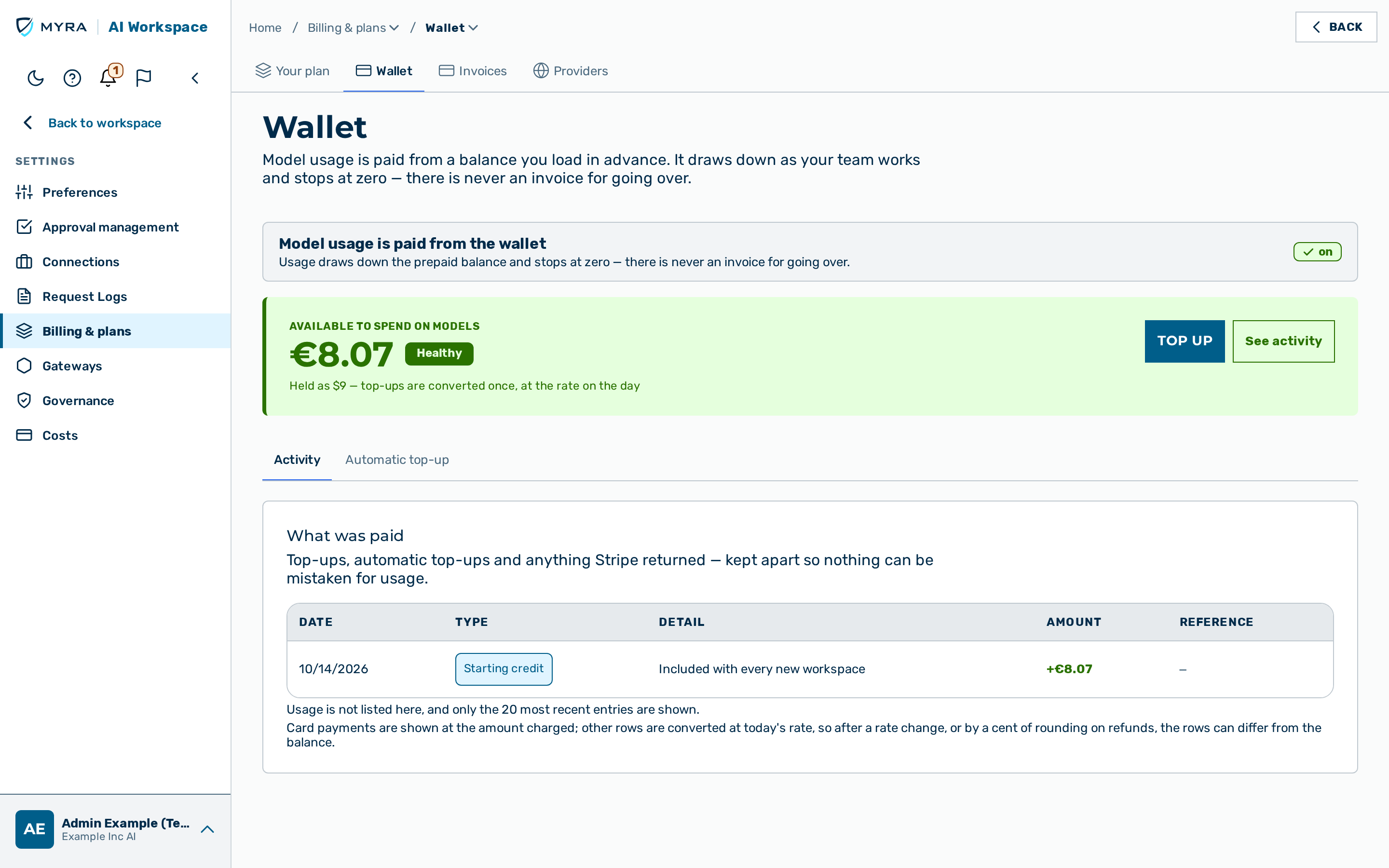
The Wallet tab shows the prepaid balance that pays for model usage. Usage draws down the balance and stops at zero; there is no invoice for going over. The tab consists of the following parts:
- The balance card shows the amount Available to spend on models with the badge Healthy, Running low or Empty.
- The Activity sub-tab lists the 20 most recent payments under What was paid (top-ups, automatic top-ups, refunds, charge-backs, starting credit, admin credit and voucher credit) and, below them, Agent usage.
- The Automatic top-up sub-tab holds the settings of the automatic top-up.
- The Budget requests list shows open requests of members to the people who pay.
The following rules apply to the wallet:
- Only the workspace owner and a member whose role holds Buy plans and add budget add budget and change the automatic top-up. They see the Top up button (Add budget when the balance is empty).
- A free trial cannot add budget. The balance card reads This is your workspace's prepaid balance. A free trial cannot add budget.
- Every other member of a paid self-serve workspace sees the wallet read-only and uses Request budget instead.
- On a managed plan, Myra funds the balance. The tab reads Your organisation's budget for model usage. Myra sets and manages it — there is no top-up here. The owner of a managed Standard plan with card top-up adds budget like a self-serve owner.
- While the platform switch Offer the prepaid wallet is off, the tab reads The prepaid wallet is not available on this workspace yet.
The wallet money model is described in Budgets — Wallet and Budgets (concept). Help for refused requests is in When requests are refused.
Invoices
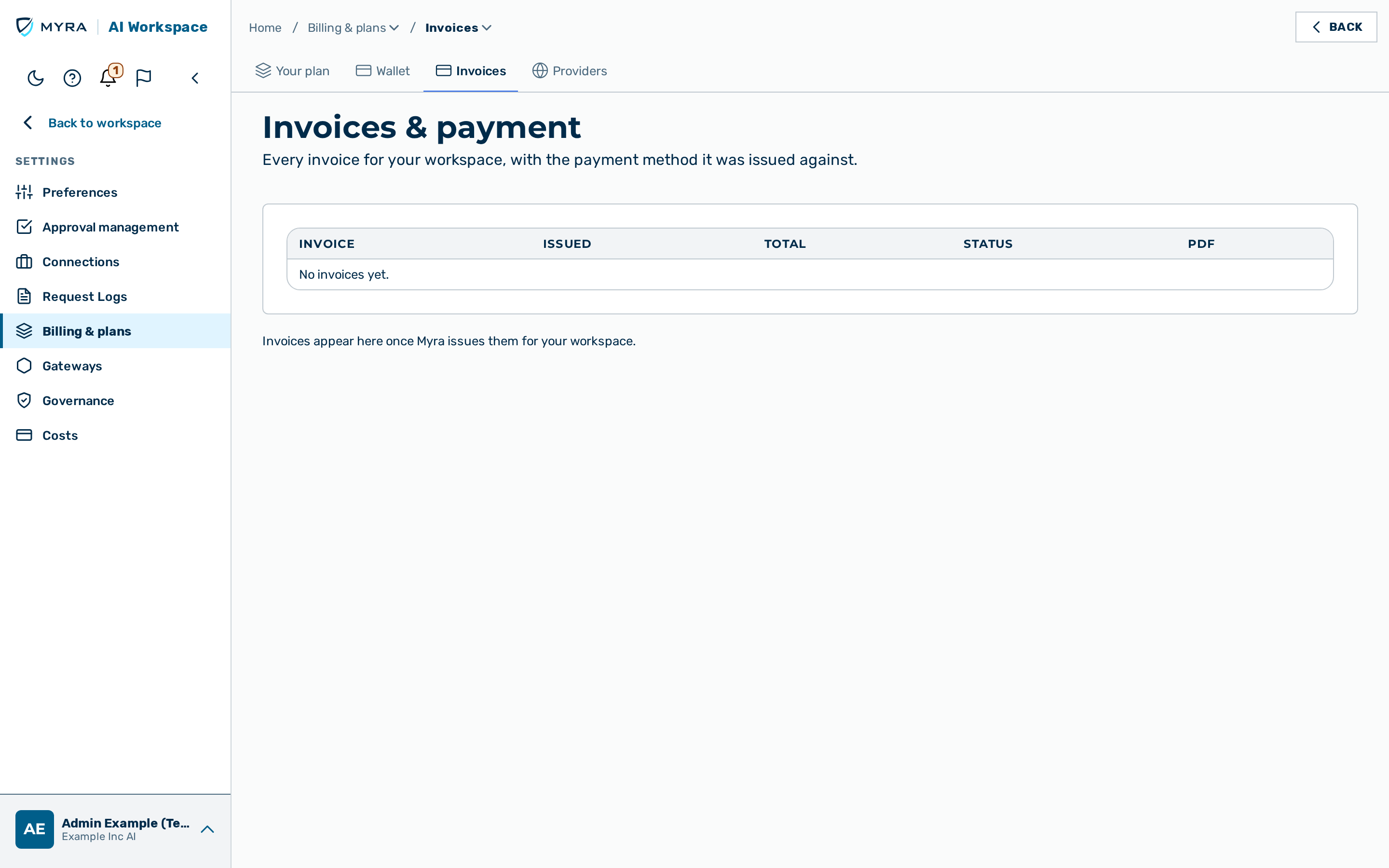
The Invoices tab (Invoices & payment) lists every invoice with the columns Invoice, Issued, Total, Status and PDF. The Payment method card shows the card on file. Replace card opens the Stripe billing portal; only the workspace owner sees this button. On a managed plan the tab reads Invoices appear here once Myra issues them for your workspace.
Providers
The Providers tab is reserved for the model providers of the workspace. The tab currently shows only the text Provider details are coming soon.
Adding budget
Before you begin, ensure the following conditions are met:
- You are the workspace owner or your role holds Buy plans and add budget.
- The workspace is on a paid plan. A free trial cannot add budget.
Proceed as follows to add budget to the wallet:
- Click on the Wallet tab.
- Click on the Top up button on the balance card.
- The Add budget page opens.
- Select one of the preset amounts under How much?. If you want a different amount, enter it in
the Other amount text field. For example:
75- The Pay button shows the selected amount.
- Click on the Pay button.
- The Stripe payment page opens.
- Confirm the payment on the Stripe payment page.
- The Wallet tab opens with the notice Back from Stripe.
-> The new balance appears on the balance card as soon as Stripe confirms the payment.
If you leave the Stripe page with its back link without paying, the Add budget page shows Payment not completed and keeps the selected amount. Nothing is charged.
Setting up automatic top-up
Automatic top-up charges the saved card whenever the balance falls below a threshold.
Before you begin, ensure the following conditions are met:
- You are the workspace owner or your role holds Buy plans and add budget.
- A card is saved. The workspace owner saves the card with one manual top-up.
Proceed as follows to set up automatic top-up:
- Click on the Wallet tab.
- Click on the Automatic top-up sub-tab.
- Select the Top up automatically when the balance runs low check box.
- Enter the threshold in the Top up when the balance falls below text field.
- Select the amount under Add this much.
- Enter the monthly ceiling in the Never charge more than, per month text field.
- The settings are saved when you leave each field. The summary line shows the stored values.
-> The automatic top-up is active. The balance card shows Tops up automatically below
The amount must lie within the offered range and must not be larger than the monthly ceiling. If a field shows an error, correct the named value.
Switching off automatic top-up
Proceed as follows to switch off automatic top-up:
- Click on the Wallet tab.
- Click on the Automatic top-up sub-tab.
- Clear the Top up automatically when the balance runs low check box.
-> No automatic top-up is charged. The stored threshold, amount and ceiling are kept.
Forgetting the saved card
⚠️ Caution: Forgetting the card also switches off automatic top-up.
Only the workspace owner forgets the saved card. On a workspace with a paid subscription, the card stays with Stripe for the renewals and is managed in the billing portal.
Proceed as follows to forget the saved card:
- Click on the Wallet tab.
- Click on the Automatic top-up sub-tab.
- Click on the Forget card button.
-> The saved card is removed from the wallet. Automatic top-up is off.
If a charge is in flight, the card cannot be forgotten. Repeat the action after the charge has settled.
Requesting budget
Members who do not pay request budget from the people who pay. The request charges nothing.
Proceed as follows to request budget:
- Click on the Wallet tab.
- Click on the Request budget button.
- The Request additional budget page opens.
- Select one of the preset amounts under How much?, or enter an amount in the Other amount text field.
- If required, enter a note in the Anything the person who pays should know text field. For
example:
PO 4711 - Click on the Send the request button.
- The confirmation Request sent appears.
-> The Wallet tab shows Your request for
The note holds at most 500 characters. A member has one open request at a time.
Rejecting a budget request
Proceed as follows to reject a budget request:
- Click on the Wallet tab.
- Click on the Reject button in the row of the request under Budget requests.
-> The request disappears from the list of budget requests. The member sees
Your request for
To approve a request, click on the Add budget button in the row of the request and pay the amount. The request is approved as soon as Stripe confirms the payment.
Sending an upgrade enquiry
Proceed as follows to send an upgrade enquiry:
- Click on the Contact us tab.
- Verify the First name, Last name and Email address text fields.
- Enter a description of your requirements in the Anything we should know text field. For
example:
Team of 40, start in January - Click on the Send message button.
-> The form shows Thanks — your message has been sent. We'll be in touch.
If the form shows Please describe your enquiry in a little more detail before sending., enter a longer description.
Related pages
The API, the accepted input and the rejection codes are described in Billing (self-serve plans). The prices and plans that these screens show are configured by the platform administrator under Pricing.