Registering an external agent
An external agent is an agent that runs somewhere else: Claude Code, Cursor, Microsoft Copilot, Copilot Studio, or your own runtime. You register it here so that its tool access is governed like any other agent's: it sees only the connectors you consented to, within the admin cap, and every call is recorded.
An external agent does not run on the gateway. It has no model, no instructions and no system prompt here.
Registering
Open Agents, choose the External agents tab and click Register external agent. A short wizard with three steps guides you. The step list is also available as a use-case guide.
- Details. Give the agent a name in the Name text field, choose the platform in the Platform drop-down list (Microsoft Copilot, Copilot Studio, Claude Code, Cursor or Custom program) and describe its purpose in one line in the Purpose text field. The purpose appears in every record entry of this agent. On behalf of shows the person the agent acts for: you. Click on Next.
- Authorization. Choose at least one connector it may use. Only Register creates the agent; until then nothing exists.
- Token. The token is shown once, next to the Endpoint and the Setup for your platform. Copy it, select the I have saved the token securely. checkbox, and click Done. If you close the wizard before that, Close without a saved token? asks first.
The button is locked while no connector is connected yet, or while the selected access allows calls without a token
or cannot take calls yet. The note beside the button says which. With its token the agent acts for the person who
registers it, with that person's permissions. An external agent supports only the connector consent (mcp) and the
per-connector tool limits (mcp_allow).
The hosting cannot be changed afterwards. An internal agent cannot become external, and the reverse.
Scripts and automation can do the same through the Agents API:
create the agent with POST /admin/v1/gateways/{gateway_id}/agents, sending "hosting": "external", an
external_platform (copilot, copilot_studio, claude_code, cursor or custom) and the purpose, then consent to
its connectors as for an internal agent.
Connecting it
The last step of the wizard shows the gateway's MCP endpoint
and the token, with setup instructions per platform. If the token could not be created, the agent still exists and the
wizard offers Create token. Lost the token? Open the agent and rotate its token: the old one stops working and a new one is shown once. Through the API, GET /admin/v1/gateways/{gateway_id}/agents/{agent_id}/mcp-tokens lists the agent's tokens,
POST on the same path creates a new one (the plaintext is shown once), and
DELETE /admin/v1/gateways/{gateway_id}/agents/{agent_id}/mcp-tokens/{token_id} revokes one token.
The agent's owner can do this, and so can an administrator who out-ranks the owner: a tenant admin cannot manage the tokens of another tenant admin's agent.
What an external agent cannot do
- It cannot be invoked, scheduled, restored, triggered by a webhook, or connected to a chat bridge on the gateway:
these are refused with
agent_external. - It is not offered as a sub-agent to other agents.
- Only external agents are served by the MCP endpoint. A token bound to an internal agent is refused with
mcp_proxy_agent_not_external.
Deleting the agent invalidates its tokens immediately.
See also: Agents, MCP proxy endpoint, Agents API.
Seeing your external agents
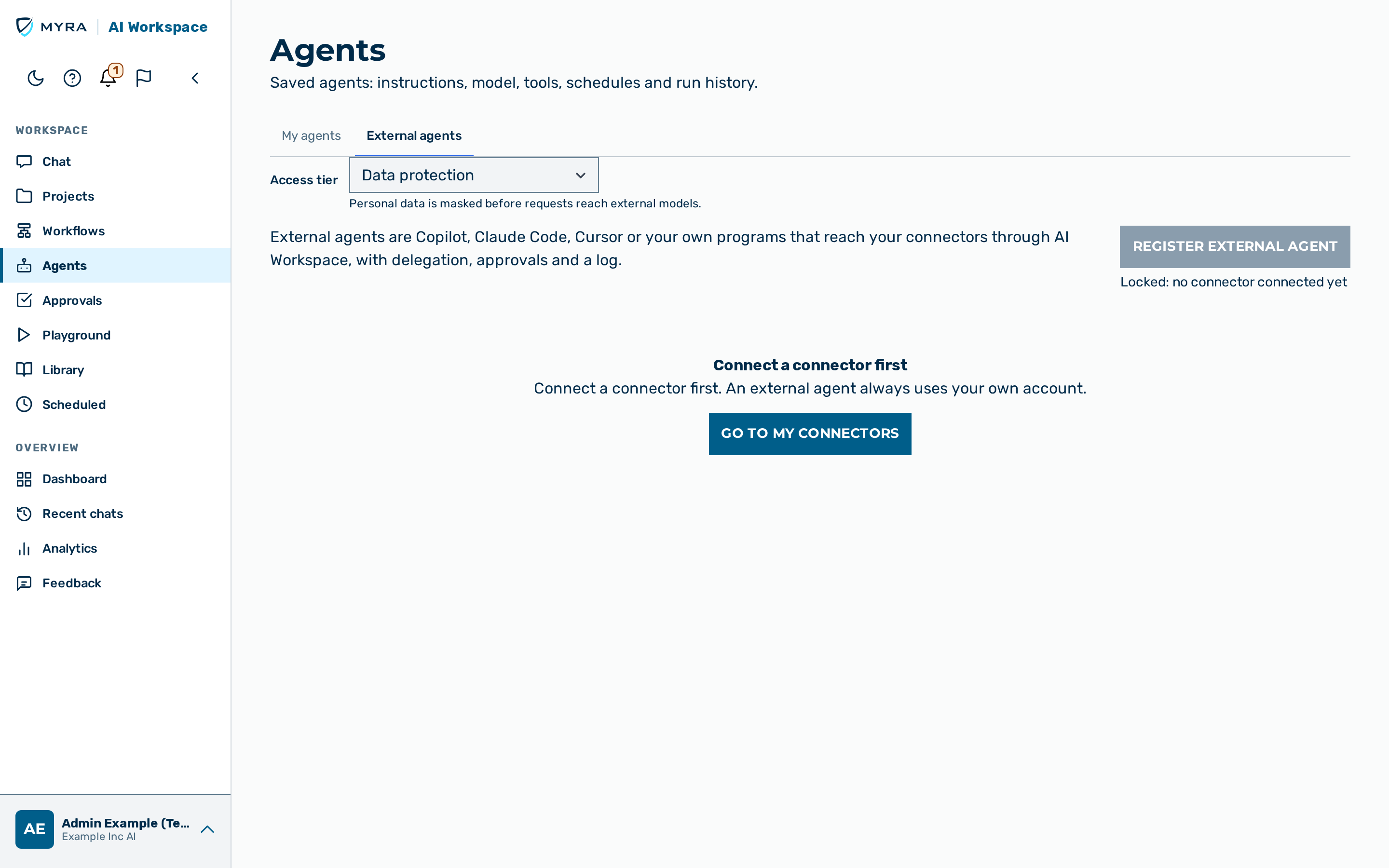
Open Agents and choose the External agents tab (?view=external). The tab lists every external agent you
may see, with its name, platform, owner, its status (an icon plus words), the time of its last call and its figures for the
last 24 hours (calls and blocked calls). With 25 or more entries a search and filters for status and platform appear,
and the list shows 25 entries per page. The search also matches the purpose, which is shown on phone cards.
| Status | Meaning |
|---|---|
| Active | The agent can reach your connectors now |
| Paused, Paused · automatic protection | Access is paused by a pending hand-over or by the automatic protection |
| Not connected yet | The agent has never had a token or grant |
| Expired | Every token it had has run out |
| Revoked | Its access was withdrawn; the row shows the date |
| Status unknown | The access state could not be read as expected; nothing is guessed |
Owners see their own external agents with all details, and administrators see all of them. If an agent is shared with you and you neither own nor administer it, its row shows the name and platform and the status "No details", without figures. A viewer without the right to register agents sees a note naming an administrator to ask. If the list cannot be loaded, the tab says so and offers Retry.
The unverified clients agent
Each workspace has a system agent named "Nicht verifizierte Clients" (unverified clients) (created by the system, listed in the External agents tab). It stands for apps that registered themselves without being verified. Opening it shows a read-only page: the number of connected clients, its calls in the last 24 hours, the calls waiting for approval, its owner, and what it may use. Without approval it may only read, in the shared connectors listed on the page; connected accounts you cannot see are counted, never named. Every write or delete is held until the person who agreed approves it, also in chat. Nothing on this page can be edited, and it has no tokens. To give a client more rights, take it over in an external agent of your own. Switching off the registration of unverified clients is done under Organisation › External apps.
Managing an external agent
Click a row in the External agents tab to open the agent (?view=external&detail=<id>). The page shows the platform,
purpose and owner, the connectors it may use with the tool limits, its endpoint, the state of its access, and its figures for
the last 24 hours (calls and blocked calls). Users who may view the request log also find a link to the agent's activity.
The breadcrumb leads back to the list. If the agent no longer exists, or you may not see it, the page says so and offers a way back.
- Rotate the token. Choose Rotate and confirm. The old token stops working at once and the new one is shown once, next to the endpoint. Copy it, confirm that you saved it and click Done. This is also the way out when you have lost a token, or when the token list cannot be read as expected.
- Revoke a token. Choose Revoke on a token in the list and confirm. The token is refused from then on, and the access
shows as revoked together with who revoked it and when. What happens when revoking does not work:
- The server refuses it (403, for example your role may not change this agent): the page says so and claims nothing about the token. There is no Try again, because repeating the request cannot help; ask an administrator.
- Agents are switched off for your workspace (also a 403): the page says the token was not revoked. There is no Try again; ask an administrator to switch agents back on.
- The token or the agent is already gone (404): the page shows the current state instead of an error.
- A server error (5xx) or a network failure: the revoke may not have taken effect, so the page tells you to check the token list and offers Try again. If the token list itself is refused because agents are switched off, the agent page shows that reason instead of the list, with no Try again. Rotating behaves the same way: a refusal is shown with its reason and no retry, and says nothing about the old token; a missing agent leads to the not-found state; a server or network error offers Try again, and the page re-reads the token list, so the list shows whether the old token is still active.
- Change the permissions. Choose Edit permissions in the permissions card. The dialog shows the connectors and tools the agent may use, prefilled with what is saved now. Add or remove connectors and tools, then choose Review changes: the review lists what will be added and what will be removed, and Save applies it. Notes:
- Only the person who registered the agent or an administrator can edit. For everyone else the link is disabled and says why. A revoked agent has no edit link.
- Review stays disabled, with the reason next to it, until you have changed something or while the connectors are still loading or could not be loaded.
- Grants you cannot see (for example connectors that were removed from the workspace) are kept as they are; a grant the page cannot read is replaced when you save, and the review says so.
- An administrator editing another person's agent can only add connectors that are available to that person.
- A saved change may send an approved agent back to review; the dialog says so beforehand and the confirmation message repeats it.
- If your workspace requires a second administrator's approval for such changes, the change is held: the card says it is waiting for approval and the current permissions apply until then. Editing stays disabled until you reload the page; after a reload the current permissions are shown again and the request remains in the approvals inbox until it is decided.
- While a save is running the dialog stays open and cannot be closed: Cancel, Back, the close button, Esc and a click outside are disabled and the dialog says Saving…. The answer is always shown in the dialog itself.
- A refusal is explained in plain words and nothing is claimed saved. If the agent was changed elsewhere in the meantime, nothing is saved and the dialog offers only Close (there is no Back and no Save, because saving on the old state would overwrite the other change); open it again to edit the current permissions. If the server rejects the change, use Reload to see the current permissions; there is no Save again, because repeating the same request cannot help. If the answer is lost (server error, network failure or an unreadable answer), the dialog says the changes may or may not have been saved: use Reload to see the current permissions, or Save again. If the agent no longer exists, the page shows the not-found state.
Sign-in via OAuth
Besides its token, an external agent can be linked to one OAuth client, so that people connect by signing in (for example from Claude Code) instead of pasting a token. The Sign-in via OAuth section of the agent page shows the state: none, a verified client, a client that is not verified, or a link that cannot be read (the page then says so instead of showing "none").
- Link a client. Choose Link OAuth client and enter the client ID that the person who wants to connect gives you. Two kinds are accepted: an
https://address with a path (the address of the client's ID metadata document; it is linked at once and shown as Verified), or an ID that starts withdcr_(a client that registered itself). - Promote an unverified client. A
dcr_ID leads to a confirmation first: the client then acts through this agent, with the agent's permissions, no longer read only, and its existing connections move here at once. Afterwards the section shows it as Not verified with its ID. Only promote a client whose ID you got from the person who uses it. - Change or unlink. Change replaces the client after a confirmation (people signed in through the old app must sign in again). Unlink removes the link after a confirmation; the agent keeps its token.
- Refusals appear next to the field, and your entry stays:
- The ID is empty or ill-formed: the field refuses it before anything is sent and says what is allowed.
- The server cannot accept the ID (
400,invalid_oauth_client_id): the field shows the same message. - The client ID is already linked to another external agent: unlink it there first (
409,oauth_client_already_mapped). - No client is registered for the
dcr_ID: check the ID, the client may have registered again (400,unknown_oauth_client). - This agent cannot be linked to a client (
400,oauth_client_id_not_allowed). - The check is not possible right now (
503): try again in a moment. - Your role may not change the agent, or agents are switched off for your workspace (
403): the field says so; your entry stays. - The agent is gone (
404): the page shows the current state.
- Approval. Where changes to agents need a second person's approval, the change is held: the page says it is waiting for approval and shows the old state until it is approved.
- Review. A change can put an approved agent back into review; the success message then says so.
The section is not shown for a revoked agent. Through the API this is the oauth_client_id field of PATCH /admin/v1/gateways/{gateway_id}/agents/{agent_id} (null unlinks).
Long names, purposes and owner names wrap inside the page, also on a phone and in German.