Approvals
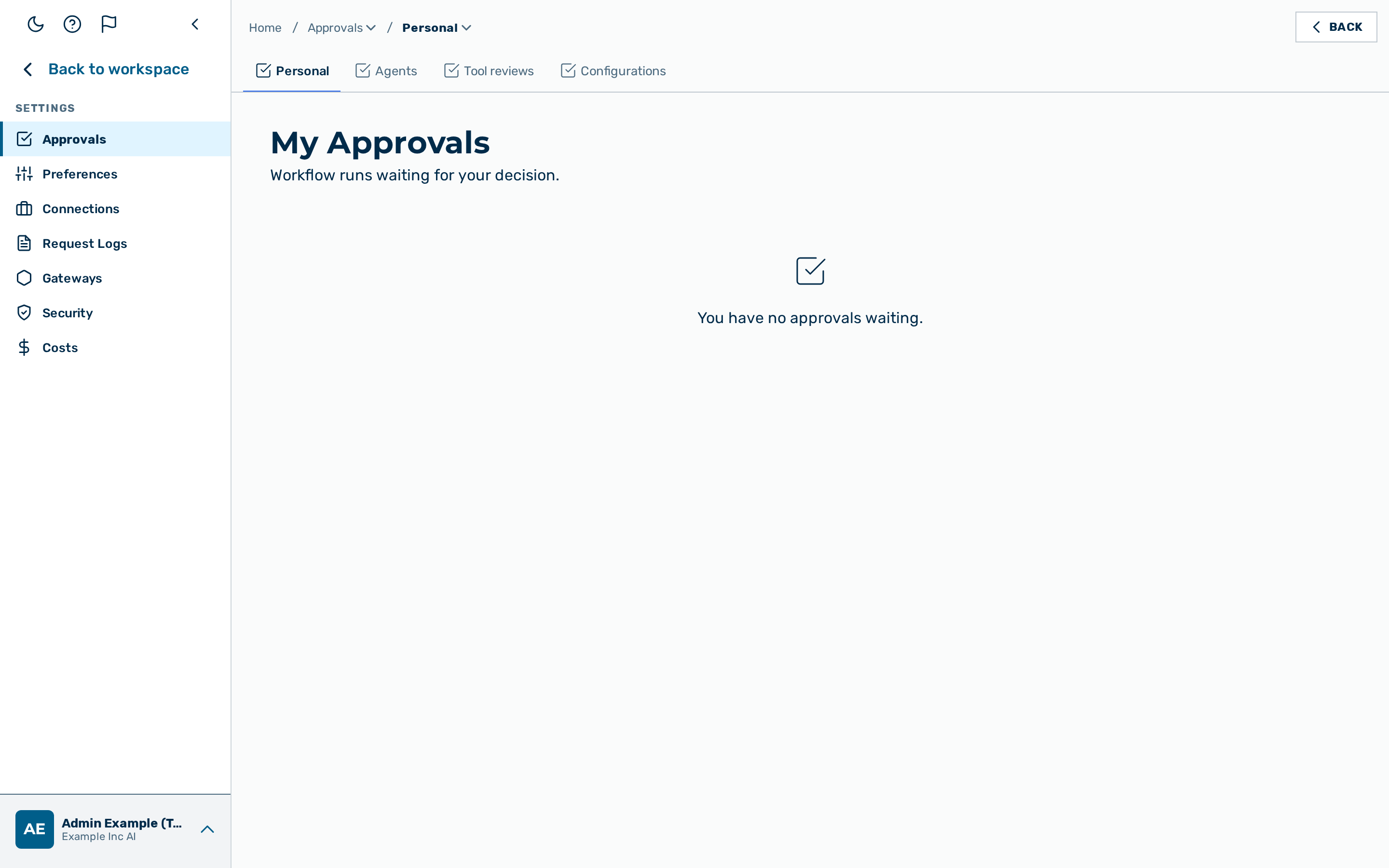 The Approvals inbox, with the count badge on the sidebar row.
The Approvals inbox collects the workflow runs and held tool calls that are waiting for your decision. When a workflow reaches a Human-Approval step and names you as the approver, its run is suspended and appears here until you approve or reject it.
It is the Approvals row of the workspace sidebar (route /approvals, German: Freigaben),
directly below Agents. The row is shown when the Agents workspace is switched on for you, or when you hold a tool-review or governance permission; the page at /approvals also opens directly by its address. Any user can be named as an
approver, whether or not they can build workflows. You see and decide only the requests where you
are the named approver. (Administrators find the further approval queues under
Settings › Approval management.)
If your account has no home tenant (for example a platform administrator who is not assigned to a
tenant), the Approvals row is shown but disabled, with the hint Select a tenant first., and
opening /approvals directly shows the same hint instead of the inbox.
The count badge
A red round badge on the Approvals row shows how many requests wait for you. It is the sum of your open held tool calls and your open workflow approvals (and, for tenant administrators, the agents waiting for review) and always equals the number in Open (n) in the inbox. Above 99 the badge reads 99+. In a collapsed sidebar the badge stays visible on the icon, and in the mobile menu it sits on the Approvals entry.
The badge refreshes when you return to the browser tab, after you decide a request, and every 60 seconds. If the count cannot be loaded, or the answer is not a valid number, no badge is shown rather than a misleading 0. While you are viewing as another user, the badge is hidden.
💡 Note: This inbox is for workflow Human-Approval steps and held tool calls that would use your credential. Scheduled agent-run deliveries that require sign-off before they are sent are handled separately on the Agent approvals tab of Settings › Approval management, available to administrators and tenant administrators.
Each pending request is shown as a card with the workflow name, who requested the run (Requested by), the decision deadline (Decide by), the cost so far (Cost so far), the approval Step, and a short Run reference. When the inbox is empty, the page shows You have no approvals waiting.
For the underlying API — the inbox, the detail, and the decision endpoint — see the Workflows API reference.
Open and Done
The inbox lists two kinds of requests in one list: workflow Human-Approval steps and
held tool calls that would use your credential. A switch at the top
chooses between Open (n) and Done. The choice is kept in the address (?view=done), so a
reload returns to the same view.
Open shows everything that waits for you, sorted by deadline, the nearest first. Requests without a deadline come last. Each row shows the title, who or which agent asked, and the time left as Due: … with a clock. A deadline of less than 24 hours is highlighted in red; the words stay, so the state is never conveyed by colour alone. Selecting a row opens its page: the confirmation page for a workflow run, the approval card for a held tool call. The Review text on the right of each row is a hint, not a second button — the whole row is one link.
- The number in Open (n) counts what you can decide right now. It leaves out held tool calls whose time has run out, workflow approvals whose deadline has passed, and calls that wait for a second person after your own approval.
- A call that waits for a second person after your approval is listed, greyed out and marked Waiting for a second person. If you are the second approver, the row says second approval needed and counts.
-
A workflow approval whose deadline has passed but which was not yet closed by the system is still listed, marked Deadline passed. It is not counted, and the server decides when you open it.
-
Agents waiting for review are listed for tenant administrators (and a platform administrator working in a tenant) only, and only while the tenant requires agent review (Settings › Approval management). Each row shows the agent name, its owner and when it was submitted, with a Review link that opens the agent on its Governance tab, where you approve or flag it. They come after the rows with a deadline, the longest waiting first; an agent whose submit time is unknown reads Waiting for review and comes last. Agents on non-production gateways are not listed, and neither are agents still in review after review was switched off. Only the 2000 longest-waiting agents of a tenant are counted, so with more than that waiting the Open count and the badge understate the total. They count in Open (n) and in the badge; past 200 entries the list shows the first 200 with a hint, and the badge shows the full number. AI managers and members never see these rows.
Done shows the held tool calls assigned to you that are approved, denied, expired or closed, newest first, with a status chip. A held call whose time ran out before anyone decided appears here as Expired. Done lists only held tool calls assigned to you. If you could only give the second approval and someone else decided, the call does not appear in your Done list. Done is loaded when you open it and shows the newest 500 entries; the Open list shows up to 200 workflow approvals. Decided workflow runs are not part of Done.
Note: Held tool calls lapse after their deadline and then count as rejected. Workflow approvals follow the timeout policy of their workflow instead.
If the held tool calls cannot be loaded, the workflow approvals stay visible and a notice above the list offers Try again; the same applies the other way round. While you are viewing as another user, held calls are not shown.
Reviewing a pending approval
 The approval confirmation page.
Selecting a card opens the confirmation page for that run. The page is the trust surface for the decision: it names the workflow, who requested the run, the run reference, the approval step, the cost so far, and the deadline.
Under What was produced so far, the page shows the output the run has produced up to the approval step, rendered as readable text where possible, with the raw detail available under Technical details. When the run has handled personal data, a notice states that delivery stays blocked until the data is cleared.
Proceed as follows to open a request for review:
- Click on a card in the Approvals inbox.
-> The confirmation page for the run opens, showing the run summary and its output so far.
To return to the inbox without deciding, click on the Back to approvals link.
Approving a request
Approving a run lets it continue past the approval step.
Proceed as follows to approve a run:
- Review the run summary and the What was produced so far section.
- Click on the Approve button.
-> The run resumes and continues past the approval step, and the request leaves your inbox.
Rejecting a request
Rejecting a run ends it. A reason is required, so the run owner can see why the run was stopped.
Proceed as follows to reject a run:
- Click on the Reject button.
- A Reason for rejection text field appears.
- Enter the reason in the Reason for rejection text field.
- Click on the Confirm rejection button.
-> The run ends, the rejection reason is recorded on the run, and the request leaves your inbox.
💡 Note: A reason of between 1 and 1000 characters is required to reject a run. To abandon the rejection without deciding, click on the Cancel button.
Each run can be decided only once. If the run was already decided, or its deadline passed first, the confirmation page reports that the run is no longer available and returns you to the inbox.
Deciding a held tool call
When an agent run is held because it wants to use a tool that needs sign-off, and your credential
would be used, the request has its own page: /approvals/tools/{id}. It is the approval card.
The card is at /approvals/tools/{id}. Open it from the Open approval button in the hold notification email, from the push notification, from the chat message you receive, or from the Open link on a held-call row in the reviews list (shown only on rows you can decide).
The card shows:
- a status chip: Needs approval, Approved, Denied or Expired, with the time left to decide;
- the agent, the tool and its connector, and whose credential the call would use (You when it is yours);
- a preview of the tool call with its arguments. Sensitive values are masked. When the arguments were not stored, the card says why and names the tool instead;
- for connectors that require four-eyes approval, how many of the two approvals are done.
Proceed as follows to decide a held tool call:
- Open the approval card from its link.
- Check the tool and the arguments.
- Click on the Approve or Reject button. On a computer with a keyboard you can also press A to approve or R to reject.
-> The card shows the result and the run continues (approved) or stops without calling the tool (denied).
Note: The keys A and R work only while no field has focus and no dialog is open, and a key held down decides once. With four-eyes approval your approval moves the call to Awaiting a second approver; a different person with the AI manager or tenant admin role makes the final decision.
If you cannot decide, the card says why instead of showing the buttons: the call belongs to another person's credential, you gave the first approval already, or the second approver needs the AI manager or tenant admin role. A request that was decided in the meantime, or is not yours, shows a short notice with a link back to Approvals. While you are viewing as another user, held calls cannot be opened or decided.
Who is notified, and for how long a call waits
When a call is held, the person whose credential it would use gets an email and a push notification, and a chat message if a chat connection is set up. With four-eyes approval, the second approver is notified once the first approval is in. Several holds of the same agent within 15 minutes produce one notice, not one each; the others stay visible in your list.
A held call waits 7 days by default. The agent's owner can set 1 hour, 1 day or 7 days (see Approval waiting time). When the time is up, the call counts as rejected and the agent's owner gets an email.
Other holds on the same card
The same card also decides two other kinds of hold:
- A workflow download whose address was taken from outside content. If it expires, the card says: "The download was not made. Start the workflow again to get a new approval."
- A model that searches the web on every call, or that chooses its own search queries (Google search grounding). Approving lets that one call run; the next one asks again.
An expired request cannot be approved or rejected. This also holds in the moments after its deadline has passed, before the status changes to Expired. The card then offers Run again for runs that came from a schedule, and, for the credential holder, a Change the waiting time link to the agent. Runs that did not start from a schedule cannot be restarted here.
A call that an external agent sent through the MCP proxy has no run. It is marked External agent (with the platform, such as Cursor, when known) and the card says that the call came through the MCP proxy from an external client. If it expires, the card offers neither Run again nor Change the waiting time: the external client can send the call again, and a new approval then appears.